Configuration Manual — Janitza
1. Introduction
Dear customer,
The following configuration instructions describe the integration of Janitza meters into FEMS. Please read these instructions carefully before starting the installation and configuration.
2. Product description
The following meters are compatible with FEMS and can be integrated:
-
UMG 96RM-E network analyzer
-
UMG 604-PRO network analyzer
-
UMG 96-PA-MID+ network analyzer
-
UMG 511 power quality analyzer
-
UMG 512-PRO power quality analyzer
3. Integration via Modbus/TCP (Ethernet)
Installation of the meter and configuration according to the manufacturer’s instructions.
3.1. Configuration of the meter
For integration via Ethernet, the following parameters must be set in the meter itself:
-
A fixed IP address must be assigned during the Ethernet configuration.
| FEMS and Janitza meters must be in the same network! |
-
Janitza also offers a BOOTP and DHCP mode. These are incompatible with FEMS!
3.2. Configuration of the app
When you ordered the FEMS App Production and Consumption Meter, you received a 16-digit license key. You can redeem the app independently in the FEMS App Center using the license key. You can find instructions on how to do this at here.
After entering the license key, the configuration interface appears.
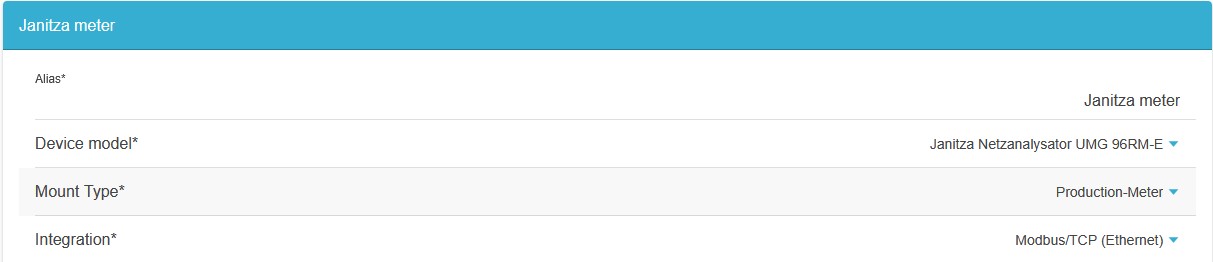
Select the device model (here: UMG 96RM-E network analyzer), the type of use (here: as a production meter) and the integration (Modbus/TCP (Ethernet)).
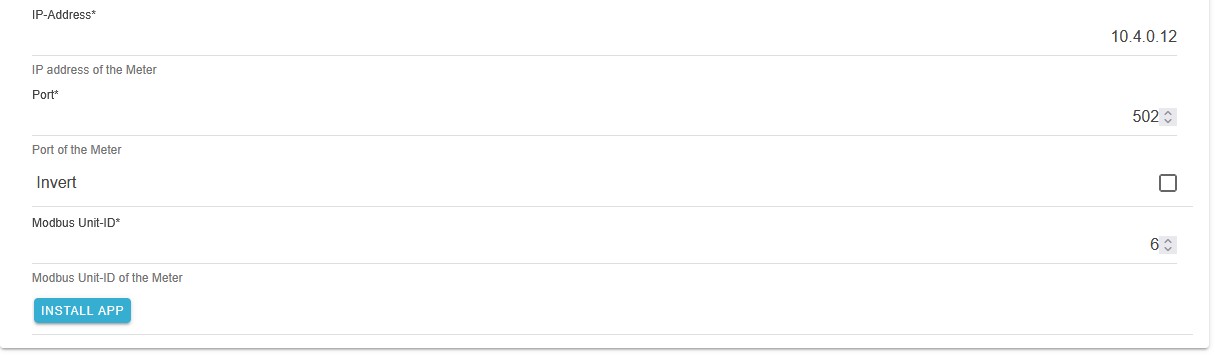
Then enter the IP address and port from the configuration of the meter section, as well as whether you want to invert the meter values. The Modbus unit ID is only used internally and does not need to be adjusted.
Complete the setup by tapping/clicking on INSTALL APP.
4. Integration via Modbus/RTU (RS485)
Installation of the meter and configuration according to the manufacturer’s instructions.
4.1. Configuration of the meter
For integration via RS485, the following parameters must be set in the meter:
-
Baud rate: 9600
-
Stop bit: 1
-
Parity: None
The Modbus unit ID stored in the app must match the Modbus unit ID set on the Janitza meter on site.
4.2. Configuration of the app
When you ordered the FEMS App Production and Consumption Meter, you received a 16-digit license key. You can use this license key to redeem the app independently in the FEMS App Center. You can find instructions on how to do this at here.
After entering the license key, the configuration interface appears.
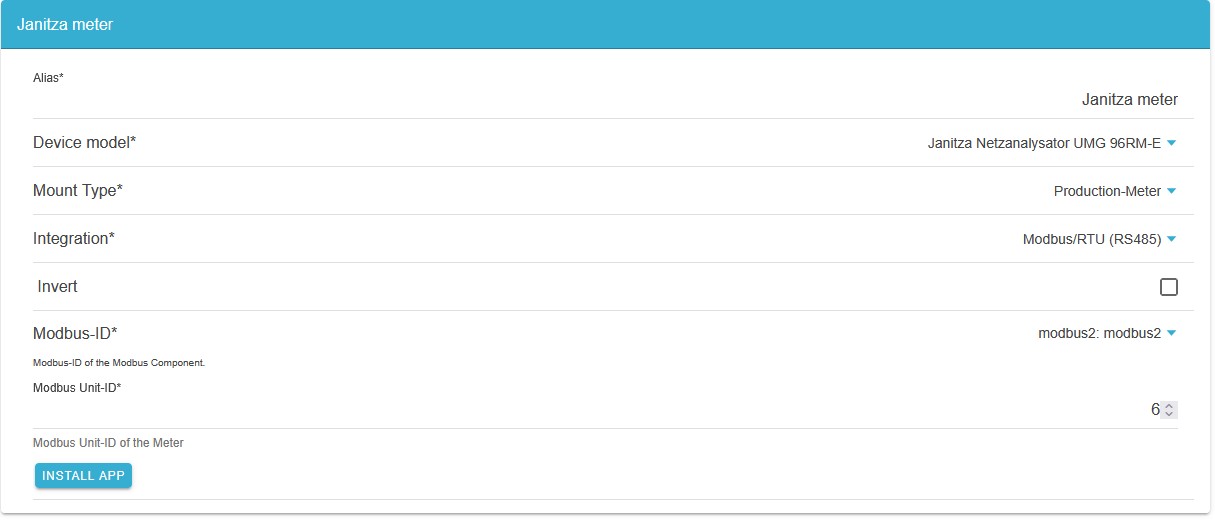
Select the device model (here: UMG 96RM-E network analyzer), the type of use (here: as a production meter) and the integration (Modbus/RTU (RS485)).
Then enter the Modbus ID (this may be preselected) and the Modbus unit ID.
Complete the setup by clicking INSTALL APP.