Installation and Access — FENECON Online Monitoring
1. Download for mobile devices
1.1. FENECON app for Android/iOS
The FENECON app is available to download free of charge for smartphones and tablets.
Open the camera app of your device and scan the corresponding QR code:
Android |
Apple iOS |
|---|---|
|
|
You will be redirected to the respective download page.
Alternatively, the app can also be downloaded from the respective app store.
-
Google Play Store für Android
-
App-Store für Apple
-
Search for FENECON.
-
Tap on "Install".
-
⇒ After successful installation, you can access the Monitoring using your login details.
|
The FENECON BETA App for Android smartphones gives you the opportunity to test and evaluate new app features before the official release. Click here to download:
|
2. Access via web browser
2.1. Via FENECON portal
In addition to our app for Android and iOS, you can also access FENECON Online Monitoring via your browser:
Go to FENECON Website and click on the yellow "FEMS-Login" button in the upper right corner to log in with your login data. You will then be redirected to the monitoring.
| Alternatively, you can also use this link to log in directly. |
| Create a shortcut to the login page on your desktop for faster access. This is also possible on mobile devices. |
2.2. Offline/local access
Monitoring can also be used purely locally ("offline operation"). This form of access is useful, for example, in the event of an internet failure if the FENECON portal cannot be reached.
2.2.1. Instructions — Local access
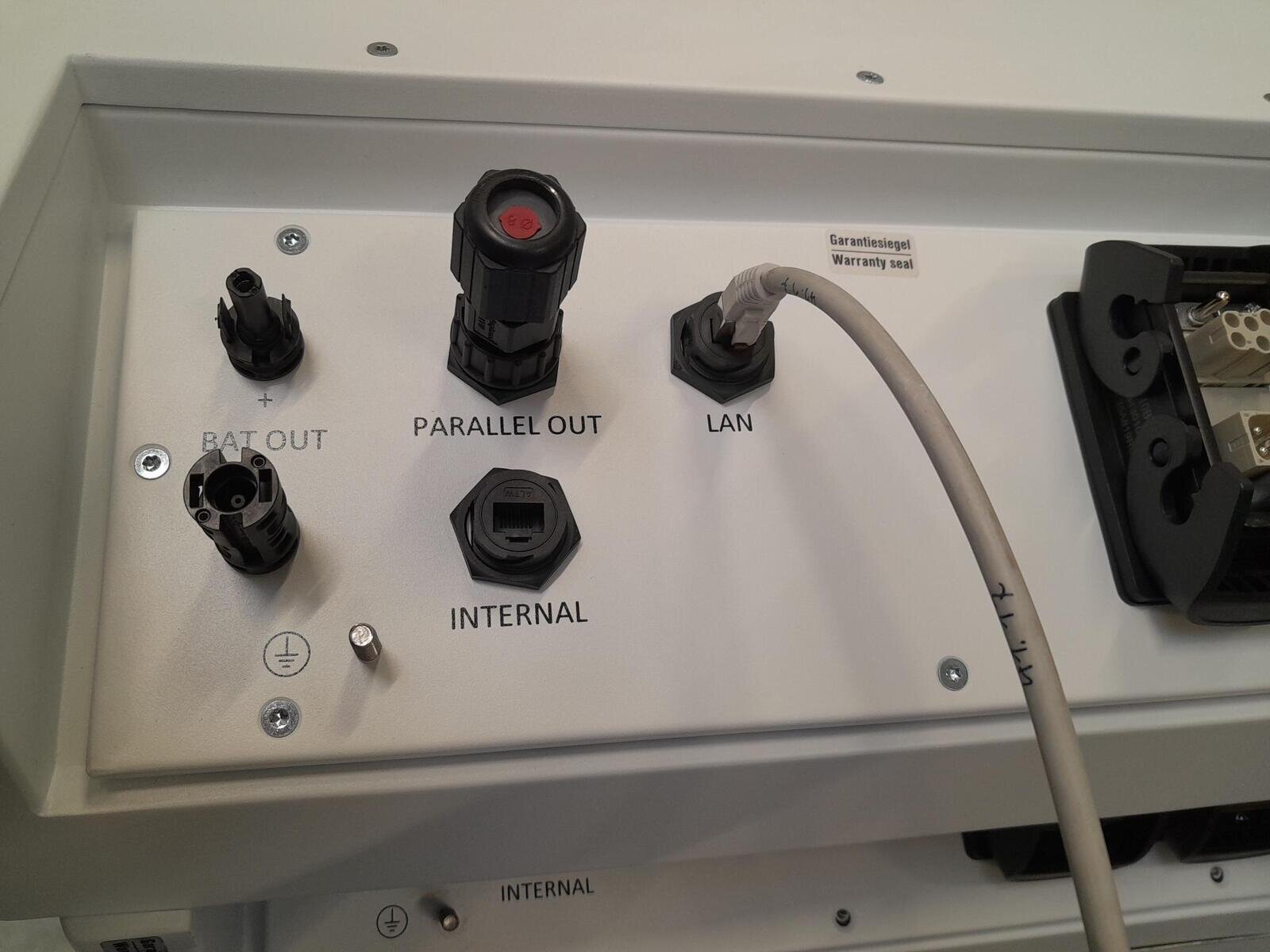
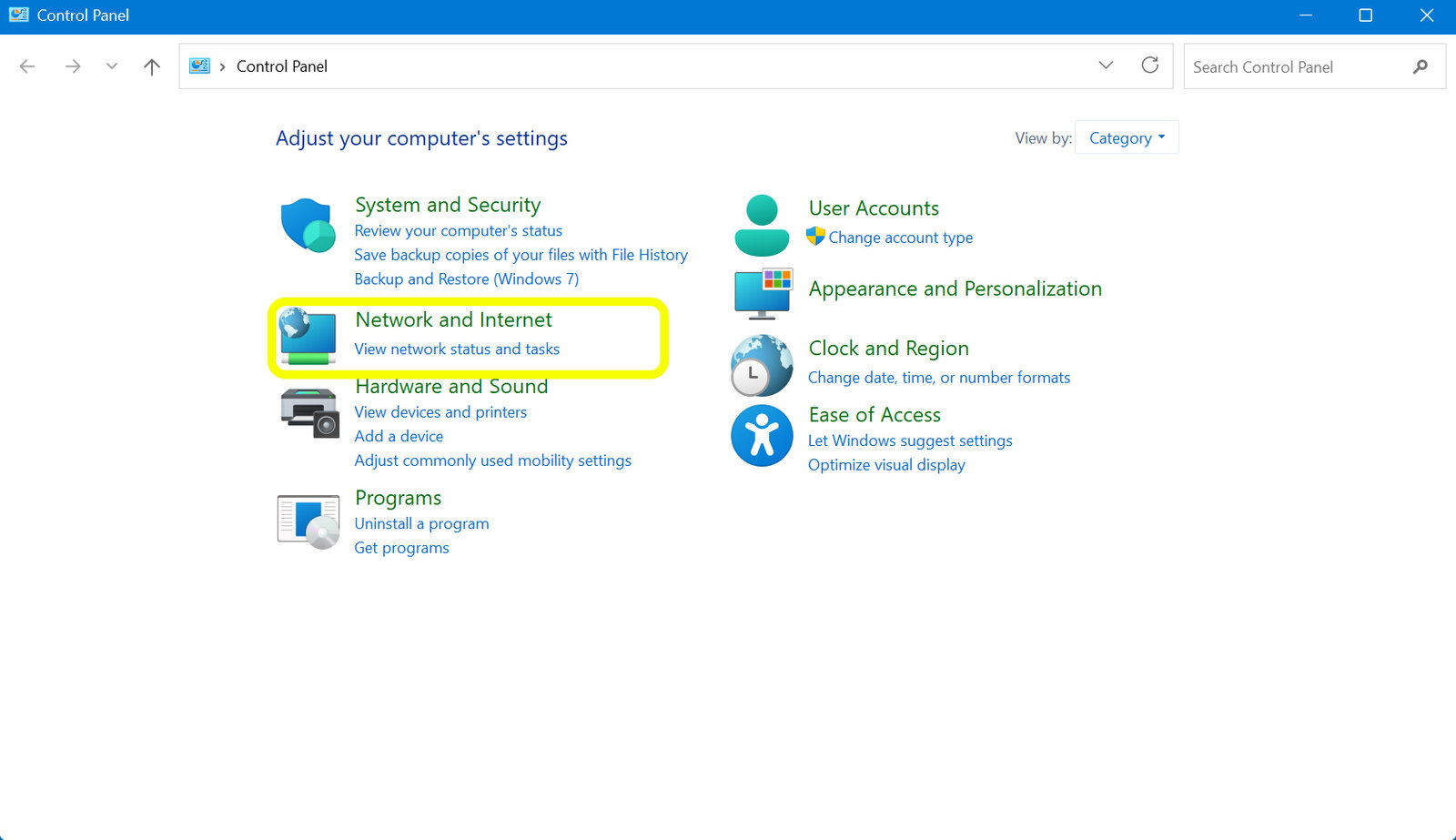
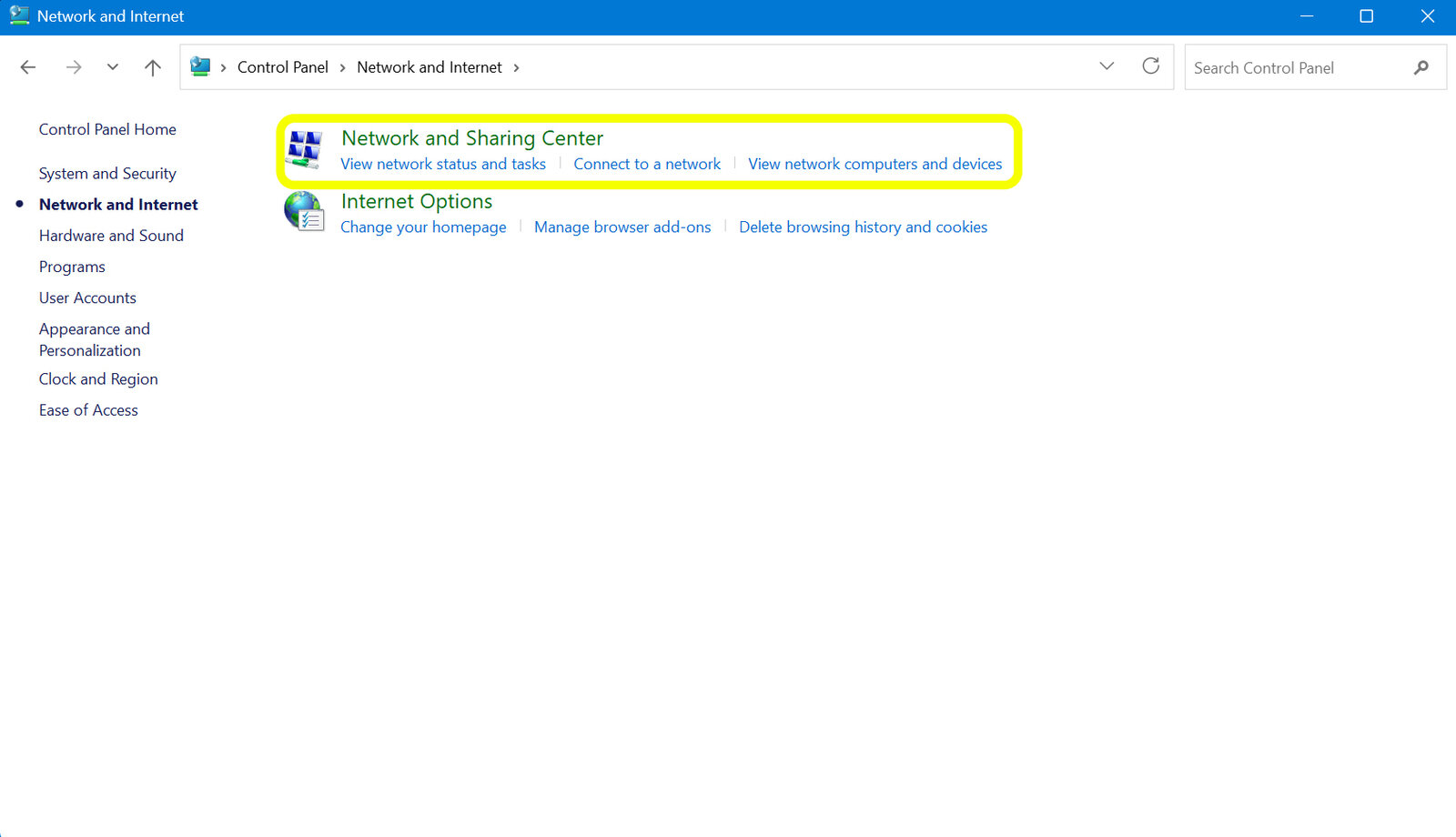
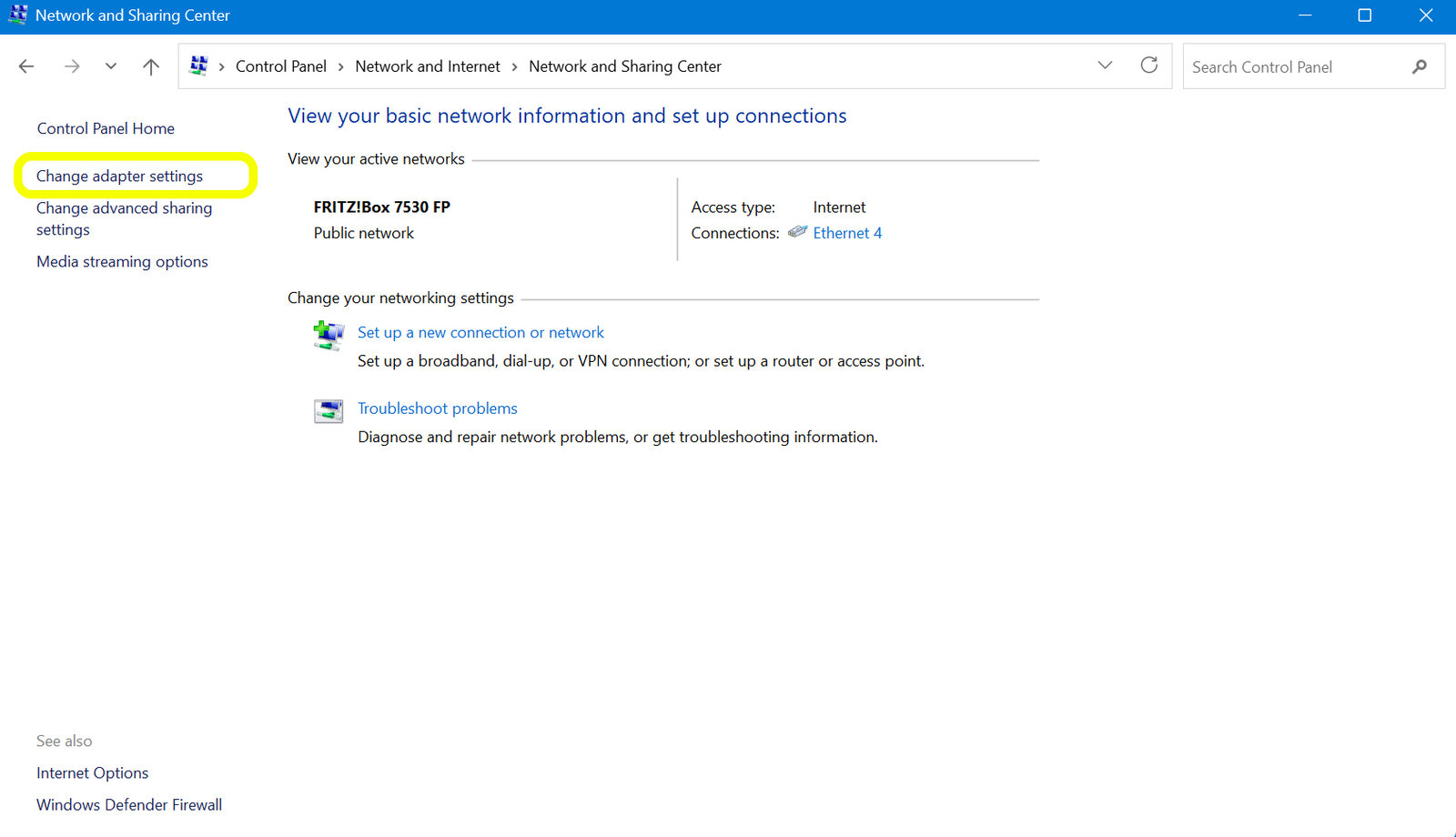
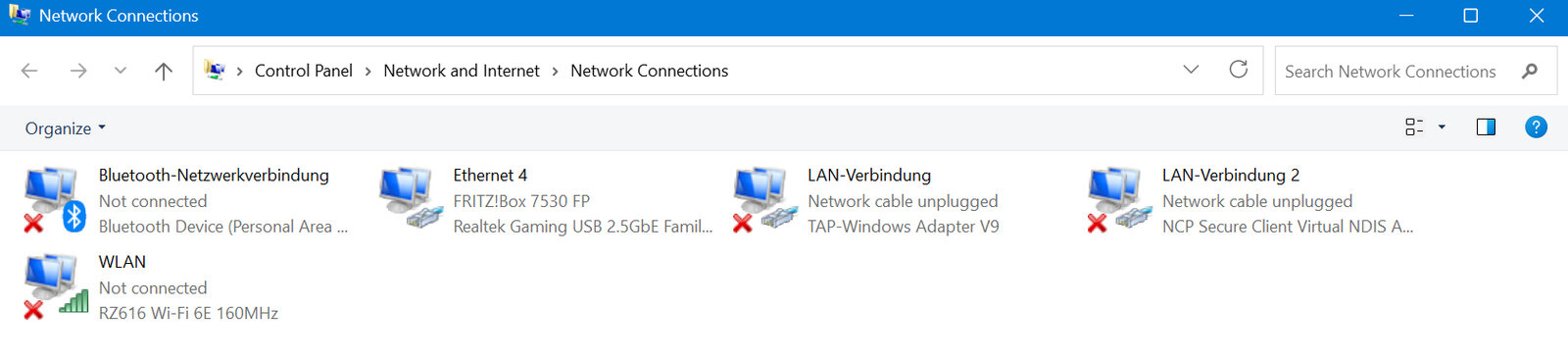
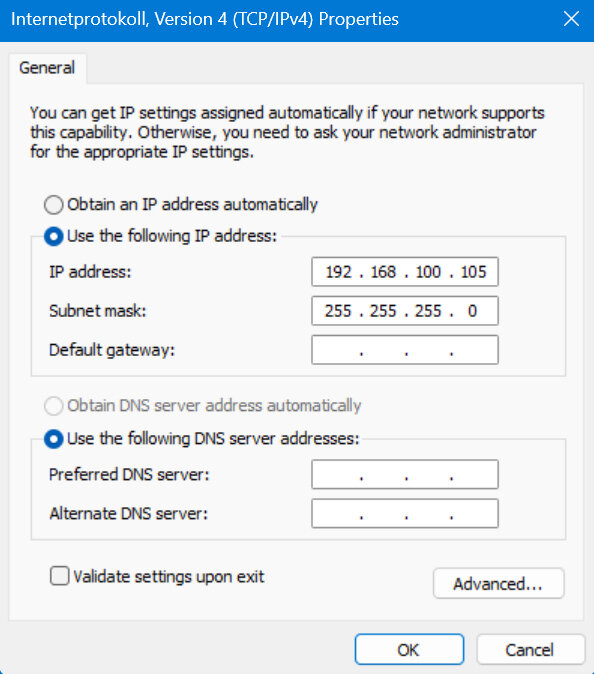
To do this, enter the IP address of the FEMS in the browser. By default, the FEMS automatically obtains an IP address via DHCP. You can view this via the user interface of your router.
| The prerequisite for using local monitoring is that the respective device (e. g. notebook, PC, smartphone) and your FEMS share the same network. |
|
|
|
|
|
|
|
|
|
|
|
|
|

|
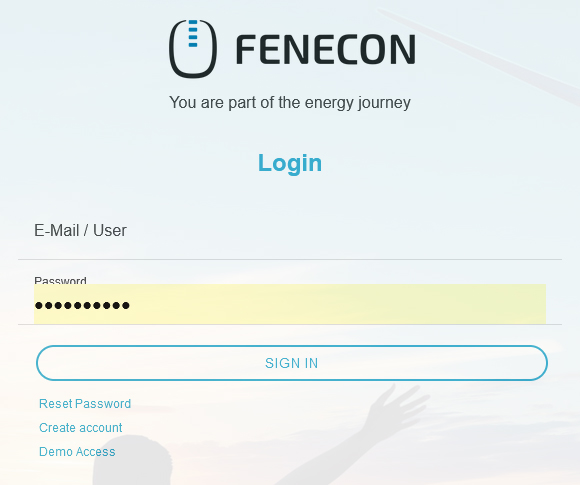
The password for guest access (guest) is stored by default. To be able to use the rights as system owner as via portal access, use owner as password. After entering the password, you can access local monitoring by clicking on the Login button. |
|
|
2.2.2. Firewall and target addresses
The following services are active on the FEMS and require an internet connection to the respective target addresses:
| Service | Destination address(es) | Destination port |
|---|---|---|
DNS |
(IP of the + DNS server assigned by DHCP) DNS server assigned by DHCP) |
53 (DNS) |
Online Monitoring |
144.76.42.217 (fenecon.de) |
443 (HTTPS) |
Time synchronization |
144.76.42.217 (fenecon.de) |
123 (NTP) |
Operating system package updates |
144.76.42.217 (deb.fenecon.de) |
80 (HTTP) |
Remote maintenance |
168.119.5.99 (remote-service.fenecon.de) |
2222 |
|
If you have problems with any of these steps, please check the port release of the router or contact service@fenecon.de. |
3. Access
After logging in — if several FEMS are assigned to the account — you will see a list of FEMS. If there are more than five FEMS, a search bar also appears so that you can find the desired FEMS more quickly. Clicking on the respective FEMS calls up the monitoring of the system.

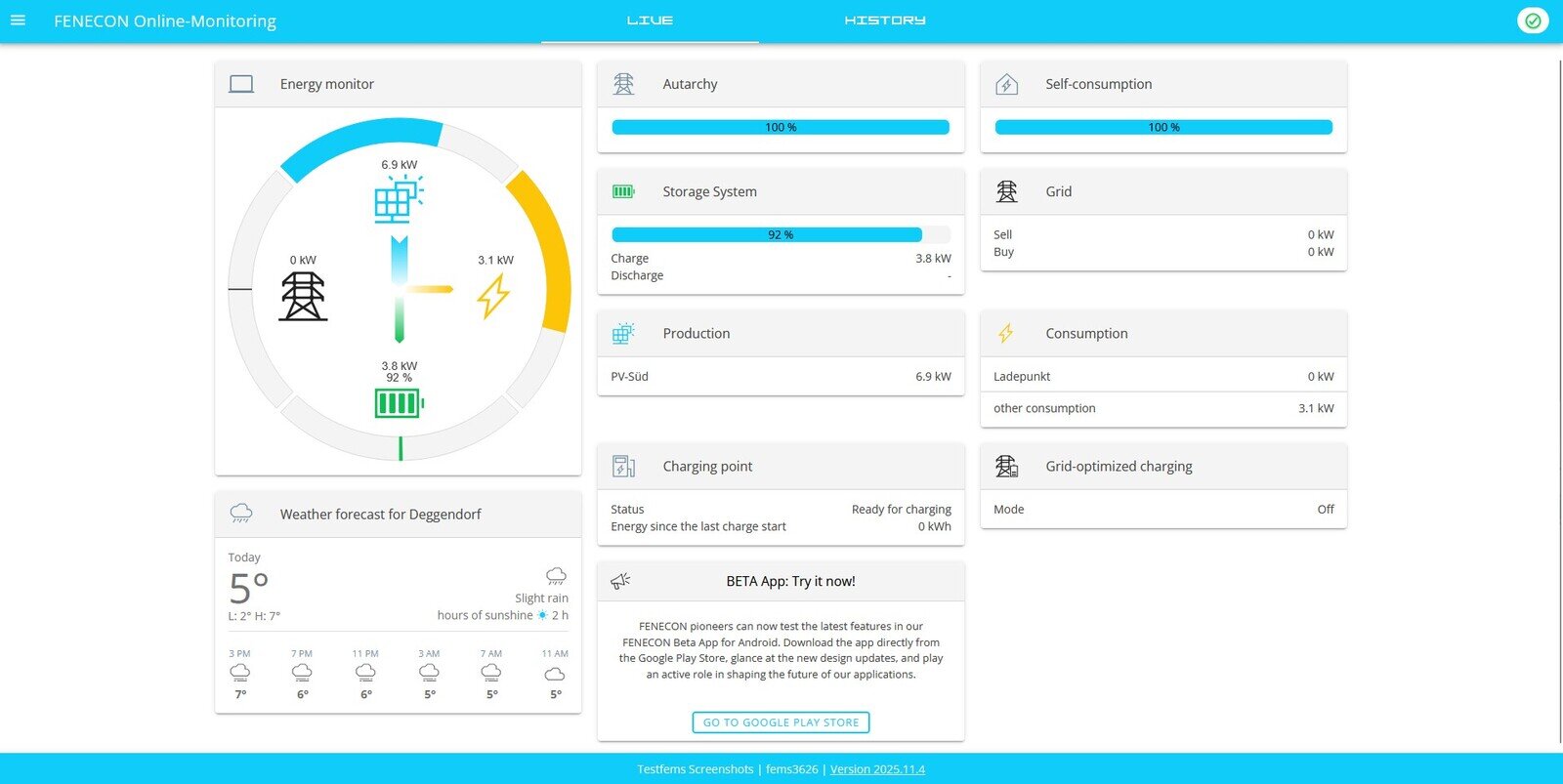
If only an FEMS is assigned to the account, this forwards directly to Monitoring:
4. General widgets
Das FEMS-Monitoring arbeitet mit Widgets .
In FEMS, widgets have two different forms:
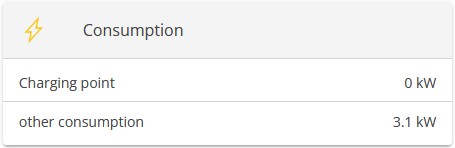
- Flat widget
-
only displays the relevant and simple values/information.
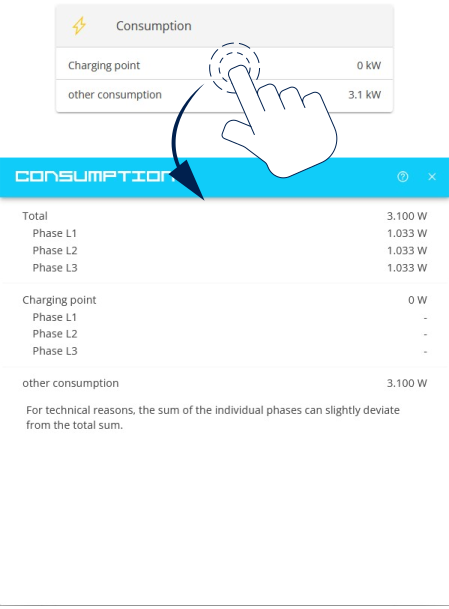
- Advanced Widget
-
shows an extended view with detailed values/information and allows configuration options if necessary.
Tapping/clicking on the flat widget takes you to the Advanced Widget.
Further information on all standard widgets can be found on the page Introduction — Standard widgets and history.
5. Change or reset password
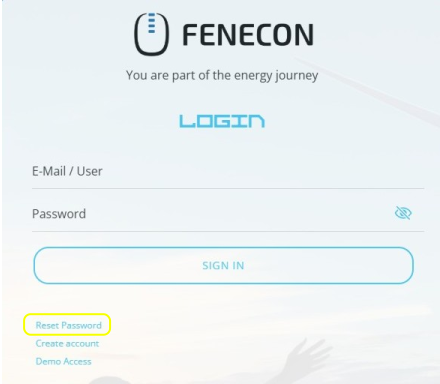
To change the password, or if the password has been forgotten, it can be reset using the "Reset password" function.
Start at portal.fenecon.de
-
Click on Reset password.
-
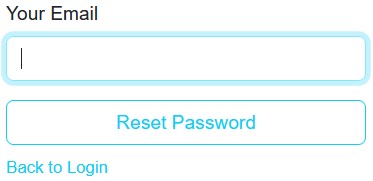
You will be redirected to the following page:
-
Enter your account e-mail address here and click on Confirm.
-
You will receive a link to reset your password by e-mail.
-
If you have not received an e-mail, please also check your SPAM folder.
-
-
Click on the link in the e-mail to assign a new password.
You can then log back in to FENECON Online Monitoring with the new password.
6. FAQ & Troubleshooting
What happens to my data as long as FEMS is offline?
When the FENECON Energy Management System (FEMS) is offline, the generated data is saved locally on the electrical energy storage system. Once the "Online" status has been restored, this data can be forwarded to Online Monitoring within a short period of time. The duration of the forwarding depends primarily on the amount of data and requires a constant internet connection. We would like to point out that data with a corresponding priority will be forwarded, which includes the data that can be seen in the usual Online Monitoring.
My FEMS is online again, but the data I sent seems to be incorrect. How does the data correction work?
Slight errors may occur when data is forwarded. The reason for this may be that data from external devices has already been forwarded to our system incompletely. Correcting data involves a great deal of effort, as FENECON has no information about potentially incorrect data transmission, on which calculations are based and the extent of the impact cannot be precisely determined. Furthermore, with regard to data transmission and processing, we would like to point out that no calibrated meters have been installed on FENECON devices to date and that even small deviations can occur in split-core current transformer measurements. Therefore, this measured data does not fulfill any control or billing requirements. Therefore, the data on which the individual values of the forwarding are based can neither be identified as incorrect nor corrected accordingly. For this reason, FENECON assumes no responsibility at this point with regard to the processing of a data correction in the forwarding.