FEMS Settings
The burger menu at the top left of the FENECON Online Monitoring opens a side menu with various settings:
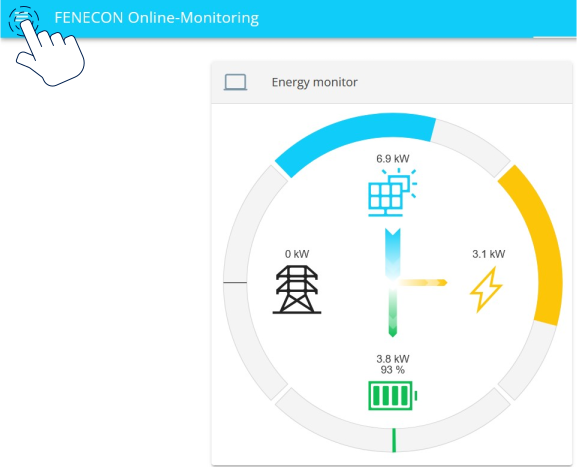
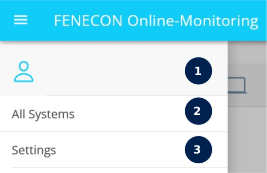
Figure 2. Side menu
|
The Side Menu contains:
|
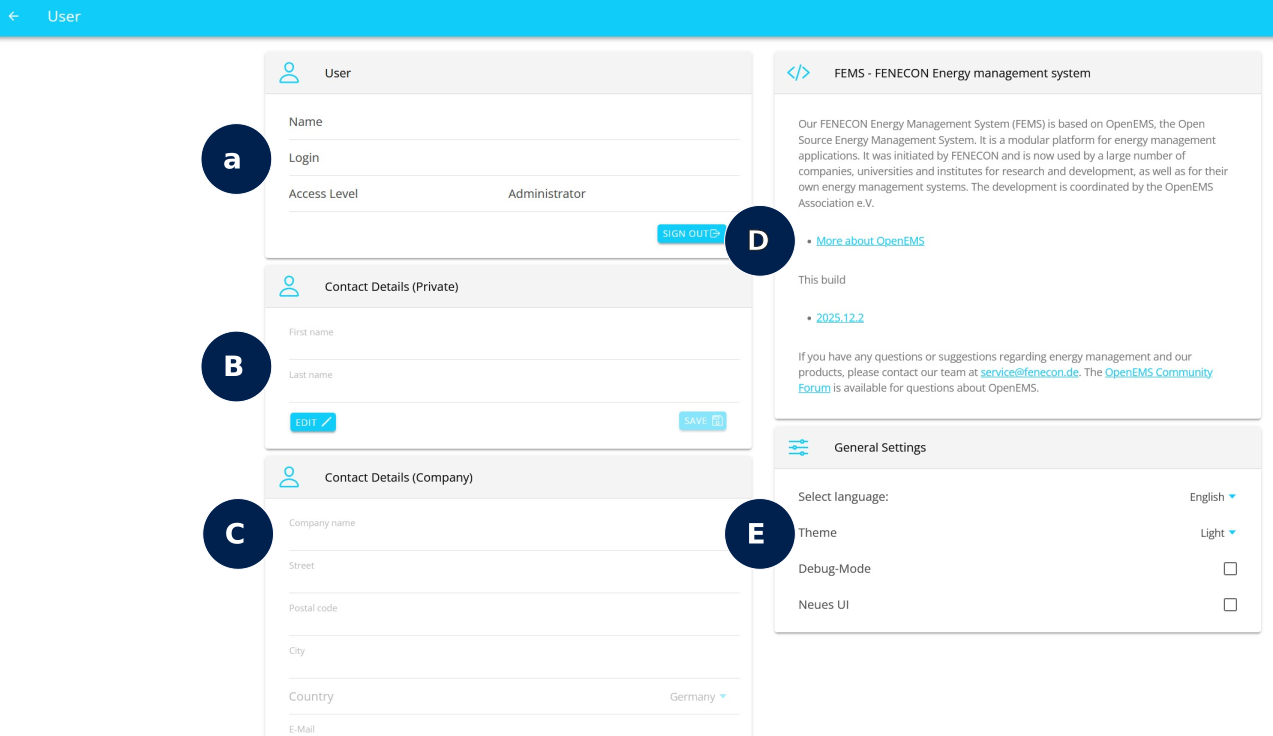
Account settings
-
User
-
You can logout from FENECON Online Monitoring using the SIGN OUT button.
-
-
Contact details (private)
-
Contact details (company)
-
Information on the installed FEMS version
-
General settings
-
Language settings, switching from light mode to dark mode
-
All Systems
This option is relevant for users who manage multiple FEMS installations, including installers.

-
The search bar can be used to search for specific FEMS numbers or account names.
-
Filters offer the option of sorting and refining the search, e. g. by electrical energy storage system (system type; Home, Commercial, Industrial) or system status.
Overview — FEMS Settings
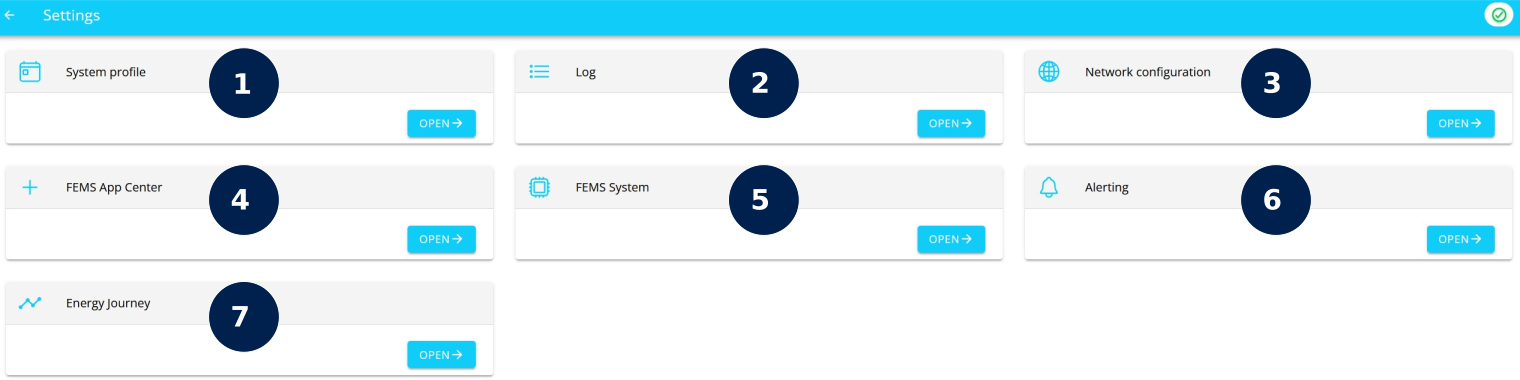
Click on the text to find out more about the respective setting:
1. system profile
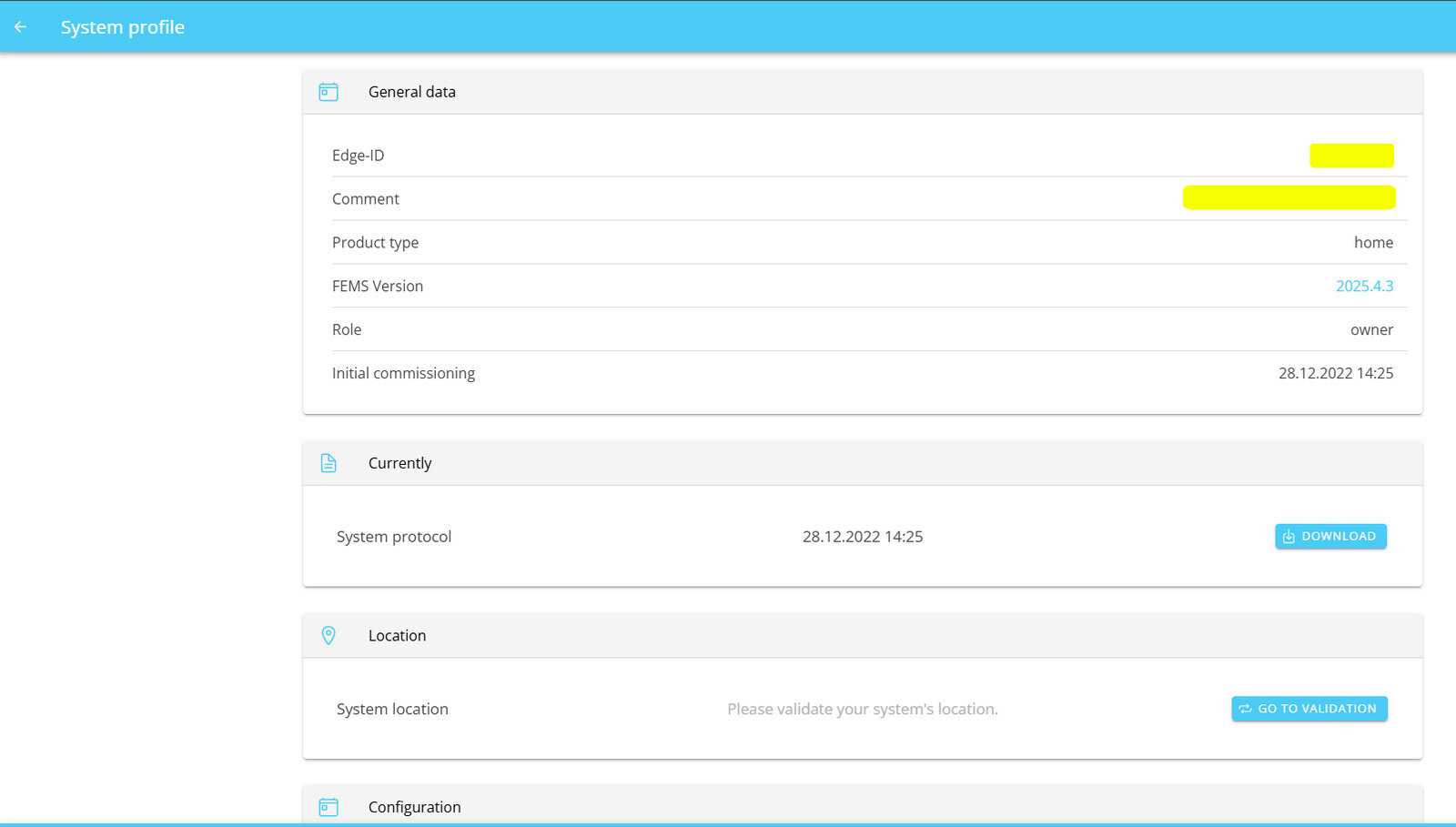
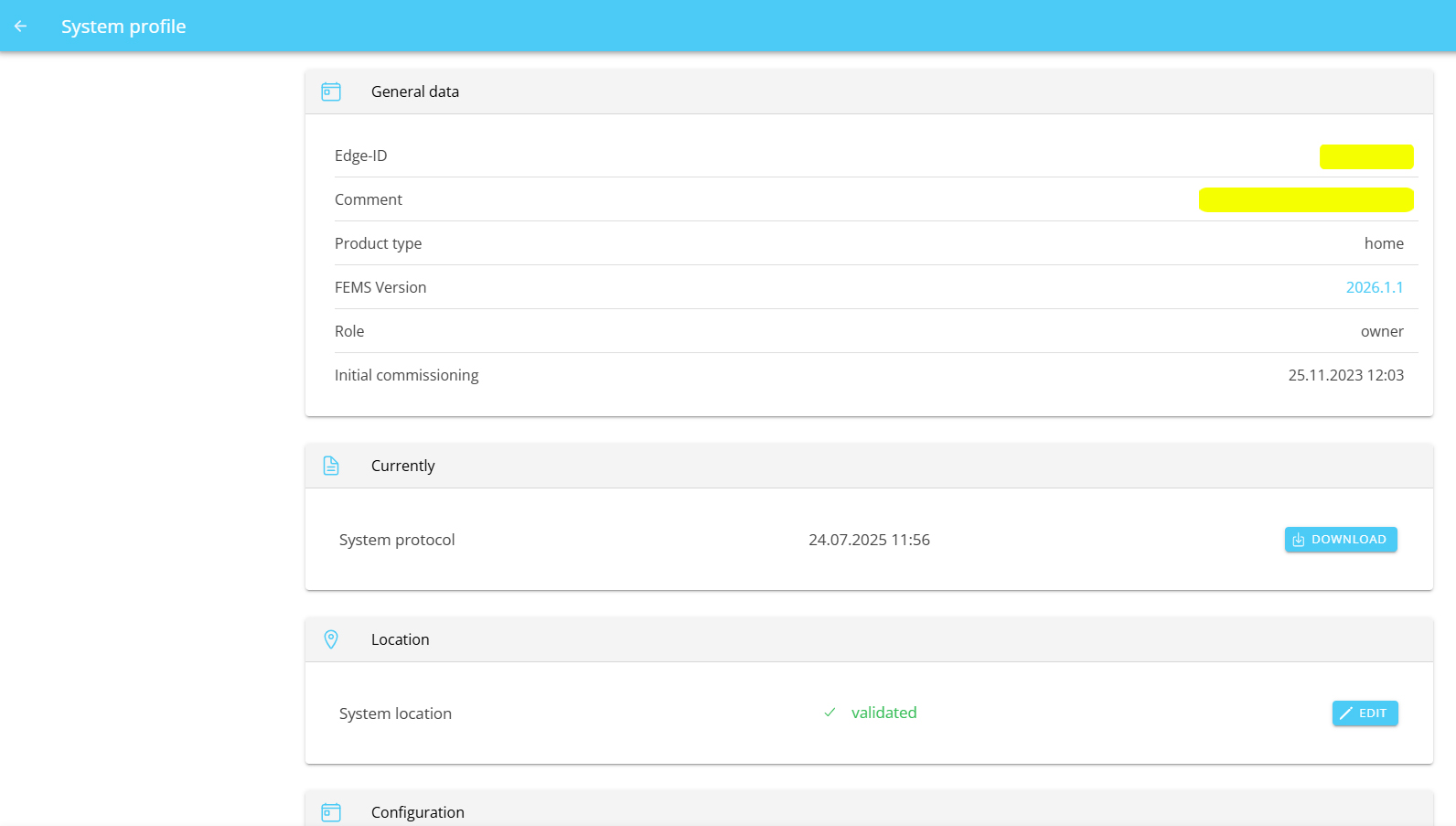
The General data field contains information about the FEMS:
-
Edge ID or FEMS number
-
Comment on the system
-
This is assigned during commissioning and would be, for example, the name of the customer and/or the location of the system.
-
-
Product type
-
Model of the FENECON system
-
-
The version number of the installed FEMS
-
The role of the logged-in user
The Currently field allows you to download the commissioning report and, if available, other system reports as PDF.
You can validate the location of the system via the Location field. This is required e. g. for the use of the FEMS App weather.
If you click on GO TO VALIDATION, the following input mask appears:
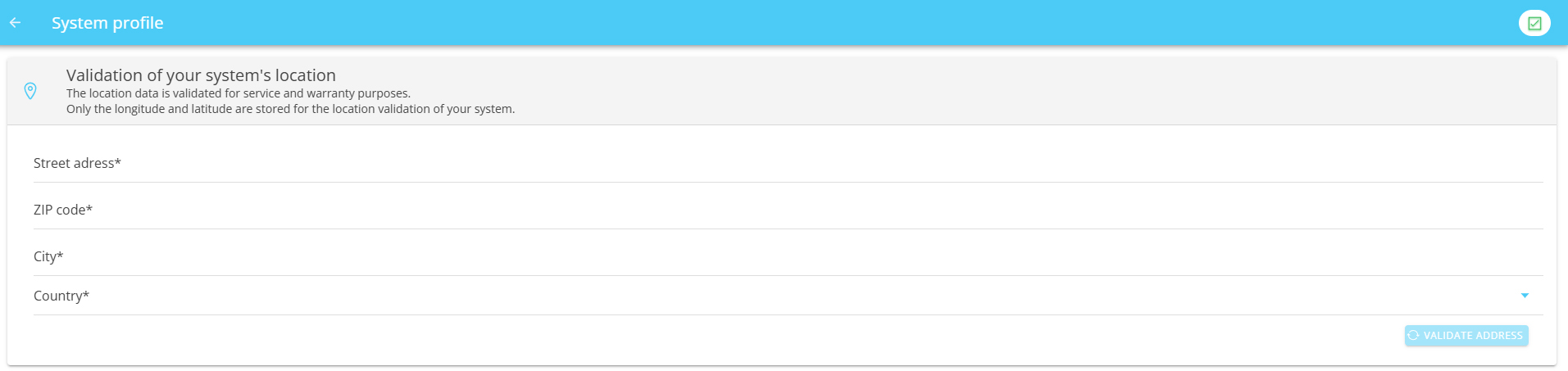
| The address data is not saved, but only used to validate the location. Only the GPS coordinates are stored. |
Once the system’s location has been validated, the System profile looks like this:
The Configuration field shows all installed components of the FEMS, both hardware and software.
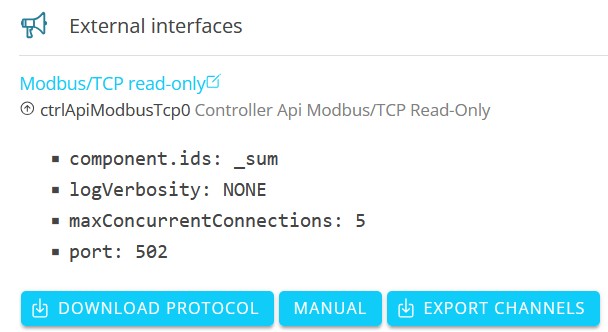
The respective channel settings of the components can be viewed via the symbol.
|
For INSTALLERS only: In this example, you can see the component of the FEMS App Modbus/TCP Read Access, whose channel protocol and channel settings can be downloaded as a CSV table. You will also be redirected from here via a button to the associated Modbus/TCP instructions on docs.fenecon.de. |

3. Network configuration
| This feature is currently only available to installers. |
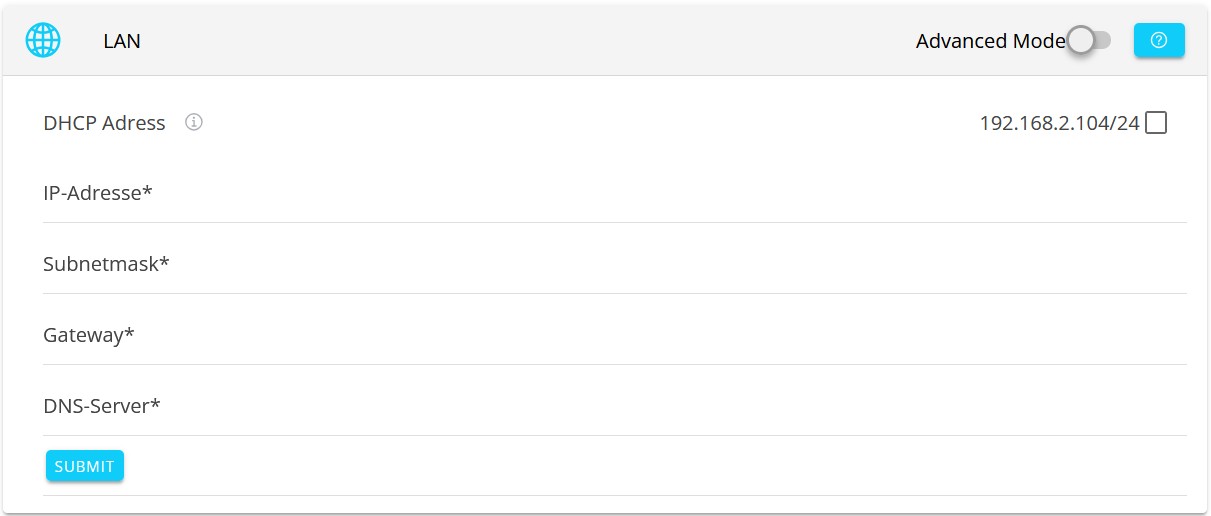
The network settings of the FEMS — e. g. DHCP, IP addresses, subnet mask, gateway, DNS server — can be configured via the Network configuration.
| Please note that incorrect settings can result in the FEMS no longer being accessible in the network. |
Standard view
By default, the FEMS is configured as shown here:

|
|
DHCP mode can be deactivated via the checkbox for DHCP address .
In this case, the settings must be made manually:
|
|
Expanded view
The extended view can be activated using the slider.
In addition to the DHCP or manual configuration, further settings can be made here:

|
|
To apply the configuration, click on SUBMIT.
4. FEMS App Center
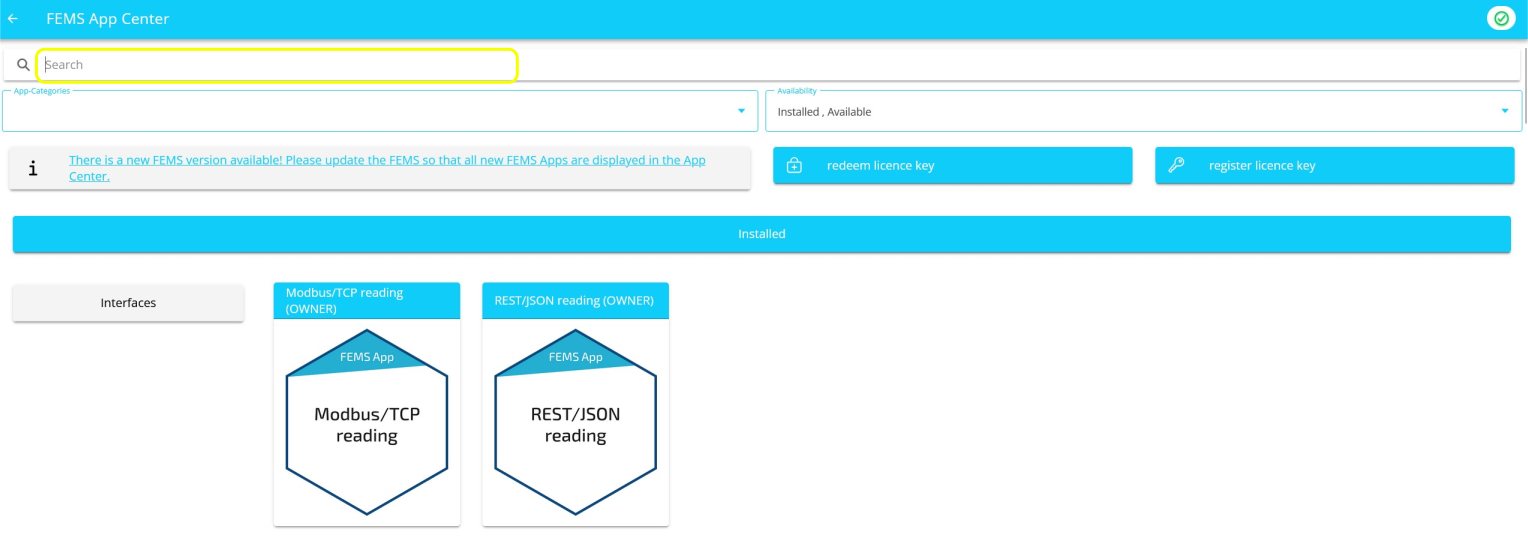
In the FEMS App Center, you install additional FEMS apps to extend the system’s range of functions.
You can find more information, including how to redeem a licence key, in our Documentation on the FEMS App Center.
5. FEMS System
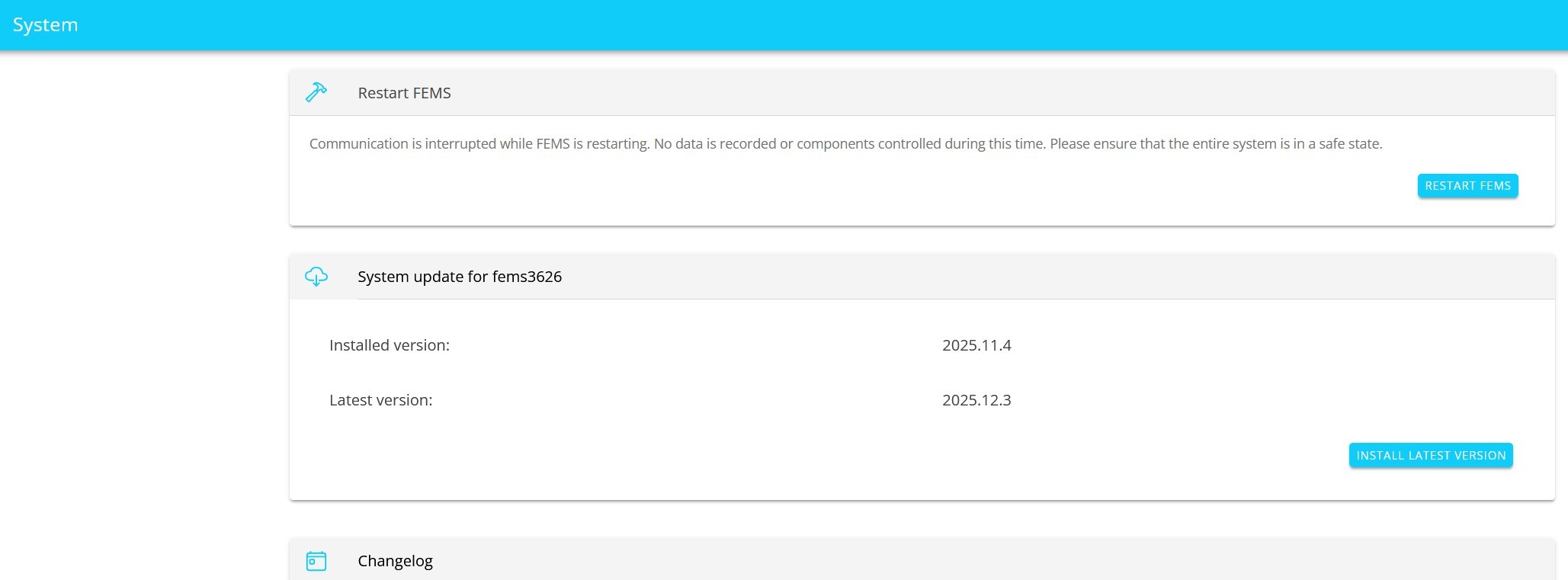
Under these settings you can restart the FEMS and perform an FEMS update.
You can find out about the new features of the FEMS versions already released in the changelog below.
6. alerting
This is an alerting service that notifies you by e-mail as soon as the FEMS has been offline for a certain period of time, i. e. there is no connection to the FENECON backend server. The e-mail address used is the one specified during commissioning.
| Different user roles can use different settings. |
-
OWNER and INSTALLER can be notified when the FEMS is offline.
-
INSTALLERS can also be notified if an error occurs in the system.
The function is activated by setting the toggle and ticking the "E-mail" box. Clicking the toggle again deactivates the function:

Tap/click on the blue arrow to go to the detailed view. Here you can change the Alerting settings.

If the function is activated, the duration of the delay can be selected accordingly. This is the time interval that must elapse before you are Alerting.
Example: The "15 minutes" option ensures that if the FEMS does not send any data to the backend server within a period of 15 minutes, a notification is sent by e-mail. If the "1 hour" option is selected, a notification is only sent after one hour.
Confirm the entries by tapping/clicking on Save.
- E-mail in the event of an error
-
The e-mail Alerting in the event of an error contains a link to FENECON Online Monitoring. You can initiate further troubleshooting steps from there.
- E-mail when the FEMS is offline
-
The e-mail notification when FEMS is offline also contains troubleshooting instructions:
-
Checking the online status in the FENECON Online Monitoring
-
Checking the power supply
-
Restarting the FEMS
-
Checking the internet connection
-
Checking the firewall settings
-
Contacting the FENECON Service
-
7. Energy Journey
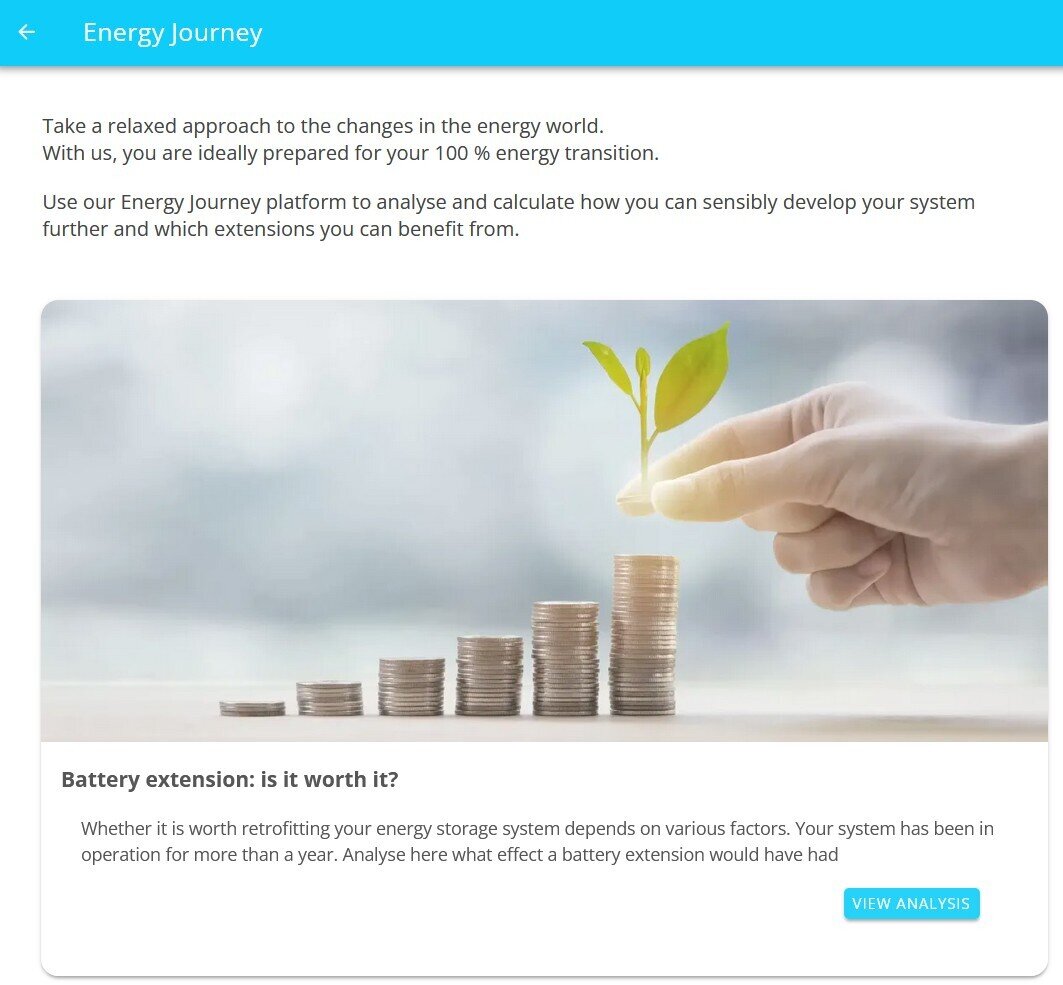
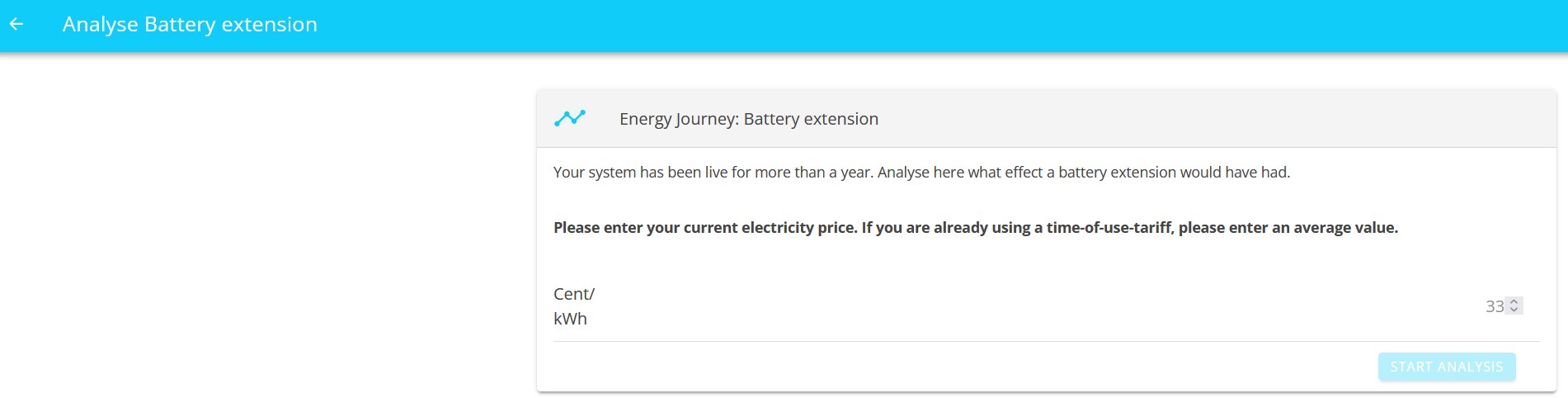
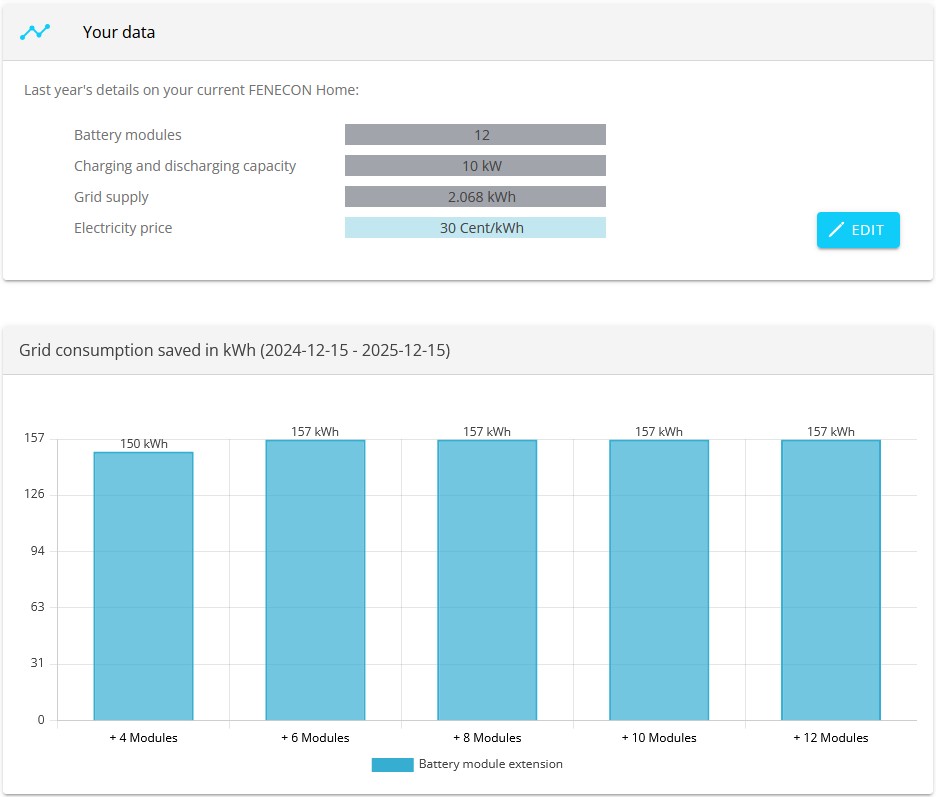
Enter your current electricity price or, in the case of a time-of-use tariff, the average value. Then click on START ANALYSIS.
On the next page you will see an overview of your system for the past year.
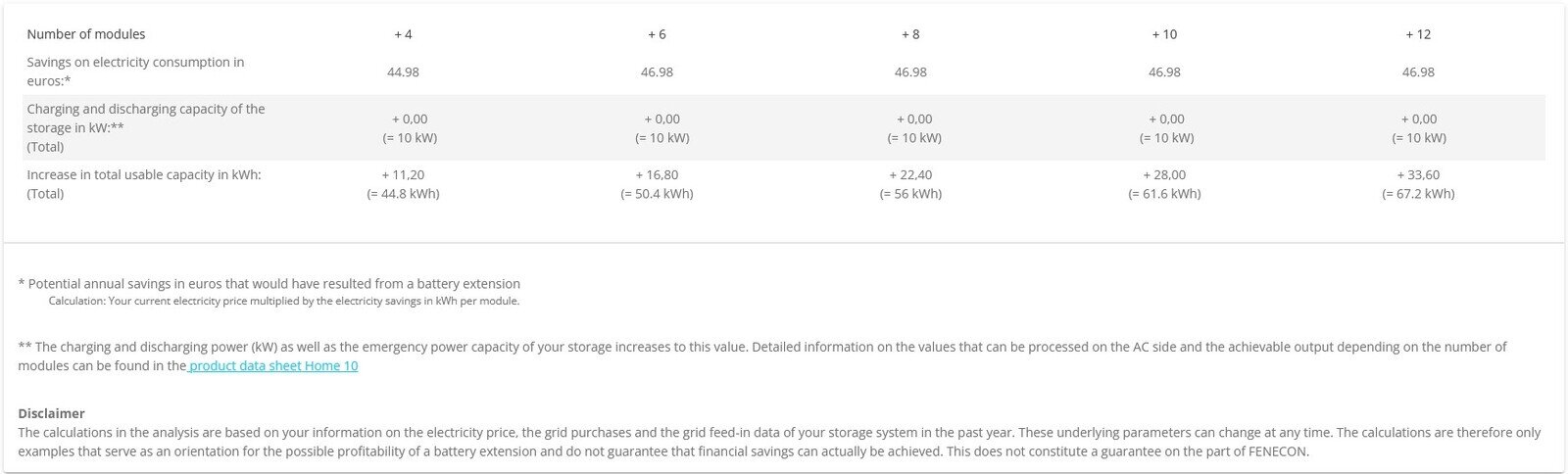
You will also receive a table with potential annual savings should you consider a battery upgrade.