FEMS App ASKOMA Heating Element Read Access
1. Introduction
Dear customer,
Thank you for choosing the "FEMS App ASKOMA Heating Element Read Access". You are welcome to send us your suggestions so that we can further improve the quality of our products.
2. Installation and configuration — FEMS App ASKOMA Heating Element Read Access
2.1. Prerequisites
-
The heating element must be connected to the network via LAN.
-
The FENECON energy storage device must be connected to the network.
2.2. Configuration of the heating element
-
Follow the ASKOMA operating instructions ASKOHEAT+ .
-
Use the QUICK SETUP.
-
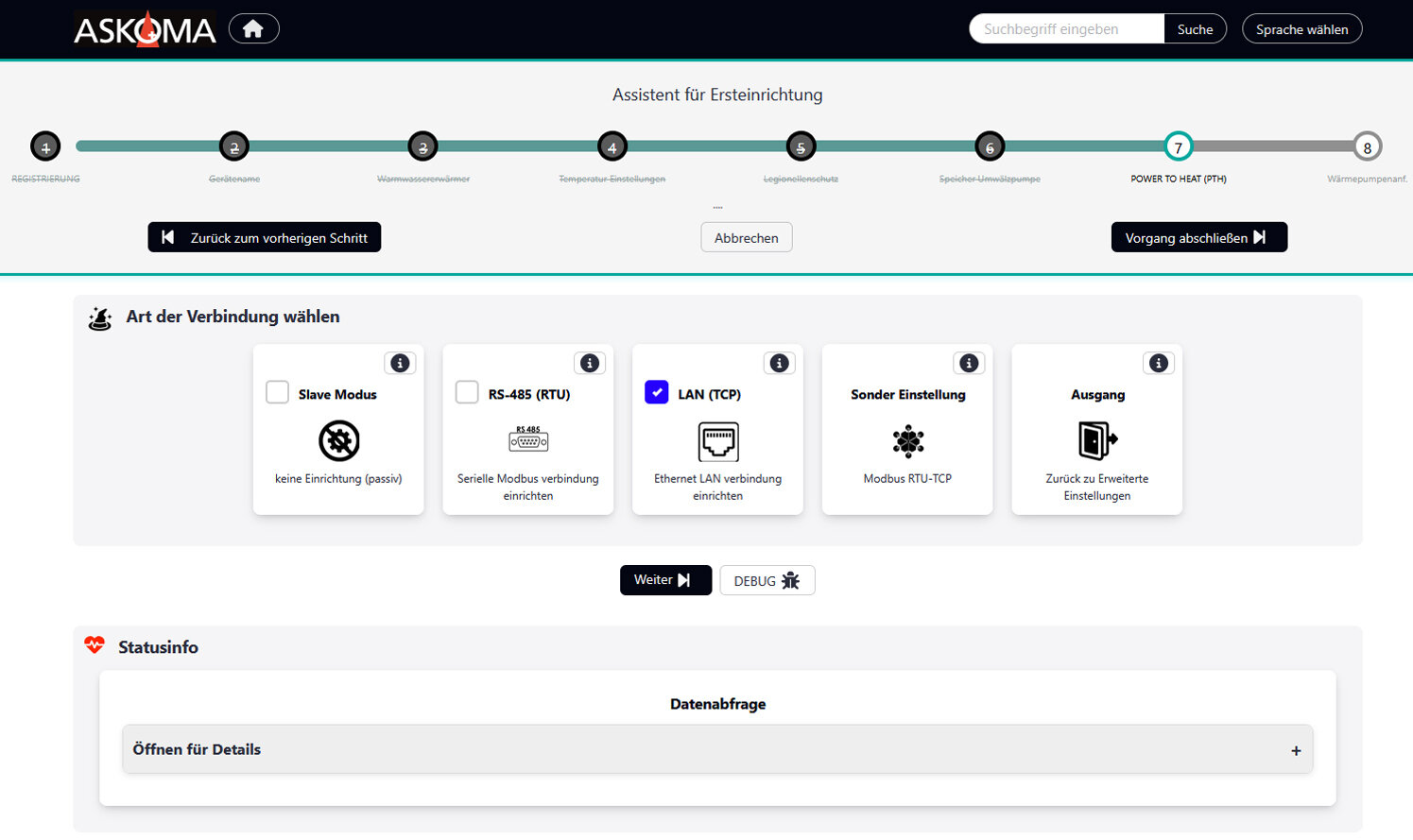
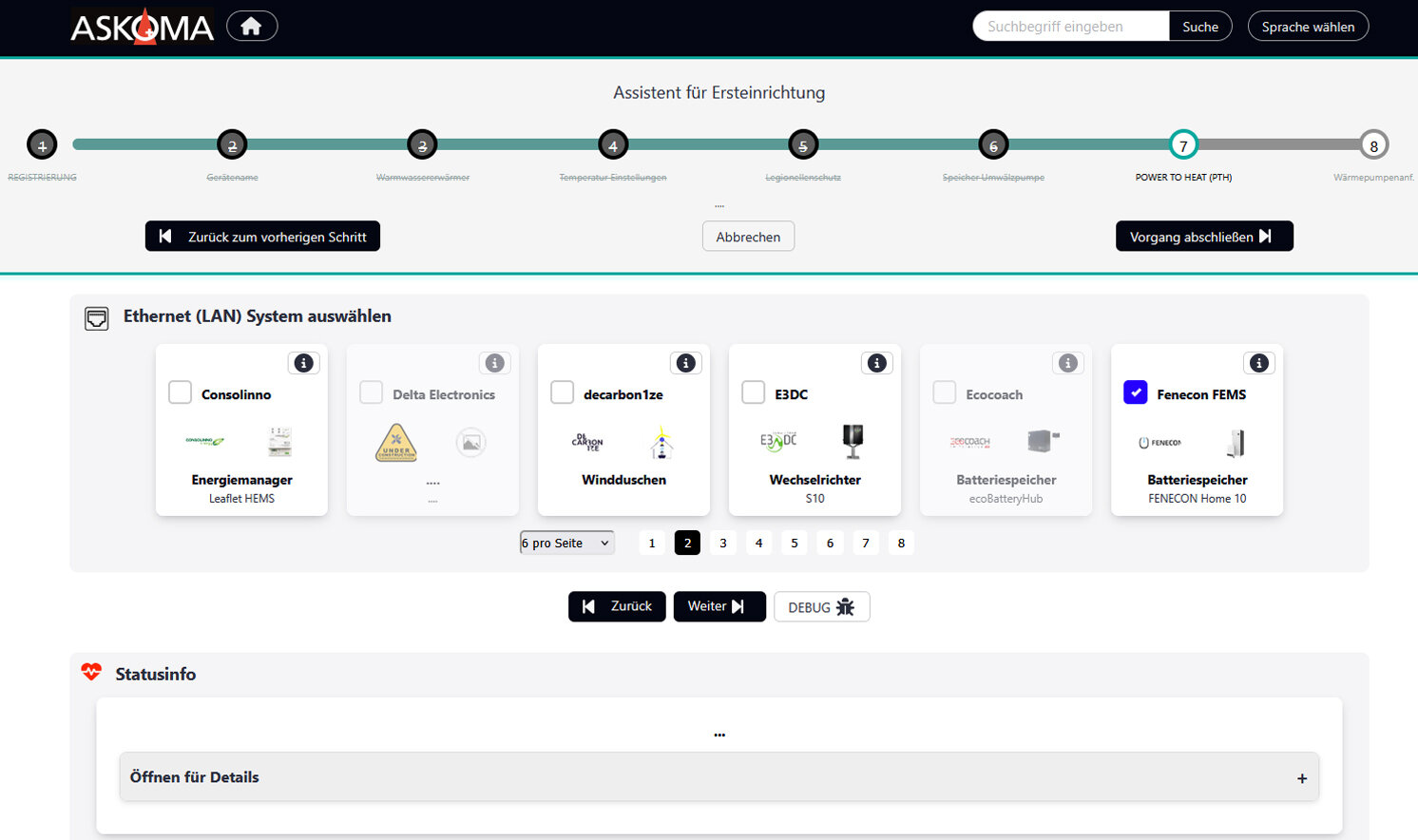
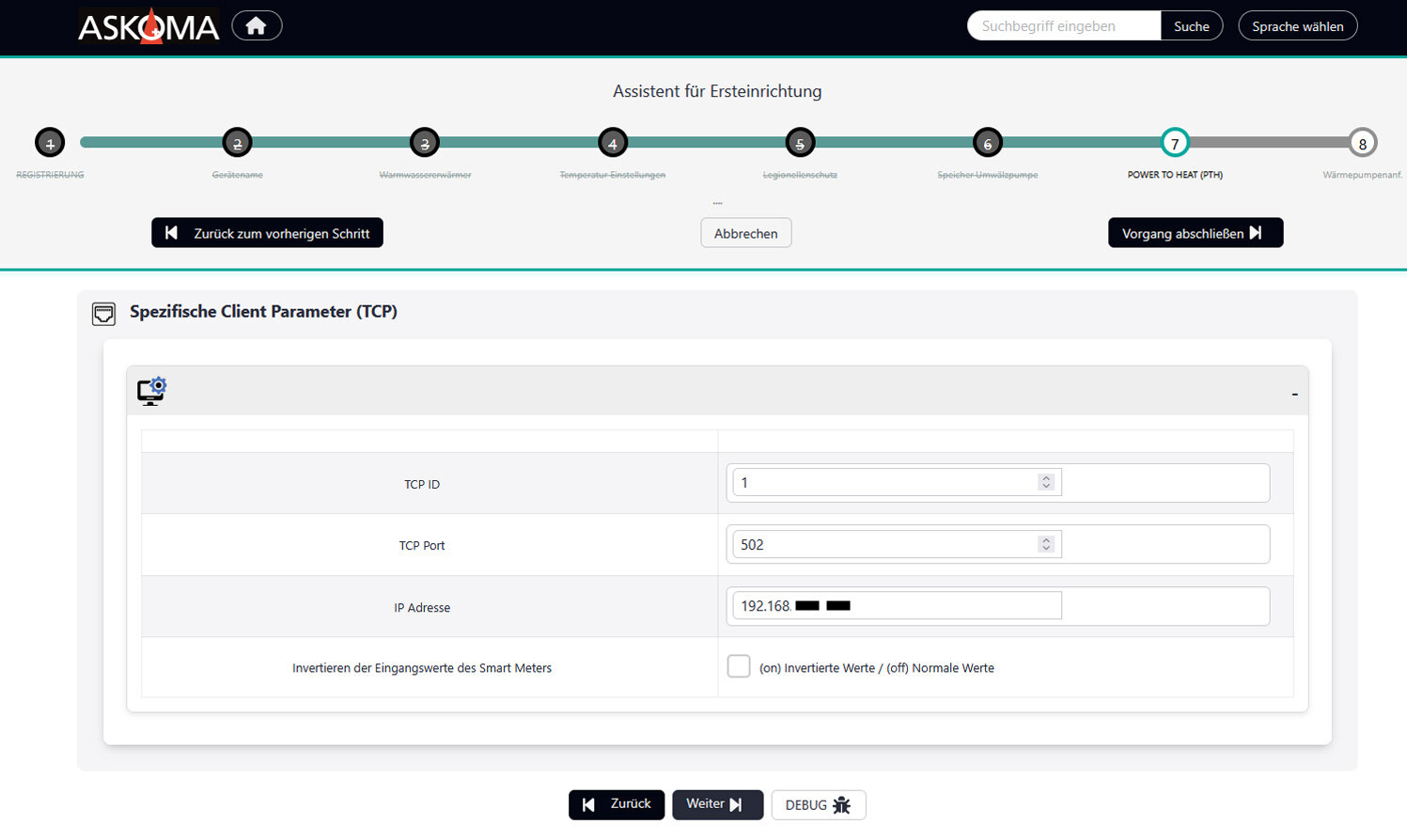
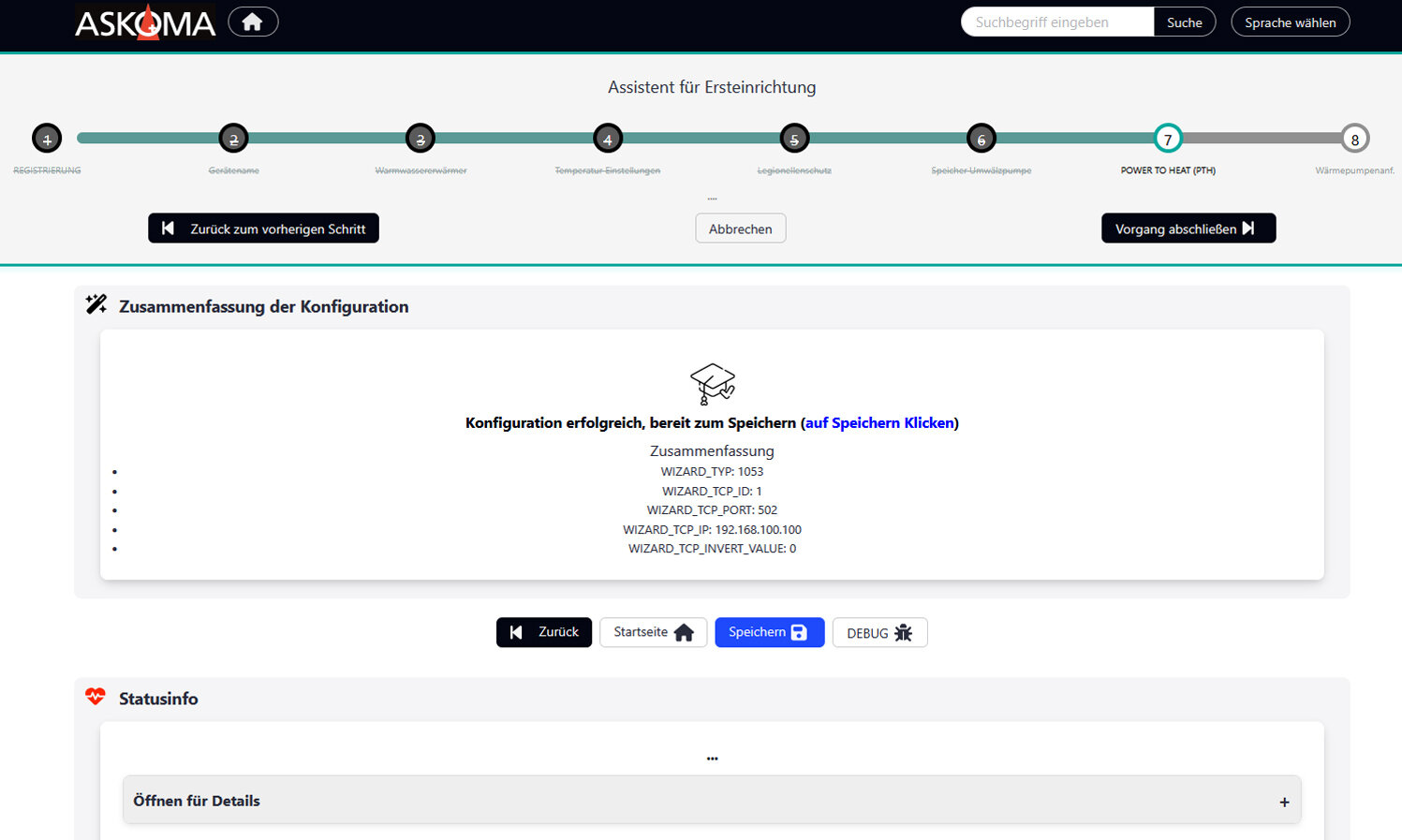
As soon as you have reached point 7 (PTH) of the wizard, continue as follows:
|
|
|
|
|
|
|
|
The connection to FEMS must now be established.
2.3. Installation of the FEMS App ASKOMA Heating Element Read Access
The exact procedure for installing an FEMS App can be found here.
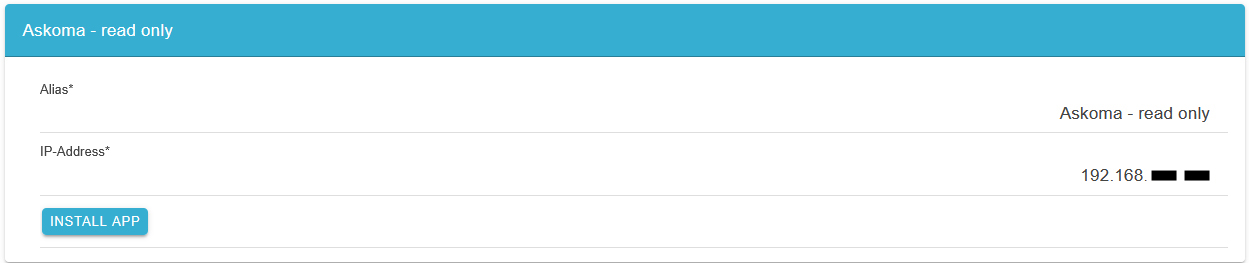
The dynamic IP address of the ASKOMA heating element must be specified during installation. You can obtain this in the ASKOMA web interface.
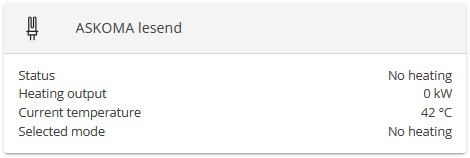
The widget then becomes visible in Online Monitoring:
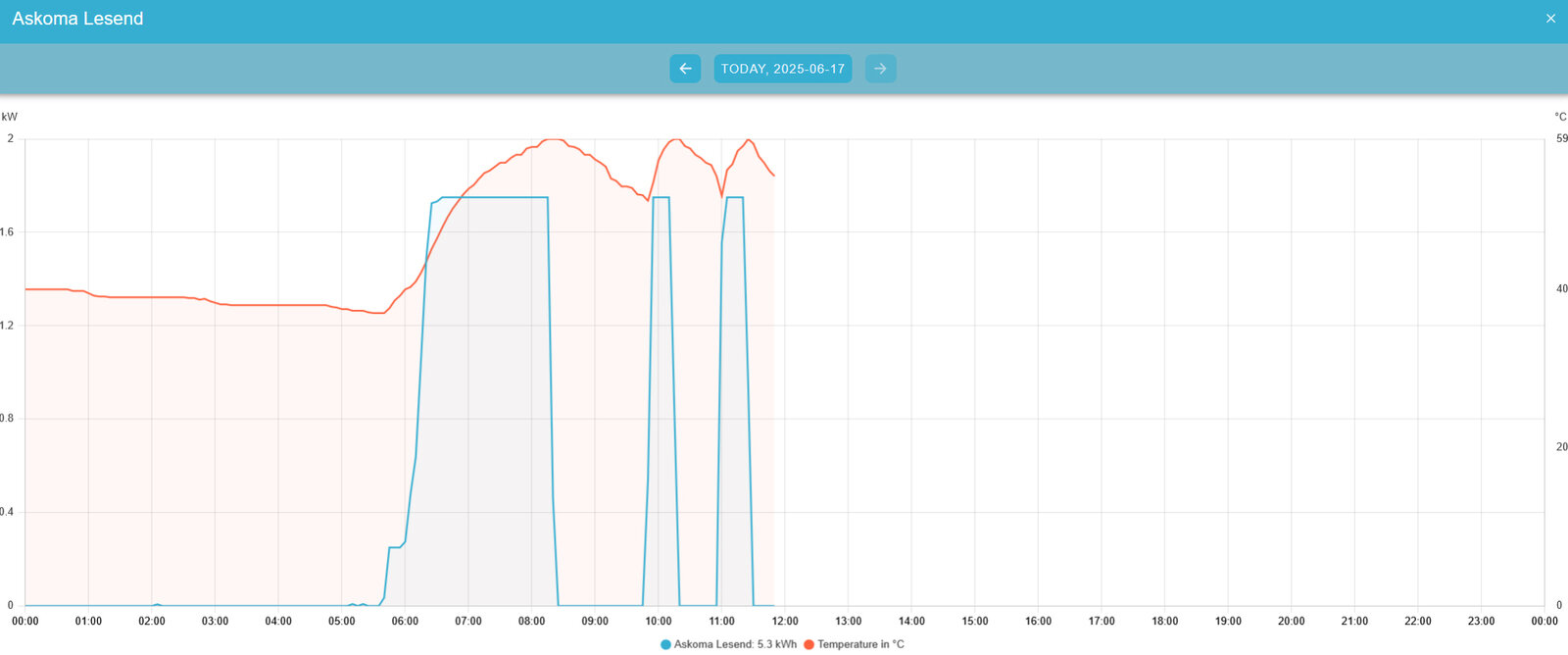
Click on the History tab in Online Monitoring and then click on the ASKOMA widget to open the historical view of the ASKOMA heating element:
-
No further settings need to be made in FENECON Energy Management System.
-
The installation is now complete.
Optional:
When purchasing the FEMS App Power-to-Heat Read Access, it must be installed via the FENECON App Center.