Installation and Access — FENECON App
Download for mobile devices
FENECON app for Android/iOS
The FENECON app is available to download free of charge for smartphones and tablets.
Open the camera app of your device and scan the corresponding QR code:
Android |
Apple iOS |
|---|---|
|
|
You will be redirected to the respective download page.
Alternatively, the app can also be downloaded from the respective app store.
-
Google Play Store for Android
-
App Store for Apple
-
Search for FENECON.
-
Tap on "Install".
-
Once the installation is complete, you can access the Monitoring using your login credentials.
|
The FENECON BETA App for Android smartphones gives you the opportunity to test and evaluate new app features before the official release. Click here to download:
|
Access via web browser
Via FENECON portal
In addition to our app for Android and iOS, you can also access FENECON Online Monitoring via your browser:
Go to FENECON Website and click on the yellow "FEMS-Login" button in the upper right corner to log in with your login data. You will then be redirected to the monitoring.
| Alternatively, you can also use this link to log in directly. |
| Create a shortcut to the login page on your desktop for faster access. This is also possible on mobile devices. |
Offline/local access
Monitoring can also be used purely locally ("offline operation"). This form of access is useful, for example, in the event of an internet failure if the FENECON portal cannot be reached.
Instructions — Local access
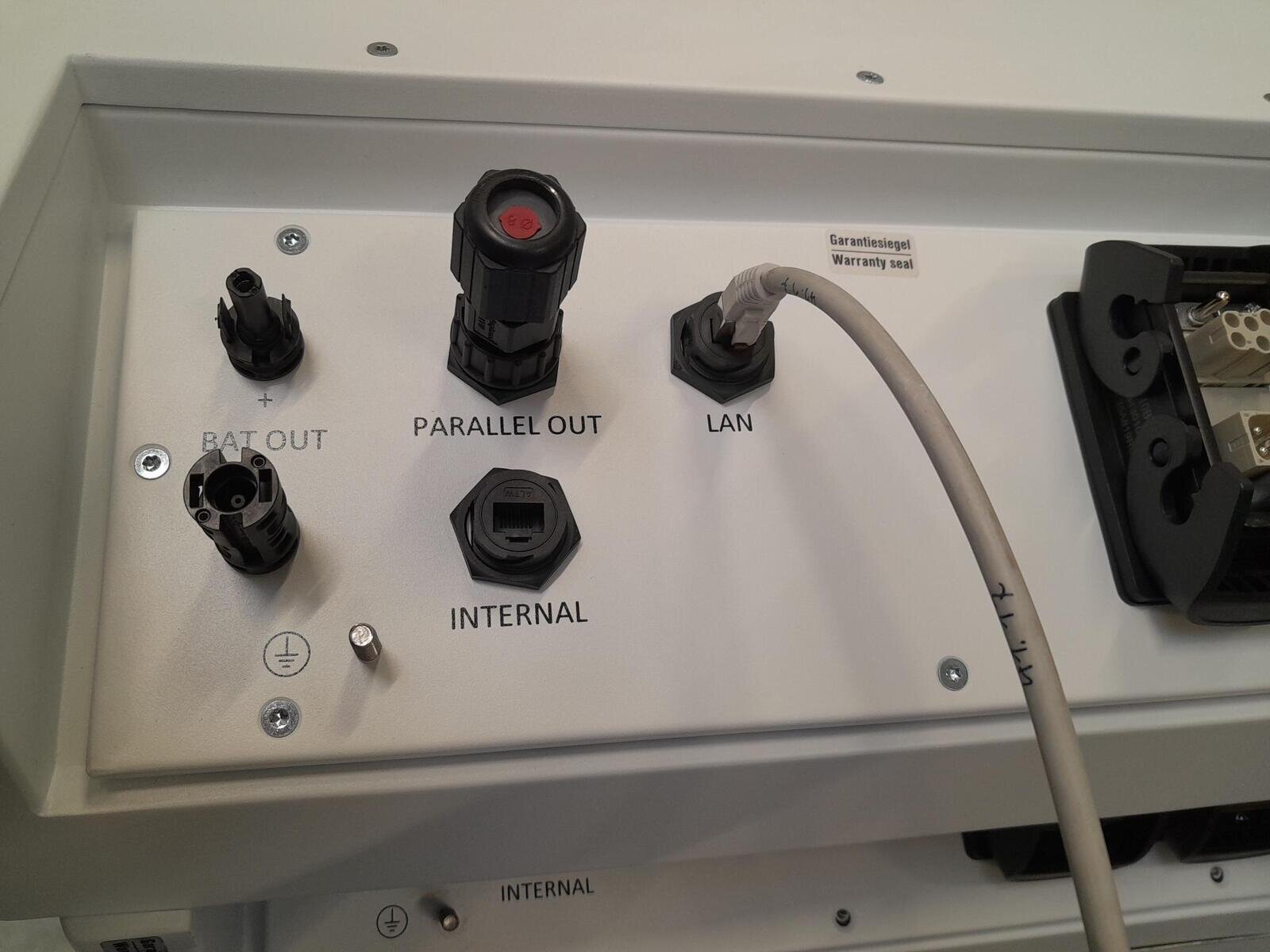
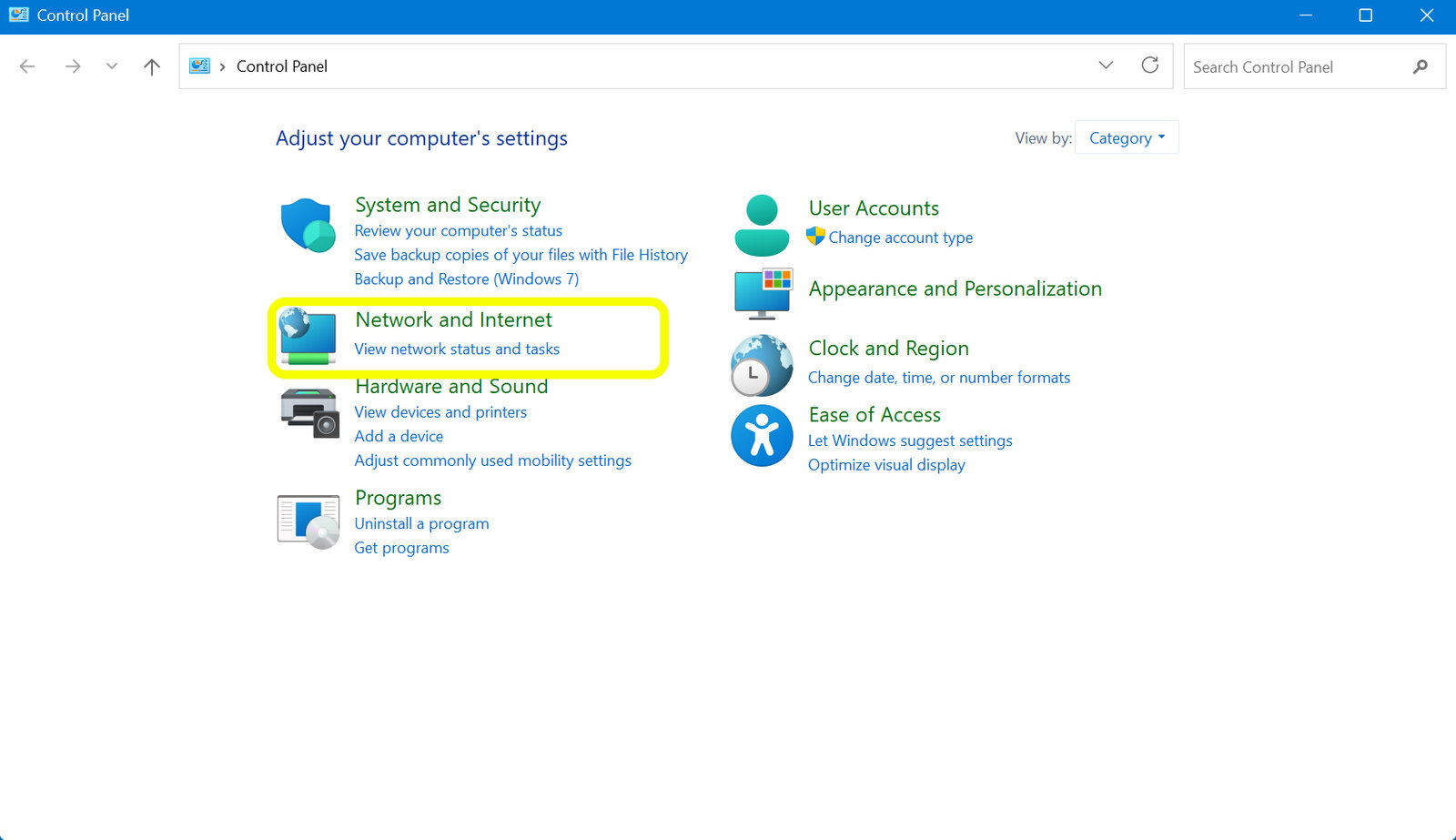
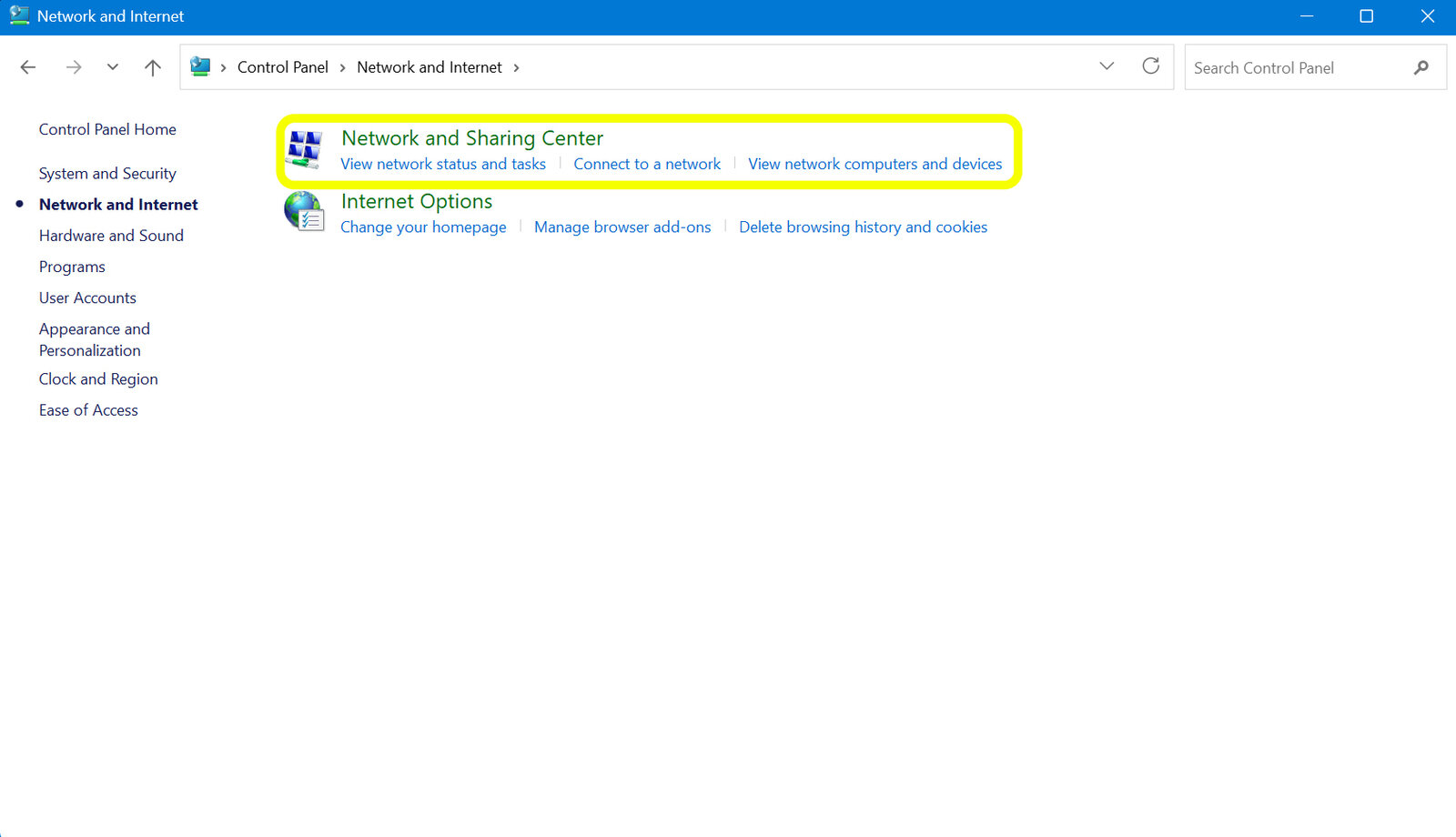
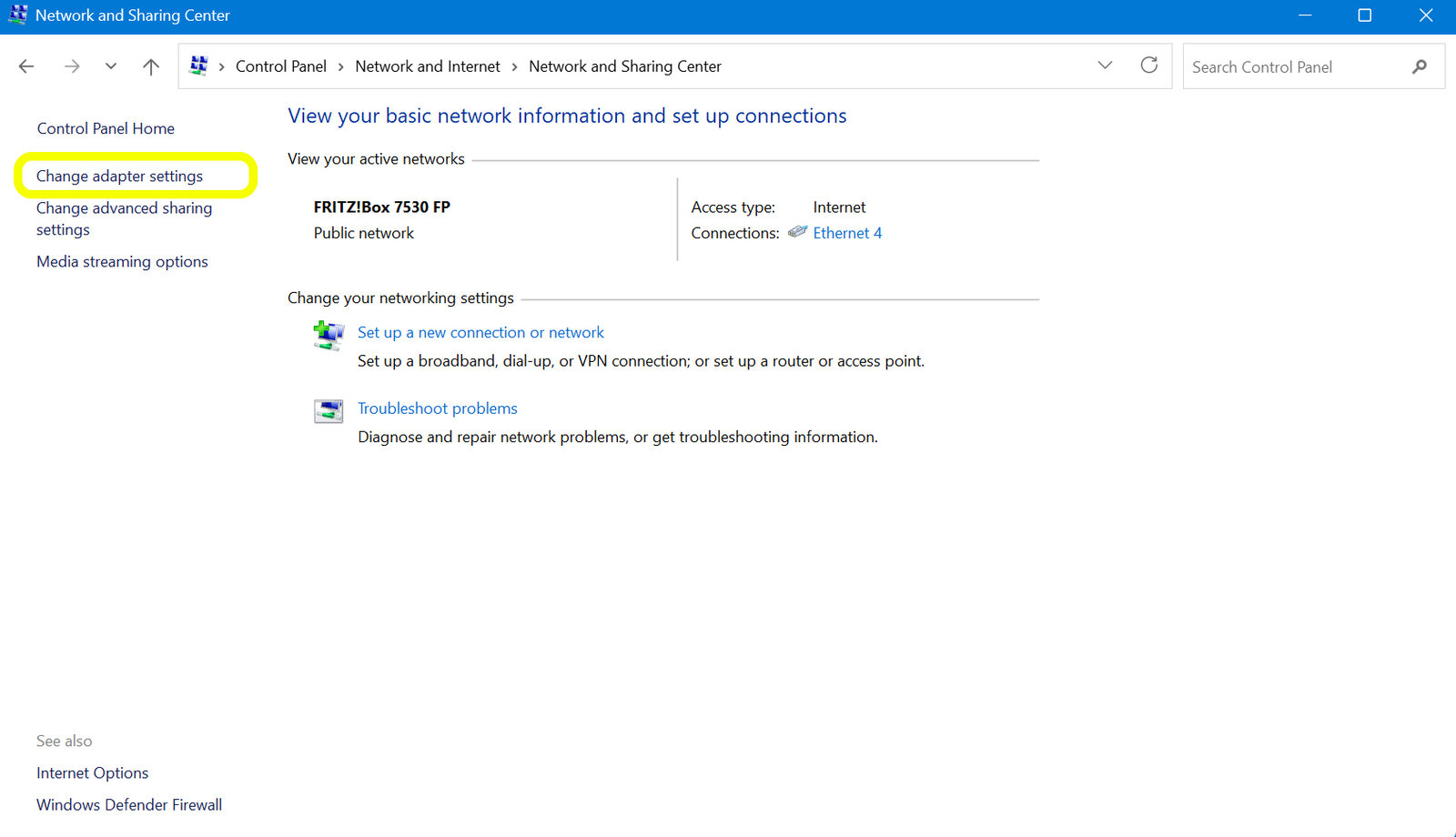
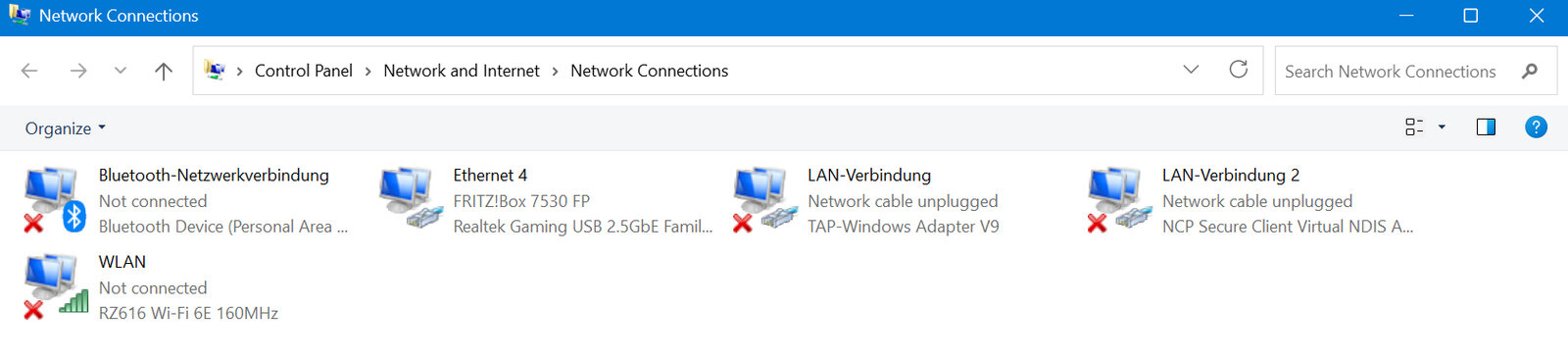
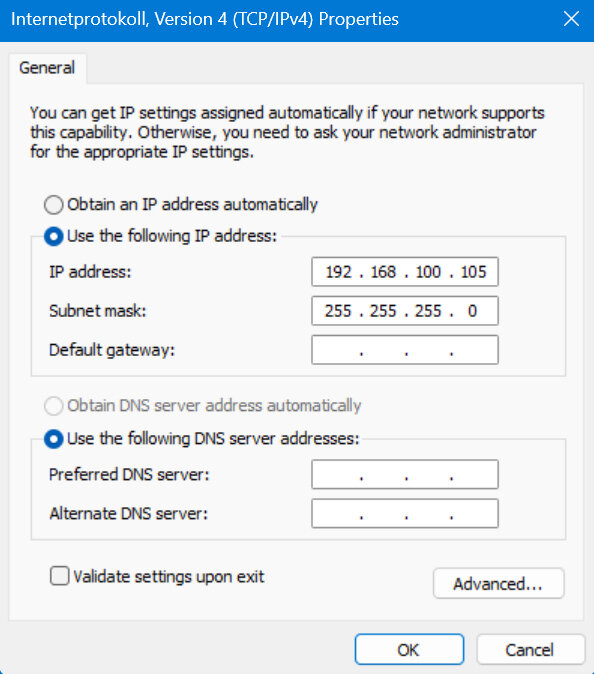
To do this, enter the IP address of the FEMS in the browser. By default, the FEMS automatically obtains an IP address via DHCP. You can view this via the user interface of your router.
| The prerequisite for using local monitoring is that the respective device (e. g. notebook, PC, smartphone) and your FEMS share the same network. |
|
|
|
|
|
|
|
|
|
|
|
|
|

|
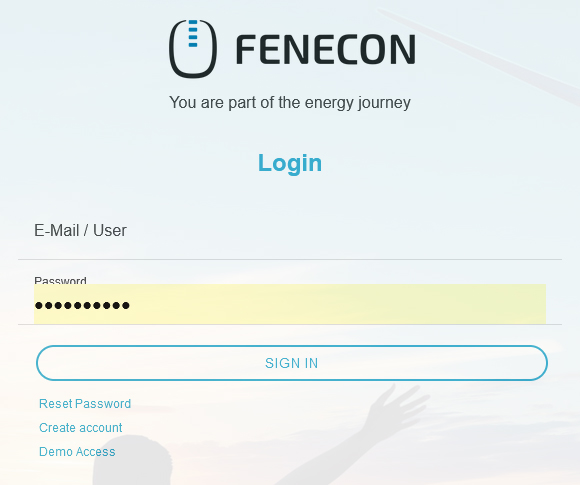
The password for guest access (guest) is stored by default. To be able to use the rights as system owner as via portal access, use owner as password. After entering the password, you can access local monitoring by clicking on the Login button. |
|
|
Firewall and target addresses
The following services are active on the FEMS and require an internet connection to the respective target addresses:
| Service | Destination Address(es) | Destination Port |
|---|---|---|
DNS |
(IP address of the DHCP-assigned |
53 (DNS) |
Online Monitoring |
144.76.42.217 (fenecon.de) |
443 (HTTPS) |
Time Synchronization |
144.76.42.217 (fenecon.de) |
123 (NTP) |
Operating System Package Updates |
144.76.42.217 (deb.fenecon.de) |
80 (HTTP) |
Remote Maintenance |
168.119.5.99 (remote-service.fenecon.de) |
2222 |
FENECON Service |
185.145.190.0/24 |
|
If you have problems with any of these steps, please check the port release of the router or contact service@fenecon.de. |
Switching to the new design
|
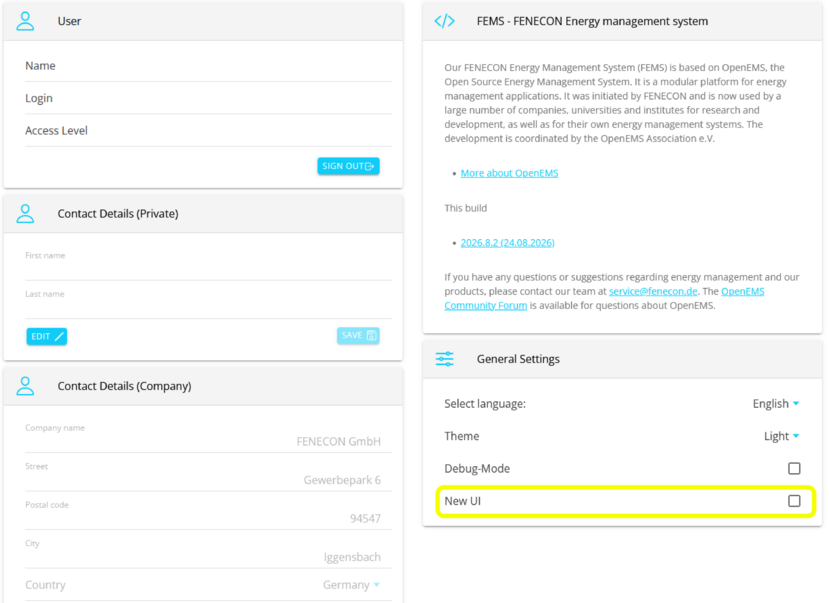
Die Umstellung auf das neue Benutzerinterface (UI) wird ab FEMS-Version 2026.9.1 funktional vollumfänglich zur Verfügung gestellt. Wir empfehlen daher ein Update auf die aktuellste FEMS-Version. Ansonsten können App-Einstellungen eingeschränkt im Neuen Design zu Verfügung stehen. |
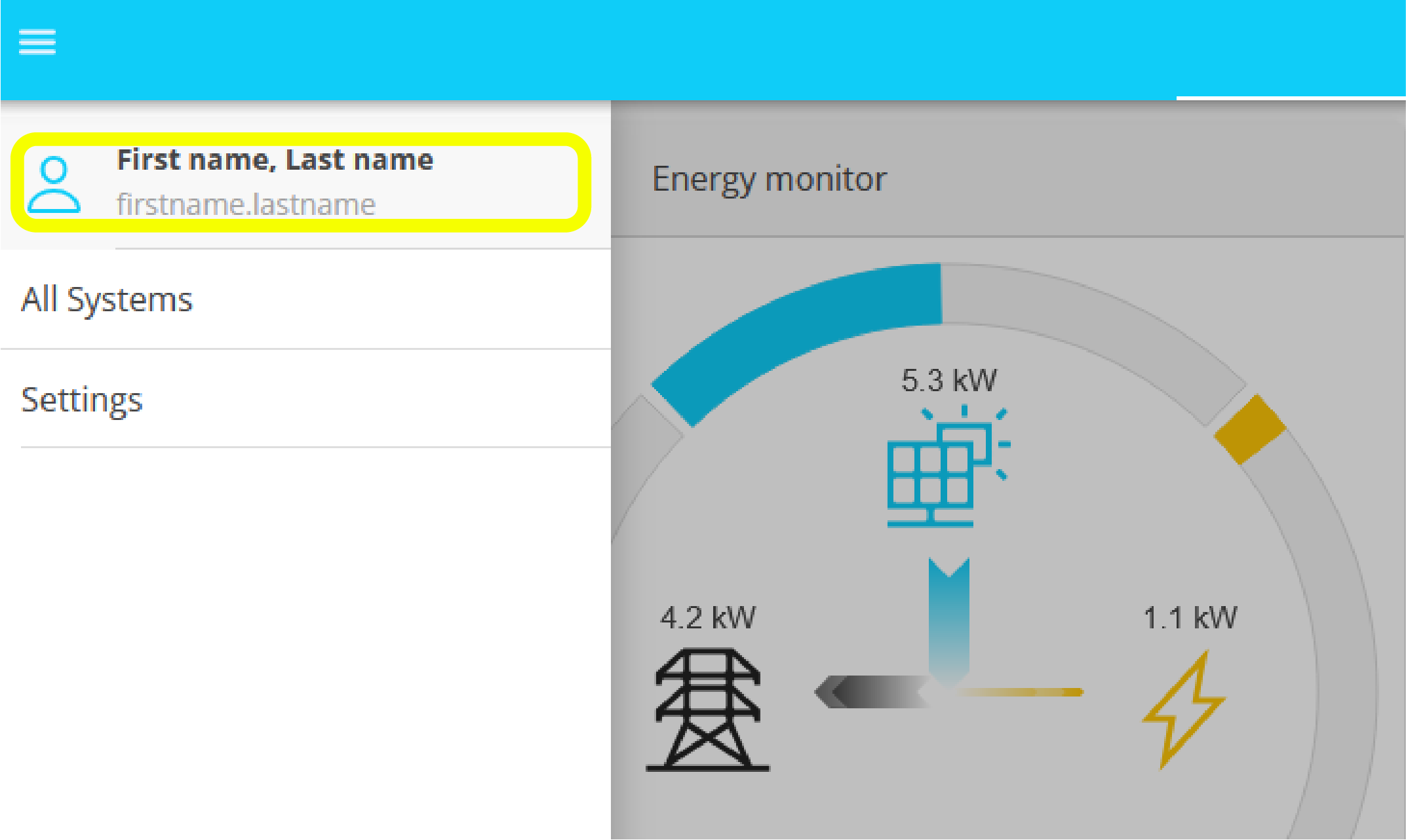
To switch to the new design, follow these steps:
|
|
|
|
== Access After logging in — if several FEMS are assigned to the account — you will see a list of FEMS. If there are more than five FEMS, a search bar also appears so that you can find the desired FEMS more quickly. Clicking on the respective FEMS calls up the monitoring of the system. 
Image 1. FEMS listing with multiple assigned FEMS numbers
If only one FEMS is assigned to the account, you will be redirected directly to the FEMS Cockpit: 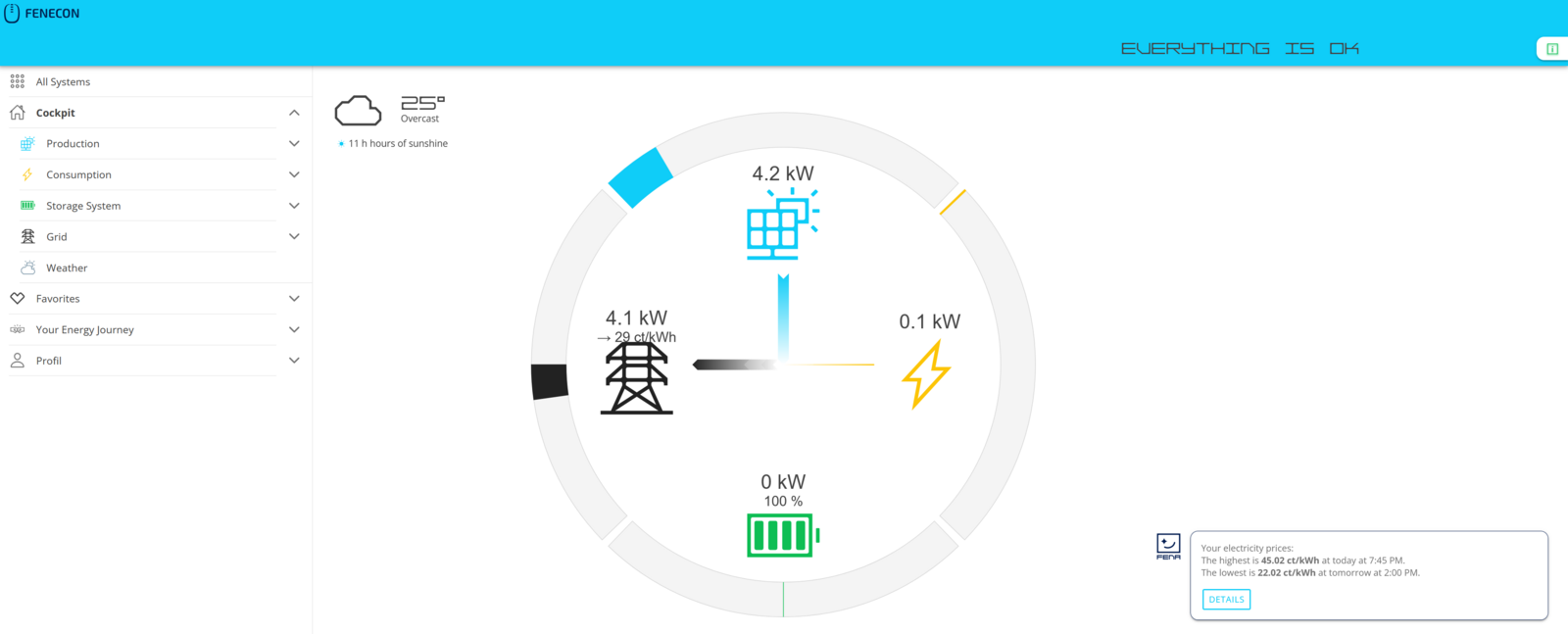
Image 2. Redirect when there is only one FEMS — Go directly to the Cockpit
== Change or reset password To change the password, or if the password has been forgotten, it can be reset using the "Reset password" function. Start at portal.fenecon.de
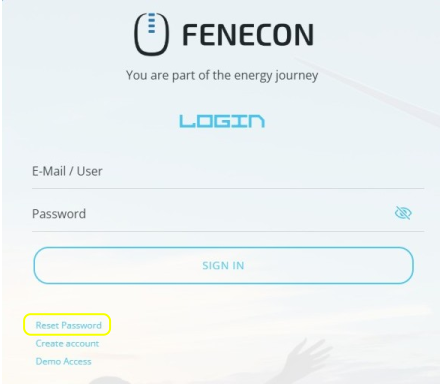
Image 3. Resetting the password
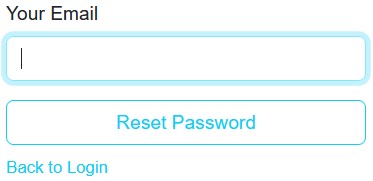
Image 4. Reset password — Enter e-mail
You can then log in using your new password. == FAQ & Troubleshooting When the FENECON Energy Management System (FEMS) is offline, the generated data is saved locally on the electrical energy storage system. Once the "Online" status has been restored, this data can be forwarded to Online Monitoring within a short period of time. The duration of the forwarding depends primarily on the amount of data and requires a constant internet connection. We would like to point out that data with a corresponding priority will be forwarded, which includes the data that can be seen in the usual Online Monitoring. Slight errors may occur when data is forwarded. The reason for this may be that data from external devices has already been forwarded to our system incompletely. Correcting data involves a great deal of effort, as FENECON has no information about potentially incorrect data transmission, on which calculations are based and the extent of the impact cannot be precisely determined. Furthermore, with regard to data transmission and processing, we would like to point out that no calibrated meters have been installed on FENECON devices to date and that even small deviations can occur in split-core current transformer measurements. Therefore, this measured data does not fulfill any control or billing requirements. Therefore, the data on which the individual values of the forwarding are based can neither be identified as incorrect nor corrected accordingly. For this reason, FENECON assumes no responsibility at this point with regard to the processing of a data correction in the forwarding. |