Changelog BETA-Test
Major changes to FENECON Online Monitoring — E-Mobility
Dear Customer,
Thank you very much for your interest in participating in our BETA test.
The following guide explains the basic changes to FENECON Online Monitoring.
Further down on this page, you’ll find a changelog that explains the new features added at regular intervals.
Flat widgets become chips
-
In this approach, flat widgets are replaced by chips that can be tapped or clicked to create a menu structure.
-
The main window on your screen displays the contents of the selected chip.
-
In addition to viewing relevant information about your system, you can also configure settings in the main window.
-
Depending on the chip you select, you will receive new chips until you reach the endpoint of the menu or menu branch.
-
You can use the breadcrumb menu to navigate back, either step by step or directly to the start of your FENECON Online Monitoring (house icon).
|
To improve the user-friendliness of our applications, we take a "mobile-first" approach to development.
|
Mobile View
| Mobile View | Explanation |
|---|---|
|
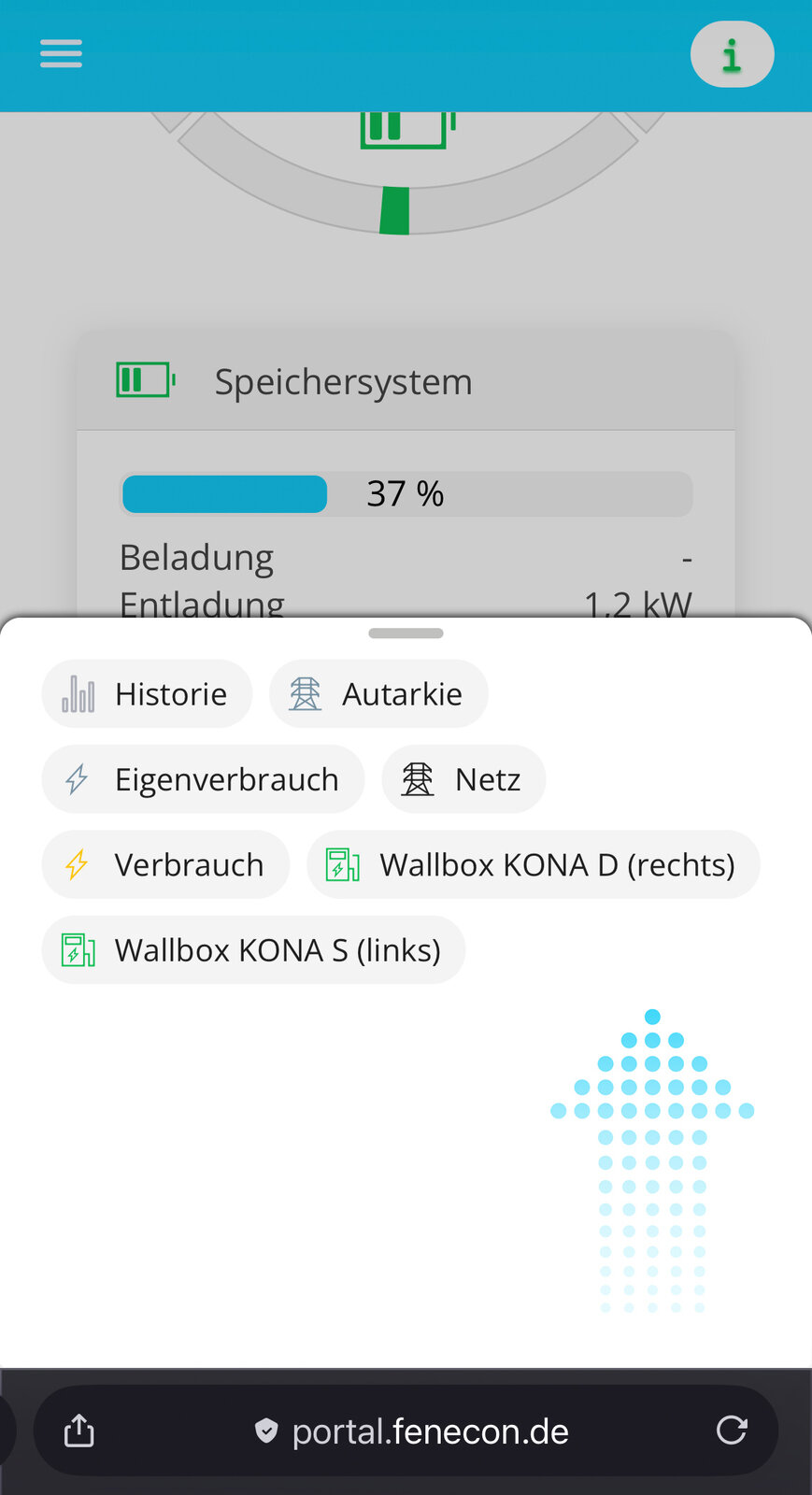
Swipe up from the bottom to open the main chip menu.
|
|
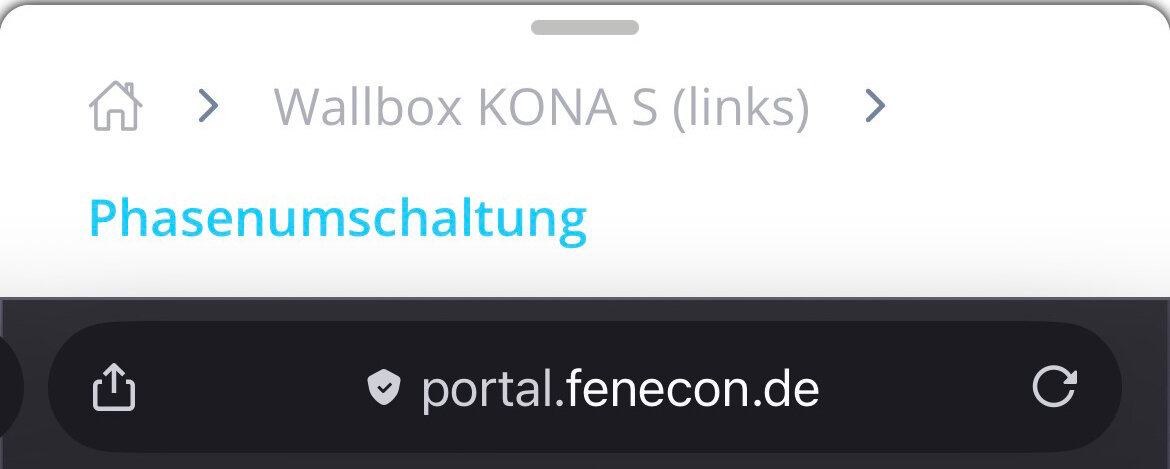
You can navigate back using the breadcrumbs displayed at the top of the chip menu. |

Main Window — Charging Station
|
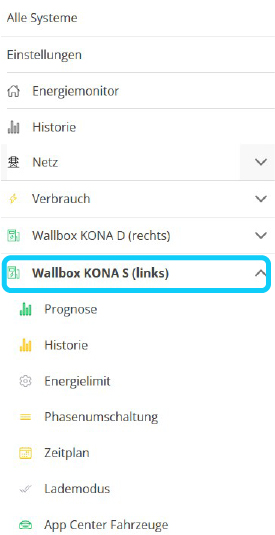
Click or tap to activate the chip for your wallbox. |
Depending on the selected chip, the main window displays different information and settings:
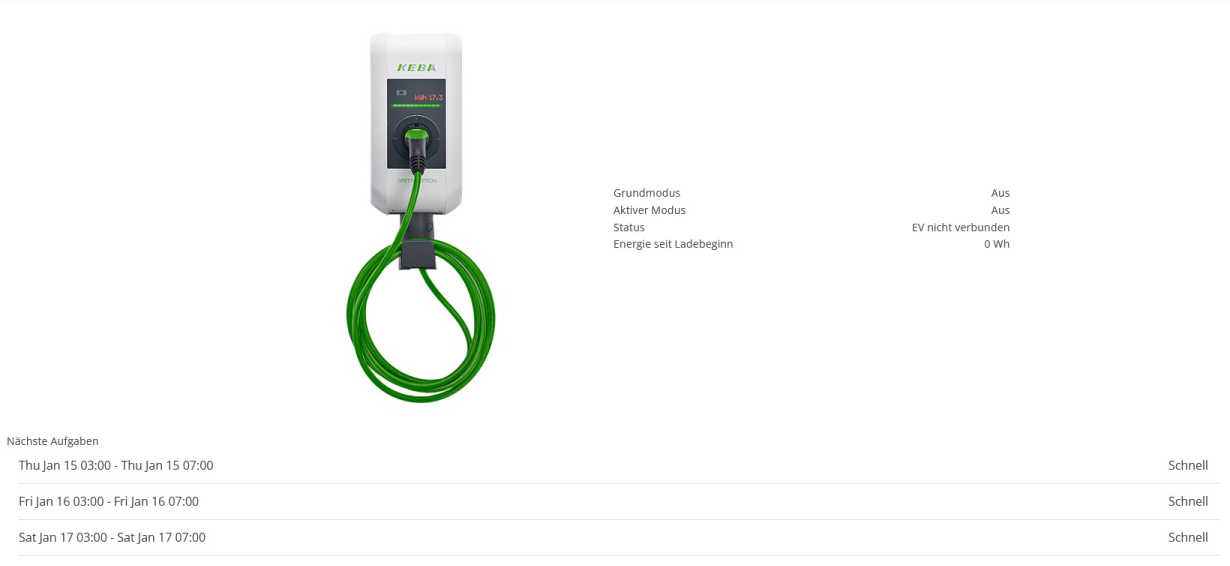
In this case, you’ll see the main window of the charging station, which displays custom tasks (schedule) at the bottom.
It also displays which modes are currently active: Base Mode and Active Mode.
|
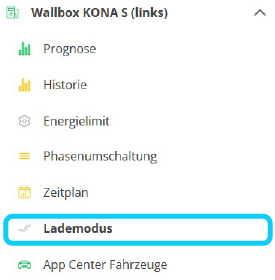
Settings for Base Mode can be configured via the Charging Mode chip. |
|
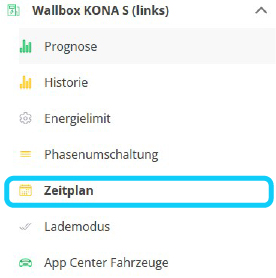
Settings for Active Mode can be configured via the Schedule chip. |
| The charging modes have been renamed. The functions behind them are similar, but not identical. |
Click on the Charging Mode tab to open the following main window, where you can set the Base mode:
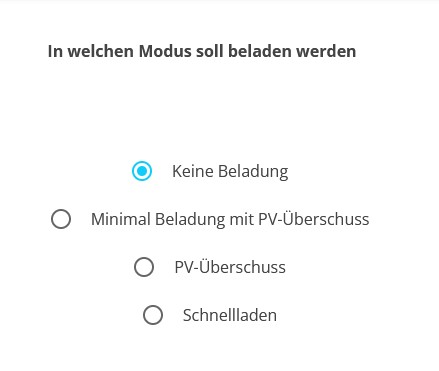
- No charging
-
Completely disables the charging station.
- Minimum Charging with PV Surplus
-
The Minimal Charging with PV Surplus mode guarantees that the vehicle is charged to the minimum level. If there is sufficient PV surplus, it is used. If there is no PV surplus, the vehicle is charged using grid withdrawal up to the minimum charging power.
- PV surplus
-
In PV surplus mode (formerly: Automatic), the EV’s charging is dynamically adjusted to the excess electrical energy (e. g., PV surplus). In addition, the Phase Switching chip allows you to switch between 1-phase and 3-phase charging.
- Fast Charging
-
In Fast Charging mode (formerly: manual), the vehicle charges as quickly as possible—depending on whether the phase switching setting is set to 3-phase or 1-phase. If there is sufficient excess PV power, it is used and combined with grid withdrawal.
Click the Schedule tab to open the following main window, where you can set an Active Mode:

This main window displays your custom tasks (schedule). If you already have a task in the list, you can EDIT it to, e. g. adjust the time period or the charging mode during that time period.
Click <span style="color:#D01C1F">DELETE</span> to remove the task.
Use ACCEPT to save your changes to the task.

Tap the + Add Task button to create a new task.
You will be taken to the following main window:

Here you can set the Start, the End, the Repetition Interval (currently: daily), and the desired Charging Mode.
Pressing + ADD saves the task and displays it in the overview.
| If no tasks are scheduled, Active Mode is the same as Base Mode. |
Other chips in the charging station
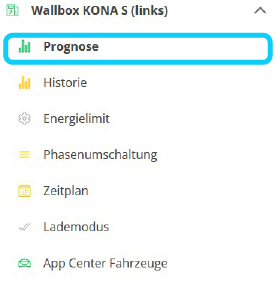
By activating the charging station chip, you’ll receive additional chips:
|
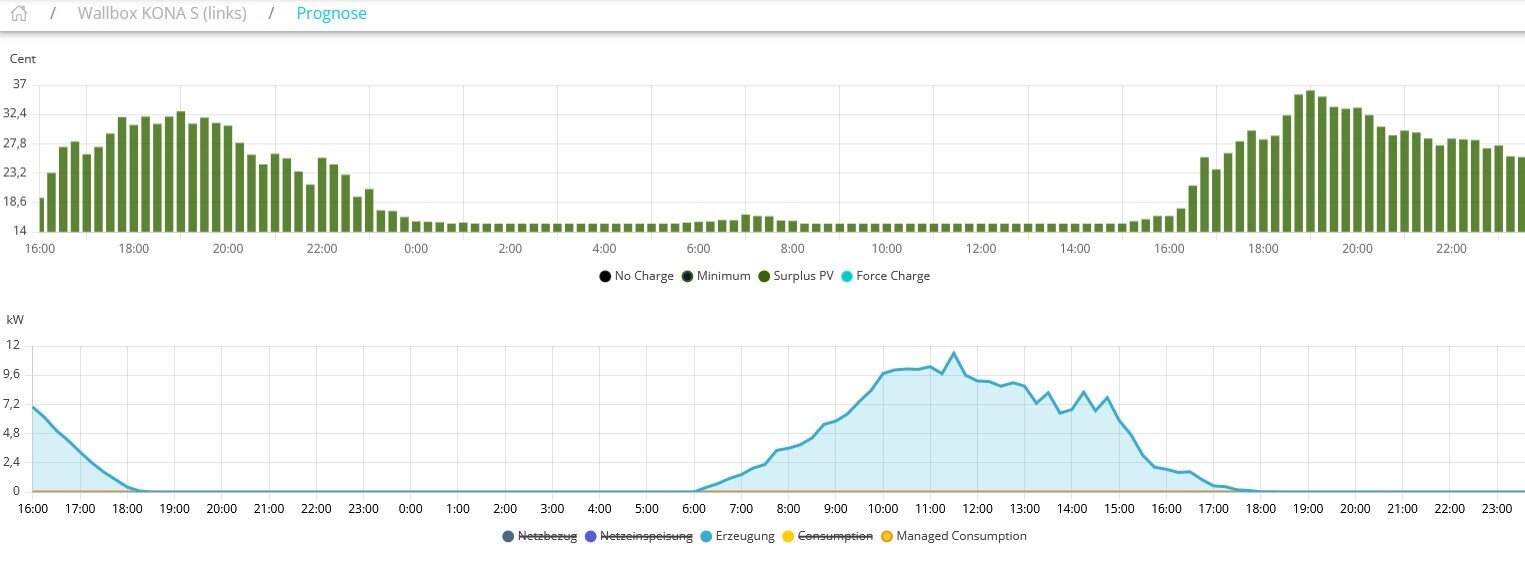
The main window of this chip displays the forecast for your wallbox: |
|
|
|
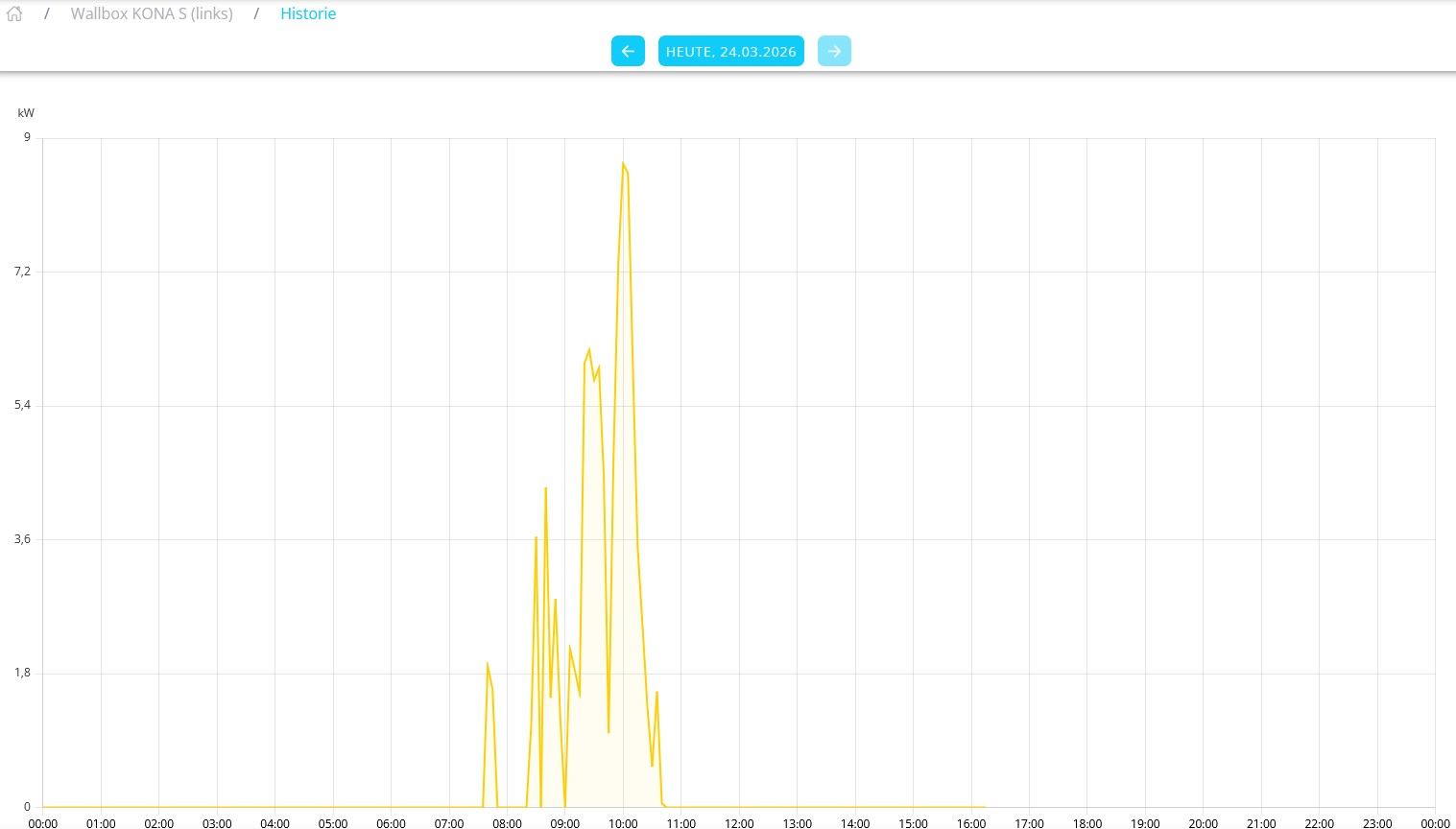
The main window of this chip displays the history for your wallbox: |
|
|
|
This chip allows you to set an energy limit for charging your vehicle. |

|
There is a slider for this in the corresponding main window.
etc. |
|
Activating this chip takes you to Manual Phase Switching. |
|
This takes you directly to the settings for the connected vehicle → Generic Vehicle. |
|
Further down in the side menu is the Help chip:
|
|
|
|
FEMS Cockpit
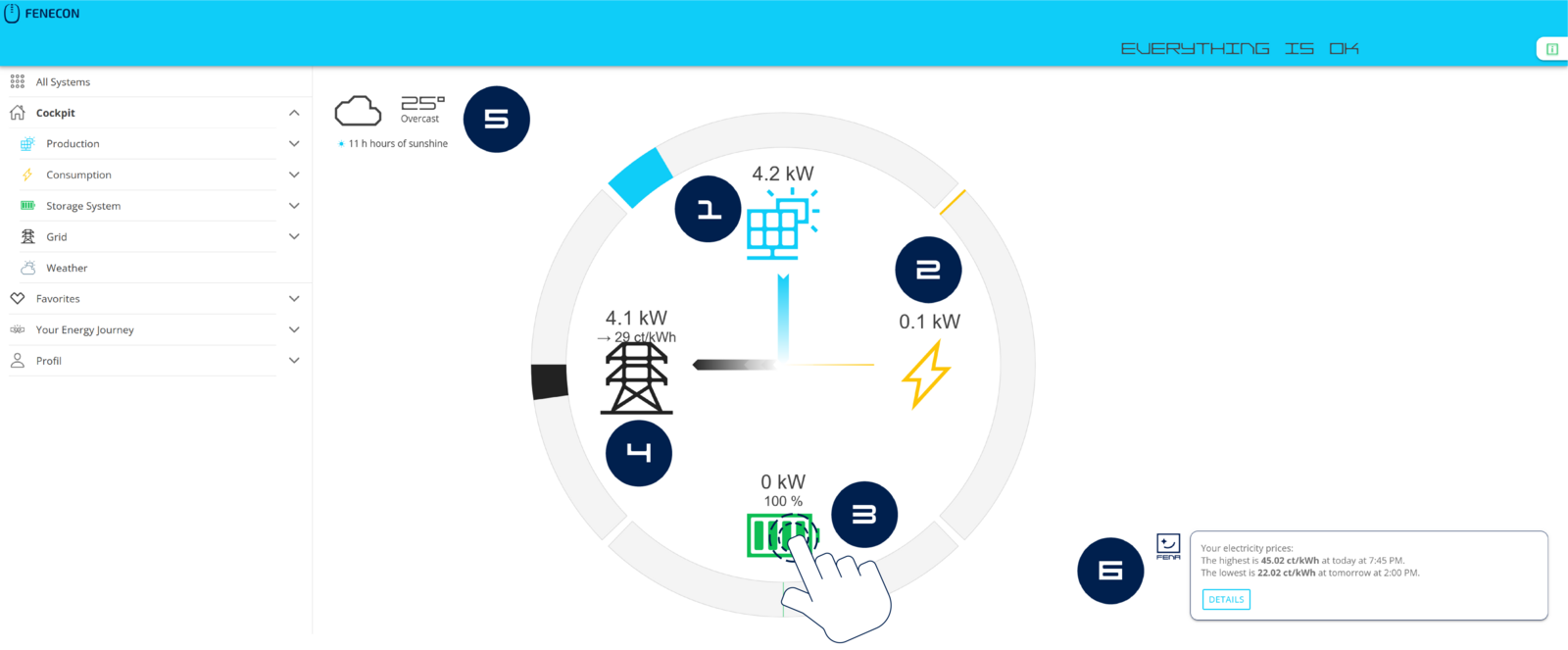
The FEMS Cockpit is the central user interface for FEMS. Here, you can view all relevant information about your system:
-
Zentrales Element ist der Leistungsmonitor. Er zeigt die aktuelle Produktion, den Verbrauch, die Be- und Entladung der Batterie sowie den derzeitigen Netzbezug oder die Netzeinspeisung.
-
The gray bars represent the maximum possible power of the various elements, which is generated automatically.
-
The consumption is calculated.
-
If one of the elements (except consumption) does not exist in the system, it is hidden.
Clicking or tapping on the respective icons will take you to the corresponding subpages of your system’s standard main menu items:
Selbstverständlich können Sie auch die das Hauptmenü links verwenden, um zu den gewünschten Seiten zu navigieren.
1. Production
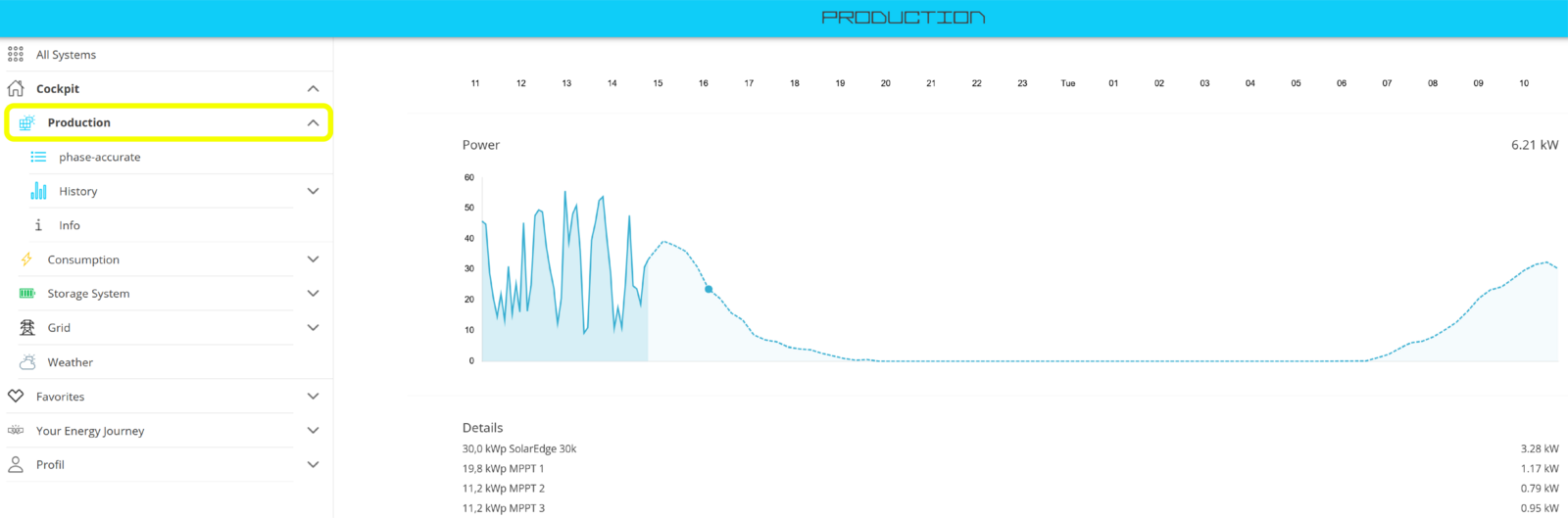
Der Hauptmenüpunkt ⬤ Erzeugung zeigt in seinem Hauptfenster die aktuelle Leistung Ihrer Erzeuger, z. B. der PV-Anlage, an. Sie erhalten außerdem eine Erzeugungsprognose für den aktuellen und den kommenden Tag in kWh angezeigt, sowie im unteren Bereich Details über Ihre eingebundenen Erzeuger.
The production forecast, shown as a dashed line in the graph, becomes visible after installing the free FEMS App Weather.
Other submenu items include:
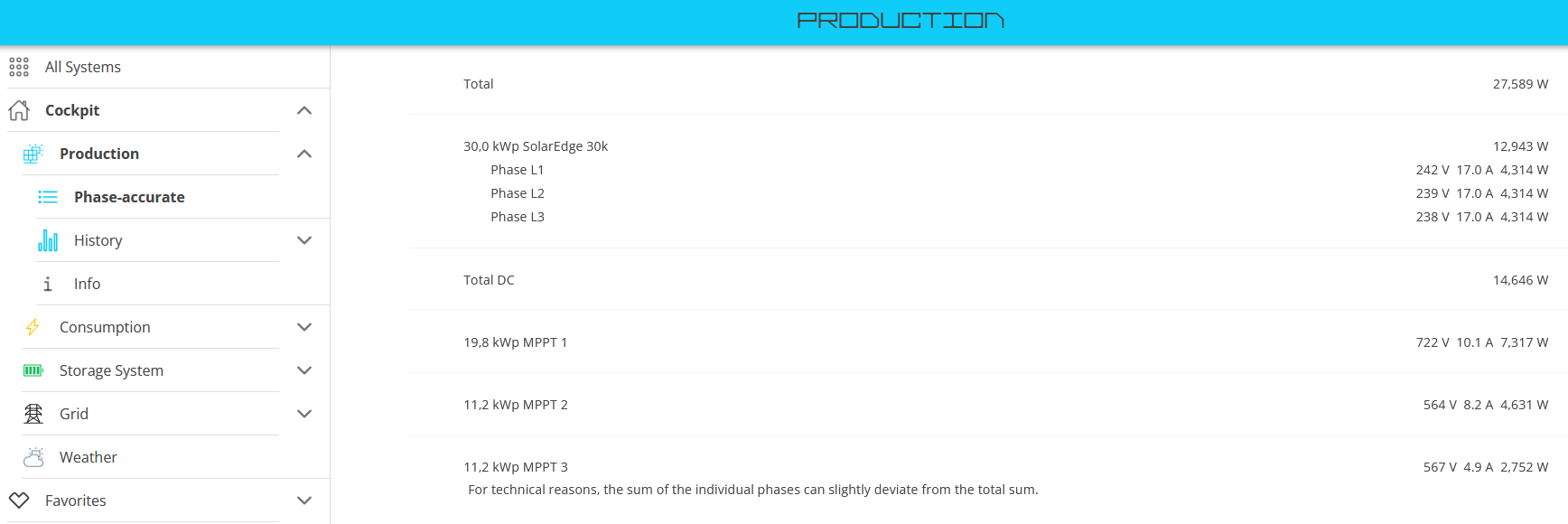
Phase-accurate production:
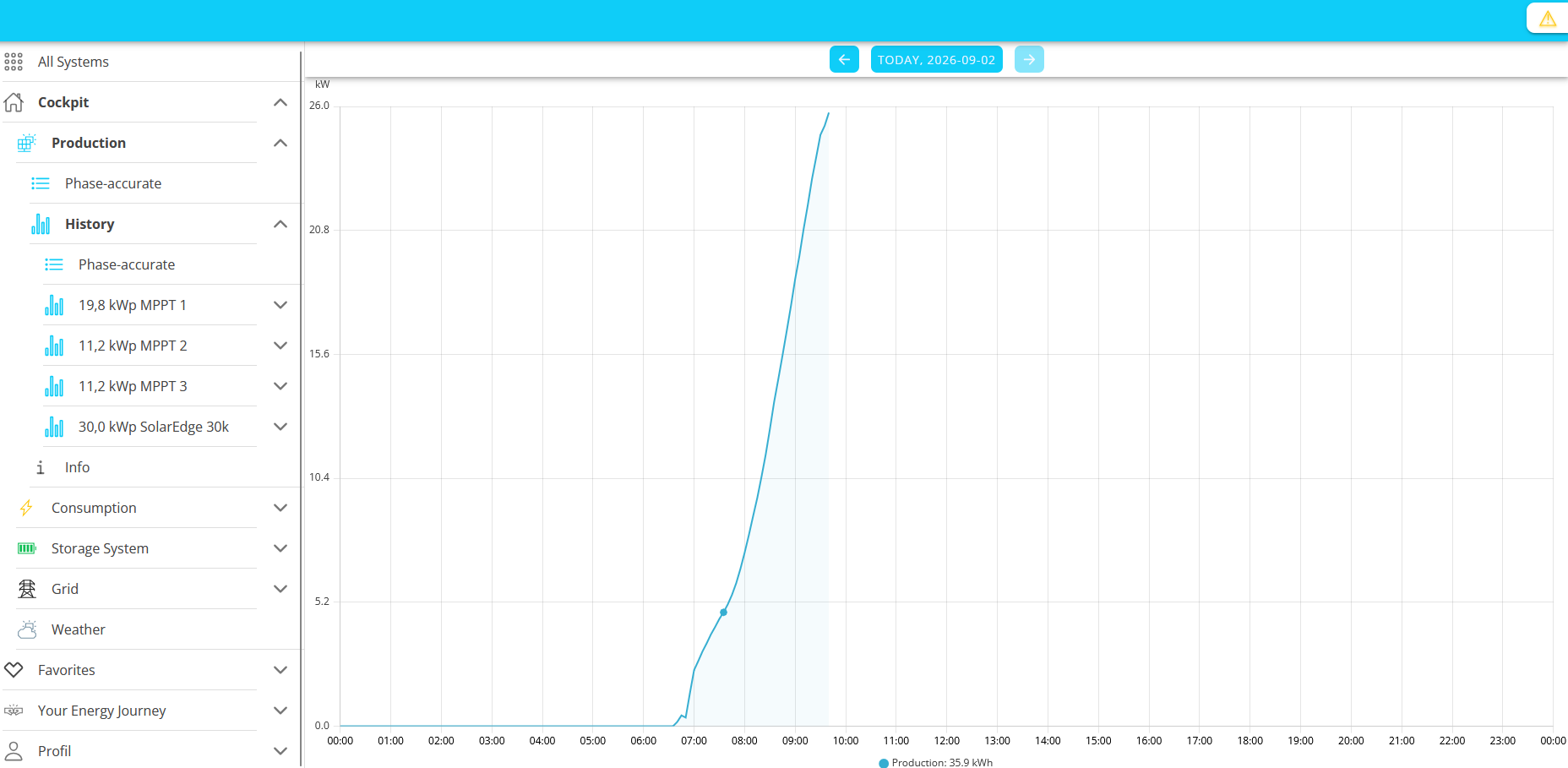
History:
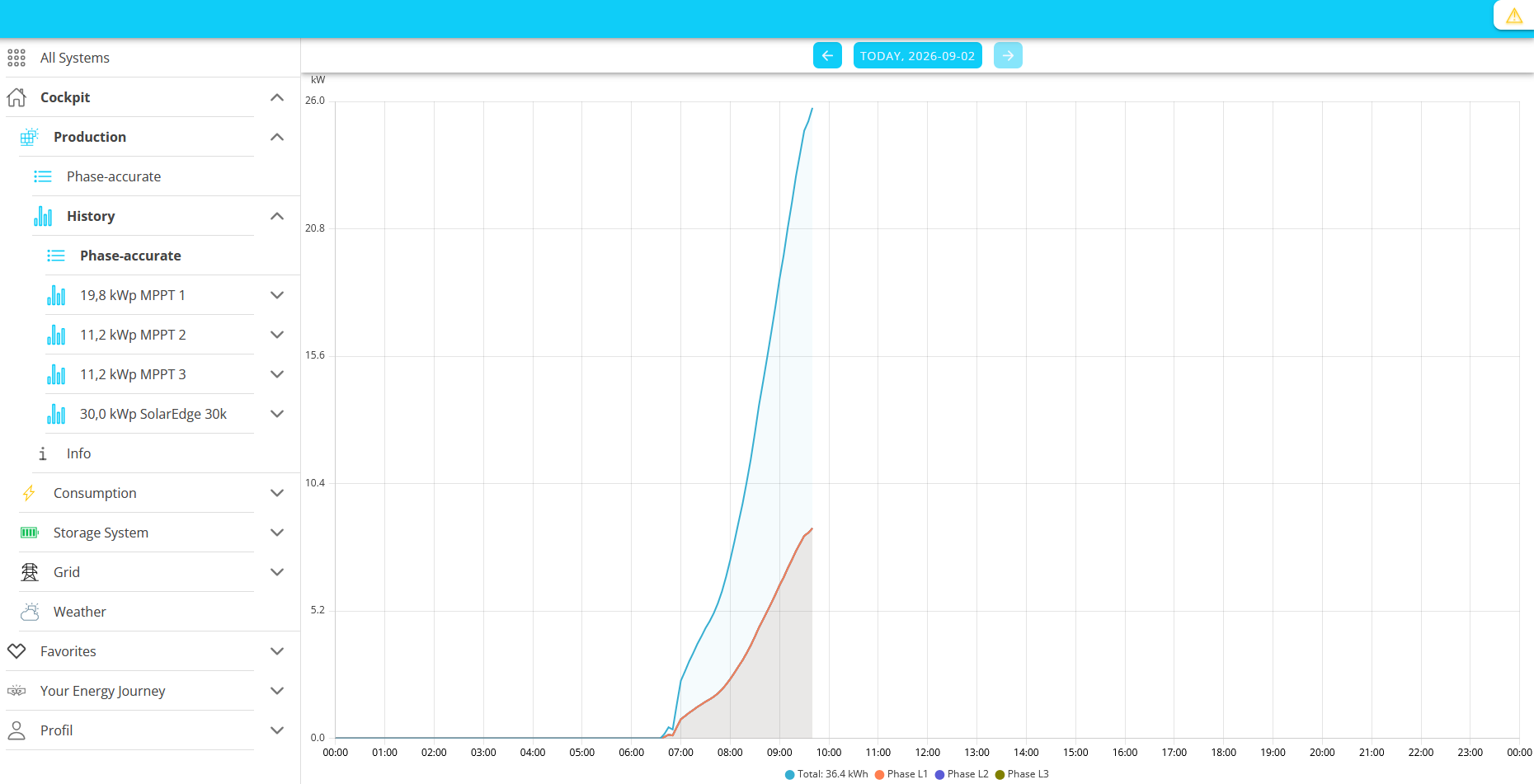
Phase-Accurate History:
⬤ Total, ⬤ Phase L1, ⬤ Phase L2, ⬤ Phase L3
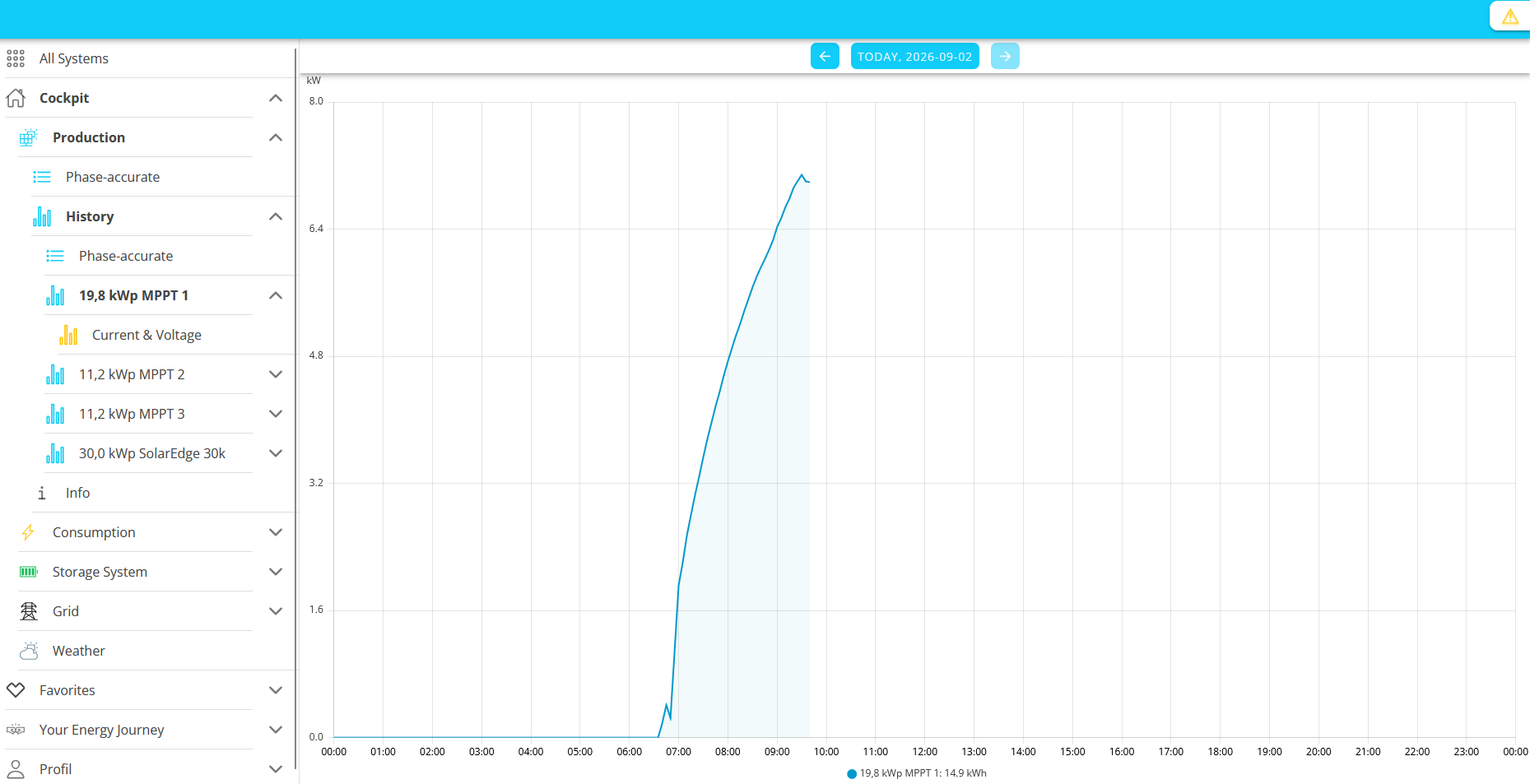
History of the individual MPP trackers:
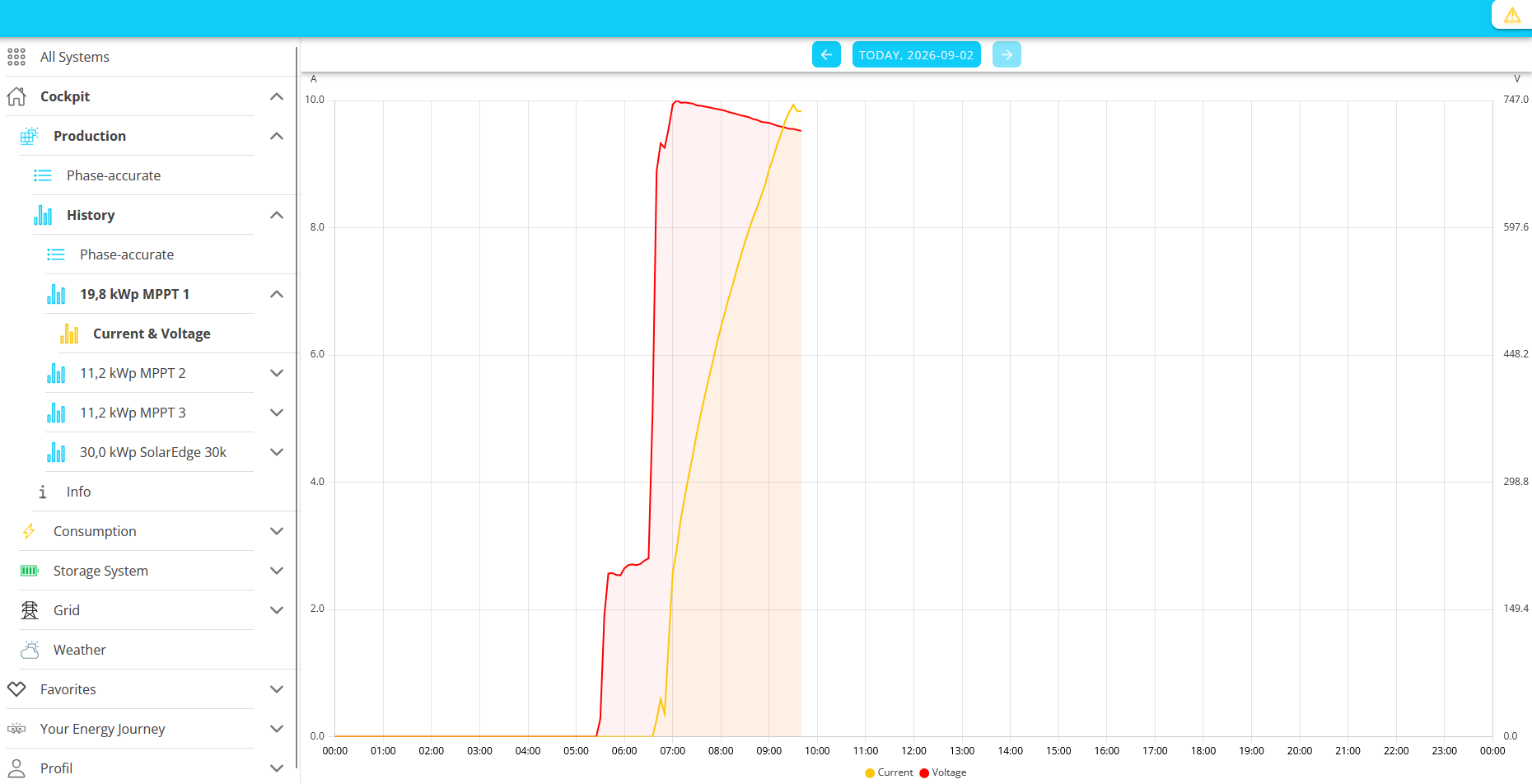
Current & Voltage of the Individual MPP Trackers:
⬤ Current, ⬤ Voltage
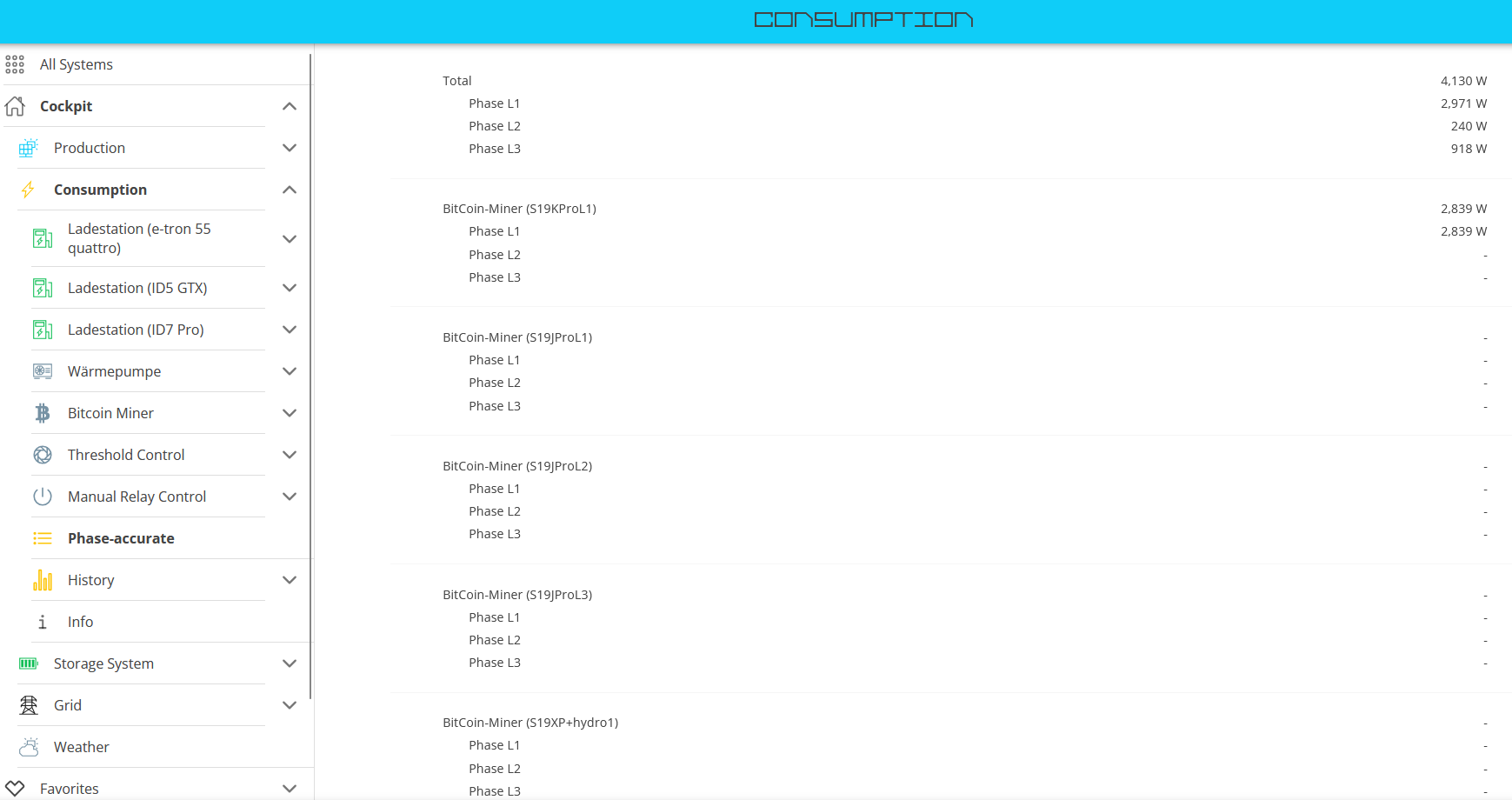
2. Consumption
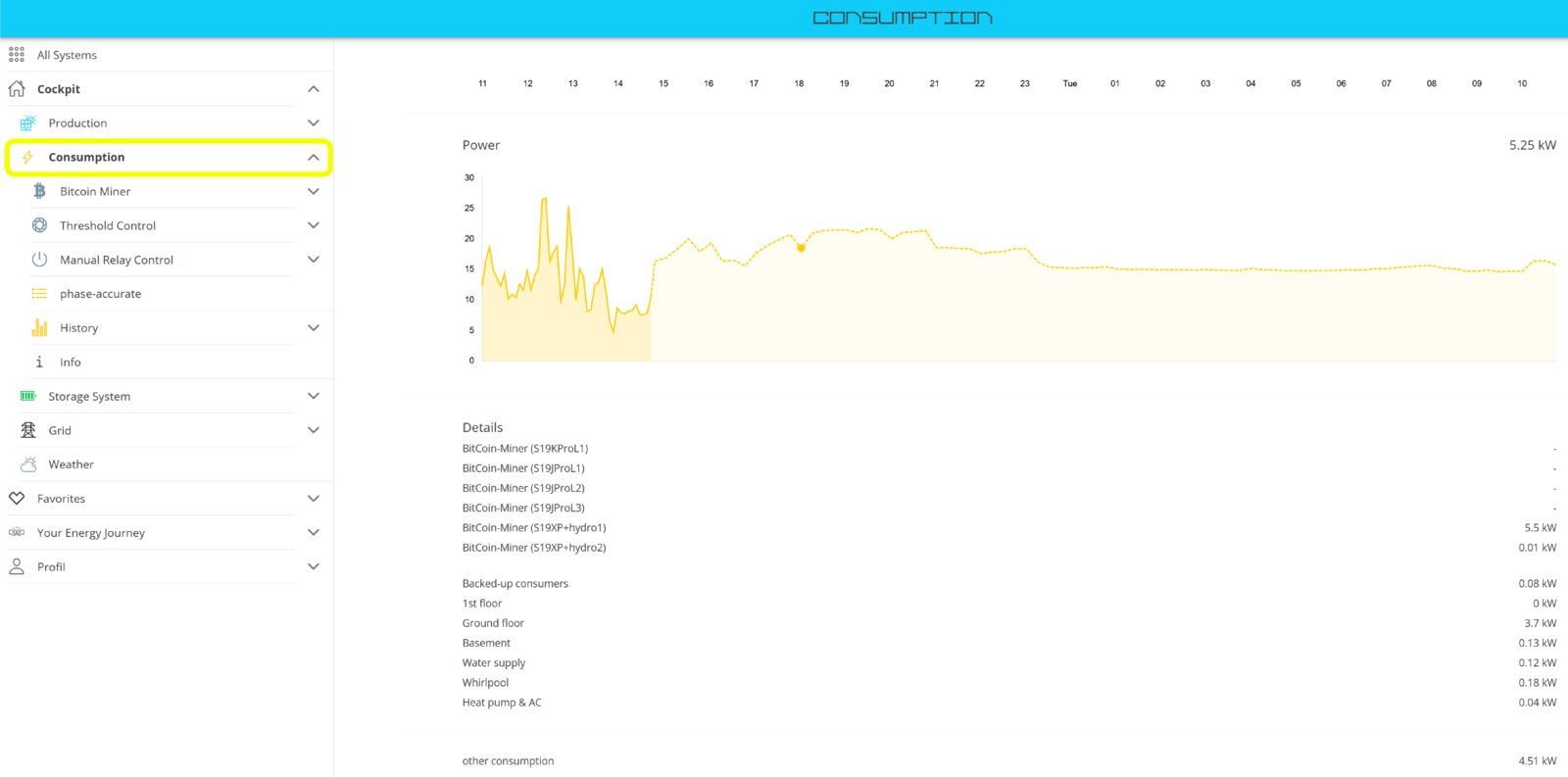
Der Hauptmenüpunkt Verbrauch zeigt in seinem Hauptfenster die aktuelle Leistung des ⬤ Verbrauchs an. Sie erhalten außerdem eine Verbrauchsprognose für den aktuellen und den kommenden Tag in kWh angezeigt, sowie im unteren Bereich Details über einzelne eingebundene Verbraucher.
The consumption forecast, shown as a dashed line in the graph, is one of the features of the new app design.
Other submenu items include:
Phase-accurate:
History:
All data for the connected consumer loads is displayed here.
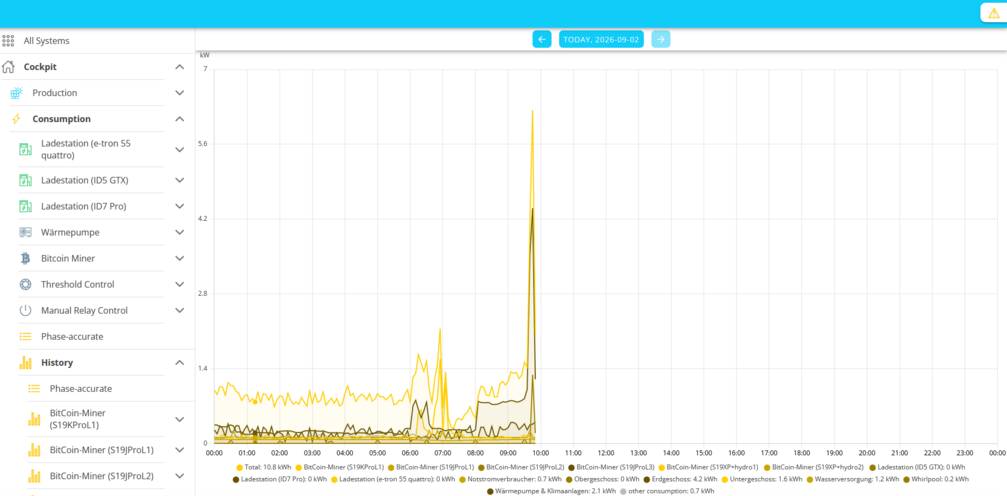
If desired, these can be shown or hidden individually by clicking on the corresponding graph descriptions in the legend.
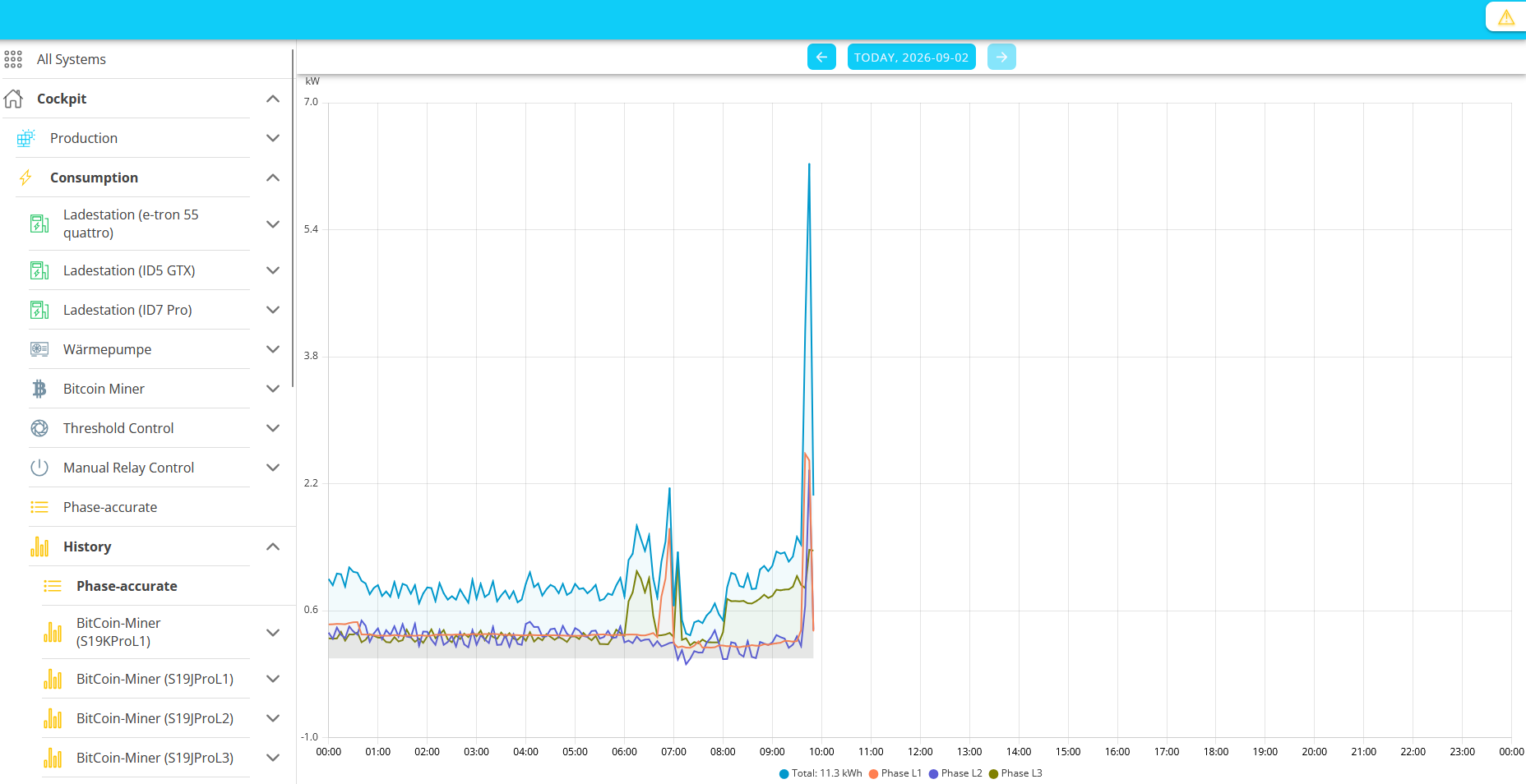
Phase-Accurate History:
⬤ Total, ⬤ Phase L1, ⬤ Phase L2, ⬤ Phase L3
3. Storage System
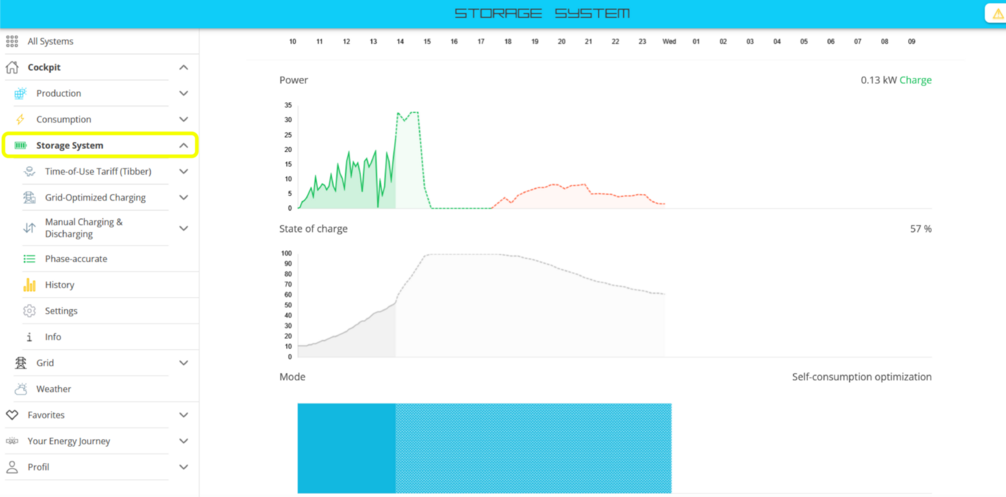
The main window of the Storage System menu item displays the current power and state of charge (SoC) of the battery system.
⬤ Charging, ⬤ Discharging, ⬤ State of Charge
The dashed graphs on this page each show forecast values.
The forecast values displayed in this way help you better estimate future trends in storage capacity and state of charge.
The forecast values are calculated as accurately as possible, taking into account any scheduled times as well.
| The sudden activation of a consumer load can affect the forecast values in the short term. |
Directly below the main menu item Storage System, you will find the available operating modes for the battery system; in this case:
-
Time-of-Use Tariff (with Tibber as the provider)
-
Grid-Optimized Charging
-
Manual Charging & Discharging
Possible operating modes include Static or Time-of-Use Tariff, Grid-Optimized Charging, Manual Charging & Discharging, and Modbus/TCP Write Access. These are explained in the corresponding FEMS App manual.
|
Example — Time-of-Use Tariff: How is the operating mode determined? An artificial intelligence system links the available forecasts with dynamic electricity prices and determines an optimized energy plan. This plan defines the appropriate operating mode for every quarter-hour of the available time period. |
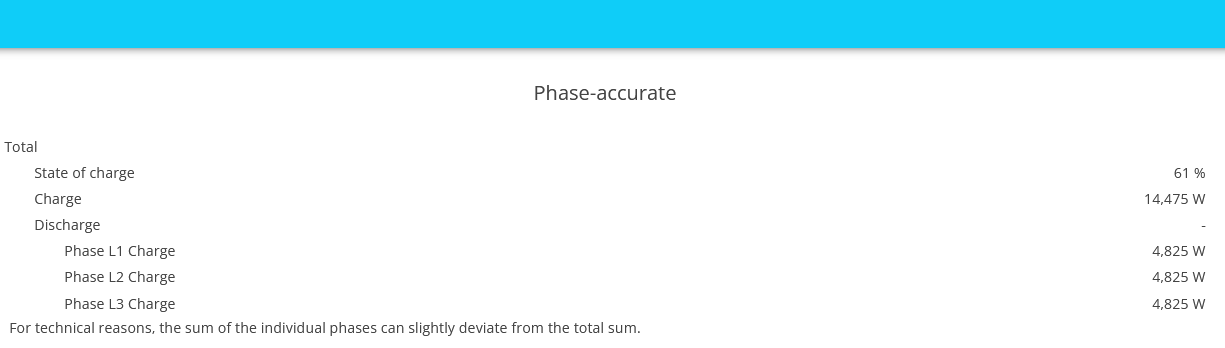
The system also provides a phase-accurate view:
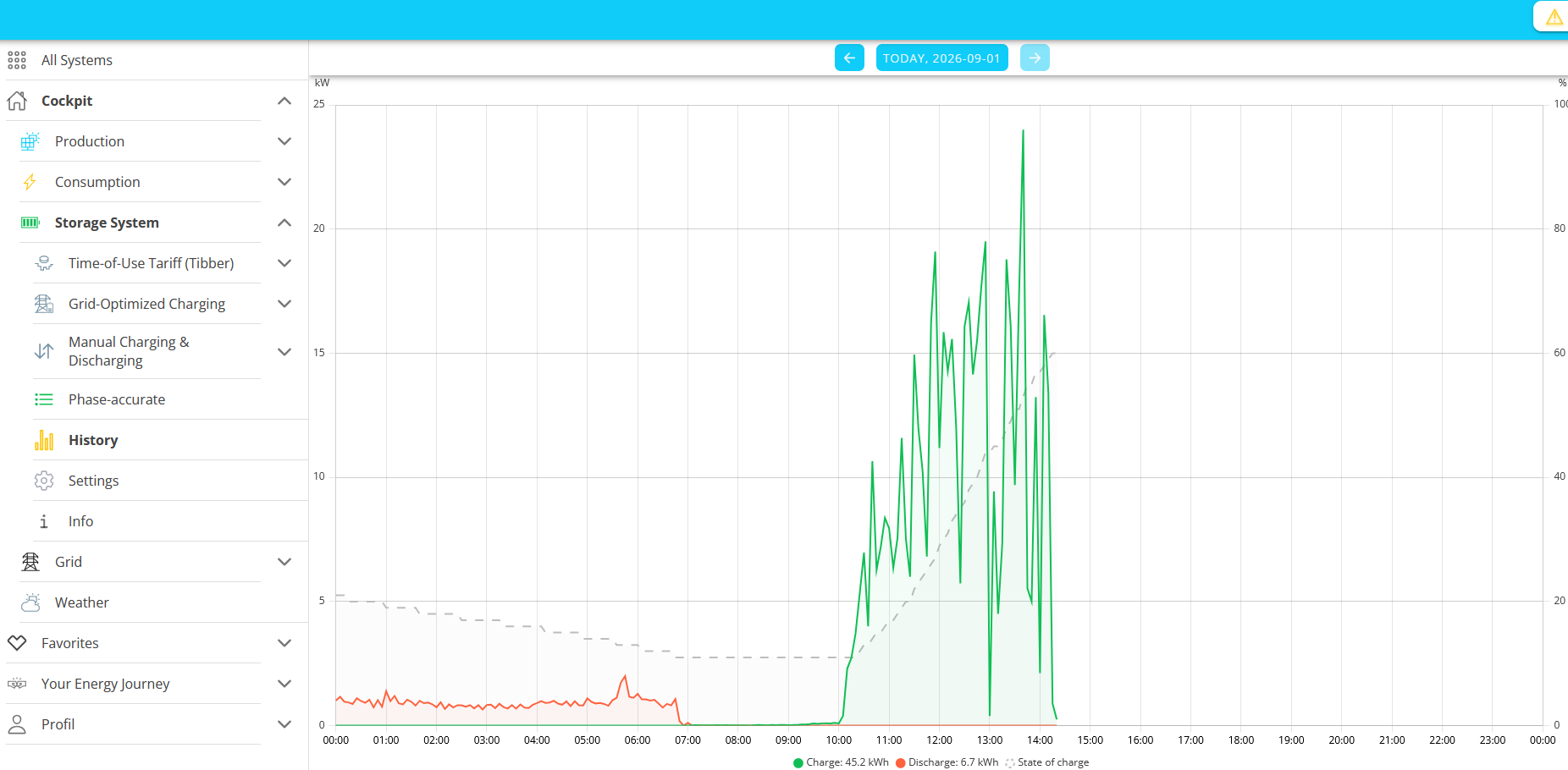
A History:
⬤ Charging, ⬤ Discharging, ⬤ State of Charge (SoC, dashed line)
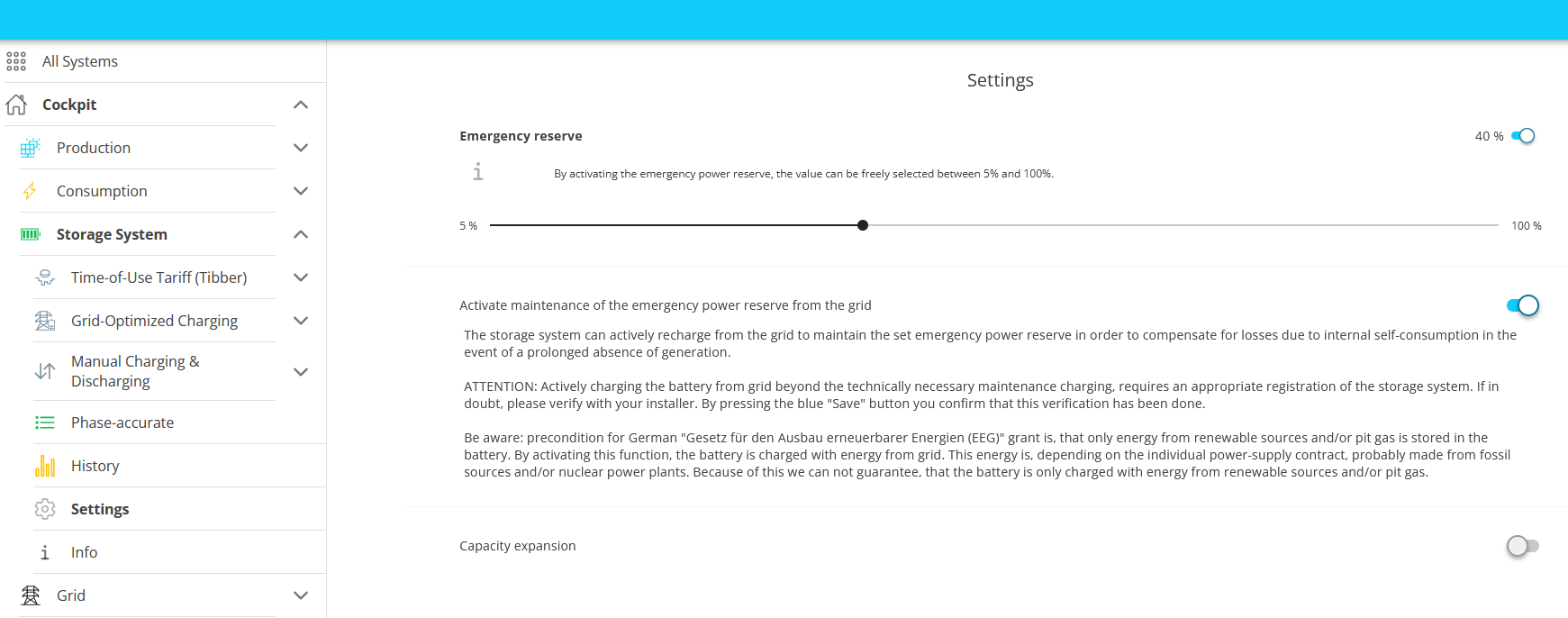
As well as a "Settings" page where the emergency power reserve is configured.
| Here, you prepare the system for an upcoming capacity expansion with additional battery modules, for which the battery energy storage system must be brought to 30 % SoC. |
Expansion of the energy storage system
| These settings are available only for the INSTALLER access level. |
After clicking the slider labeled Capacity Expansion, you can schedule the capacity expansion for a specific day and time, …

... or to start the necessary preparations right away:

4. Grid
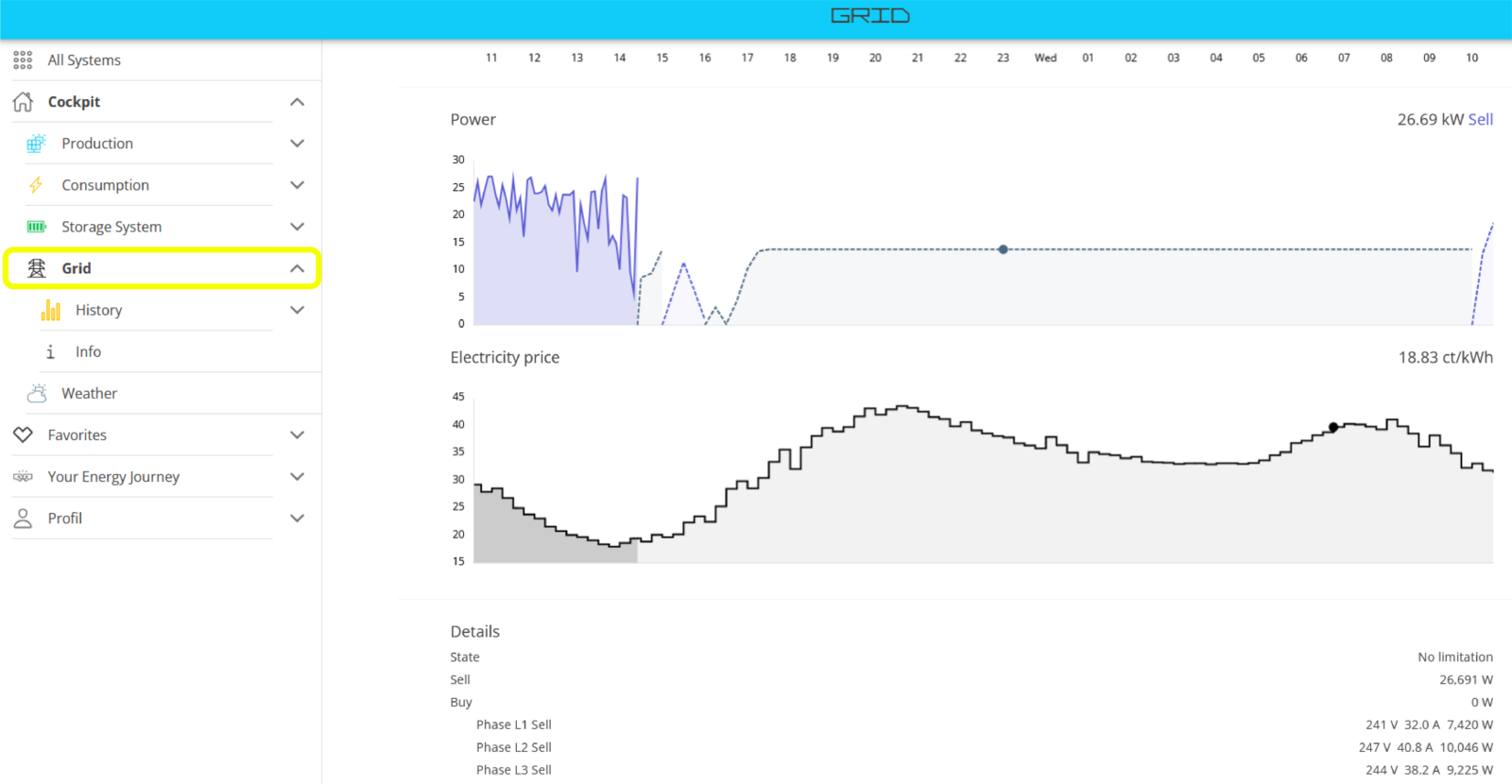
The main window of the Grid menu item displays the current power fed into the grid ⬤ as well as the ⬤ grid withdrawal, and in the graph below, the current ⬤ electricity price.
The details at the bottom indicate whether grid feed-in is currently being limited by an external factor, and how much power was fed into each phase.
Another submenu item is History:
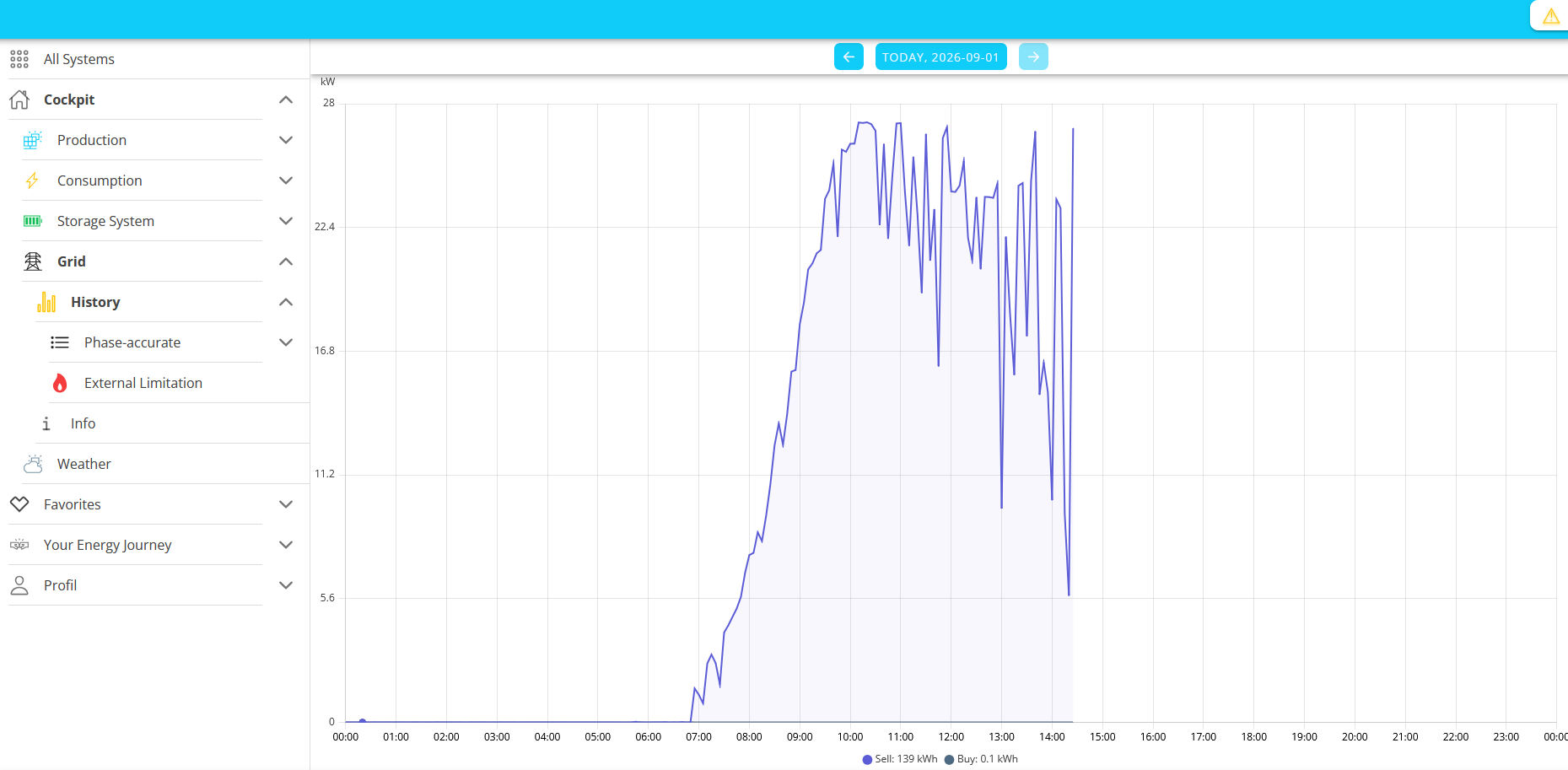
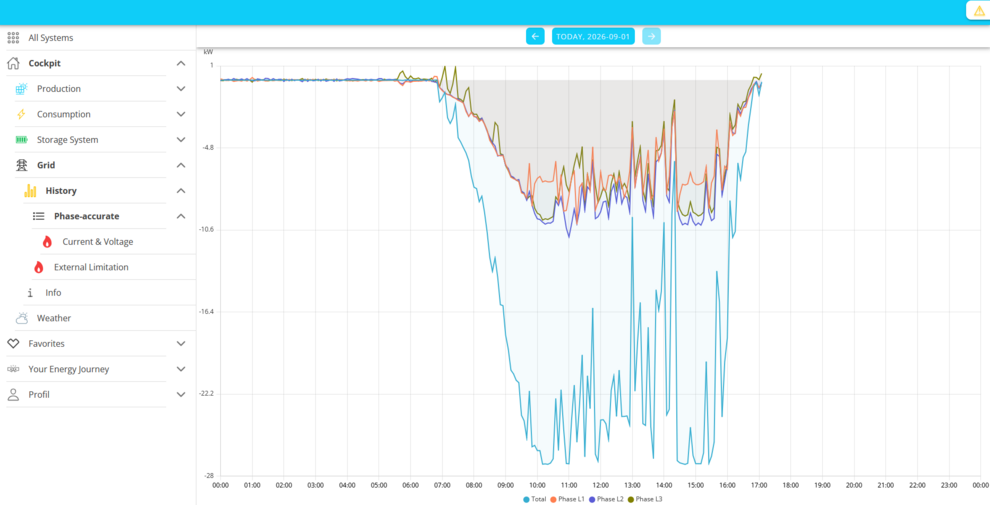
It offers two additional graphical representations: Phase-accuracy and Current & Voltage.
Phase-accurate:
⬤ Total, ⬤ Phase L1, ⬤ Phase L2, ⬤ Phase L3
Current & Voltage:
⬤ Current L1, ⬤ Current L2, ⬤ Current L3, ⬤ Voltage L1, ⬤ Voltage L2, ⬤ Voltage L3
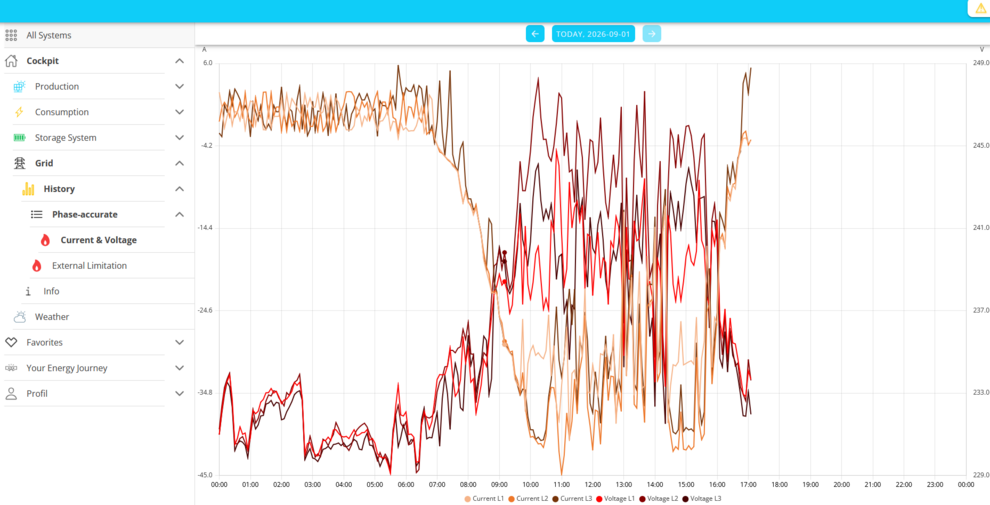
If desired, you can show or hide individual phases by clicking on the corresponding entries in the legend.
5. Weather
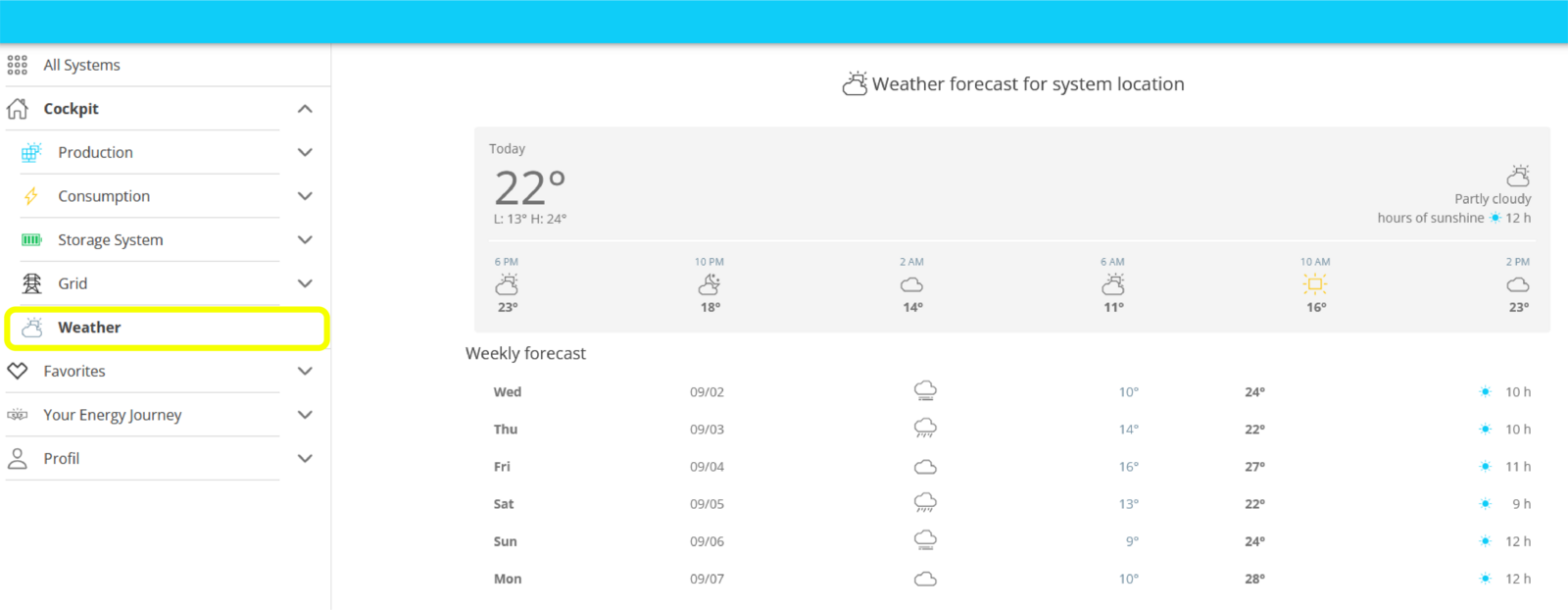
The Weather main menu item displays the weather at the system location in its main window, provided you have installed the FEMS App Weather app.
You’ll also receive a weather forecast for today and for the coming days.
6. FENA

|
FENA stands for FENECON Assistant and is a smart assistant that helps you optimize your energy management and provides you with helpful information. Currently, FENA provides information and forecasts, e. g. Emergency power active: Your FENECON system is currently supplying power to your consumer loads from your storage. Additional features will be added at a later date. |
Favorites
Nutzer mit dem Zugriffslevel OWNER haben die Möglichkeit, Menüpunkte als Favoriten festzulegen. Diese werden dann im Hauptmenü unter Favoriten angezeigt.
Hauptpunkte wie Erzeugung, Verbrauch, Netz usw., aber auch eingebundene Komponenten wie eine Ladestation können als Favoriten festgelegt werden. Auch bestimmte Unter-Seiten wie Historie können einzeln favorisiert werden, werden jedoch als "anhängig" von der Hauptseite betrachtet: Wird der Menüpunkt favorisiert, werden die darunterliegenden Menüpunkte ebenfalls favorisiert.
-
By default, Overall History of Your Energy Journey is set as a favorite. The following section explains how to set additional favorites.
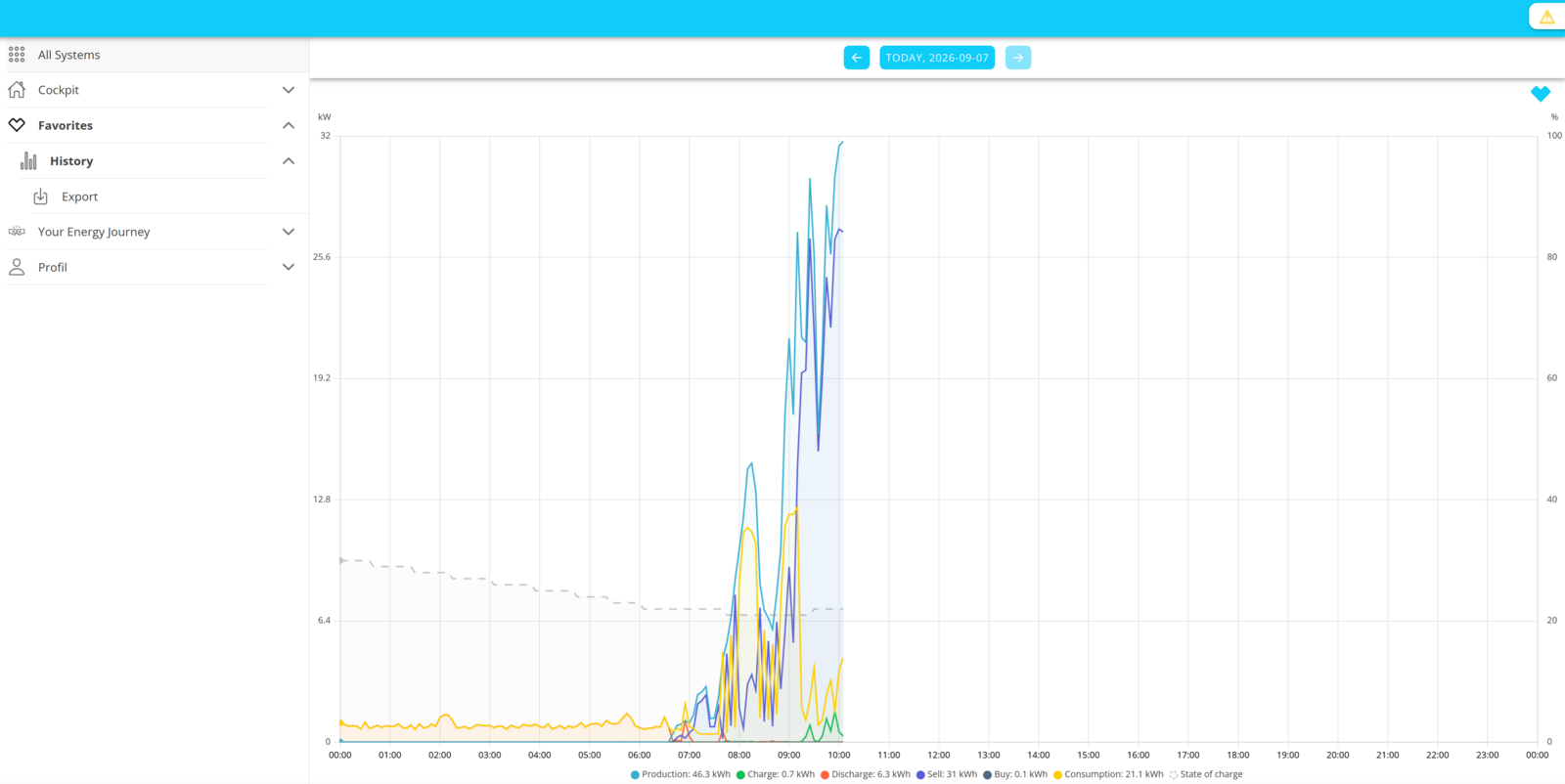
-
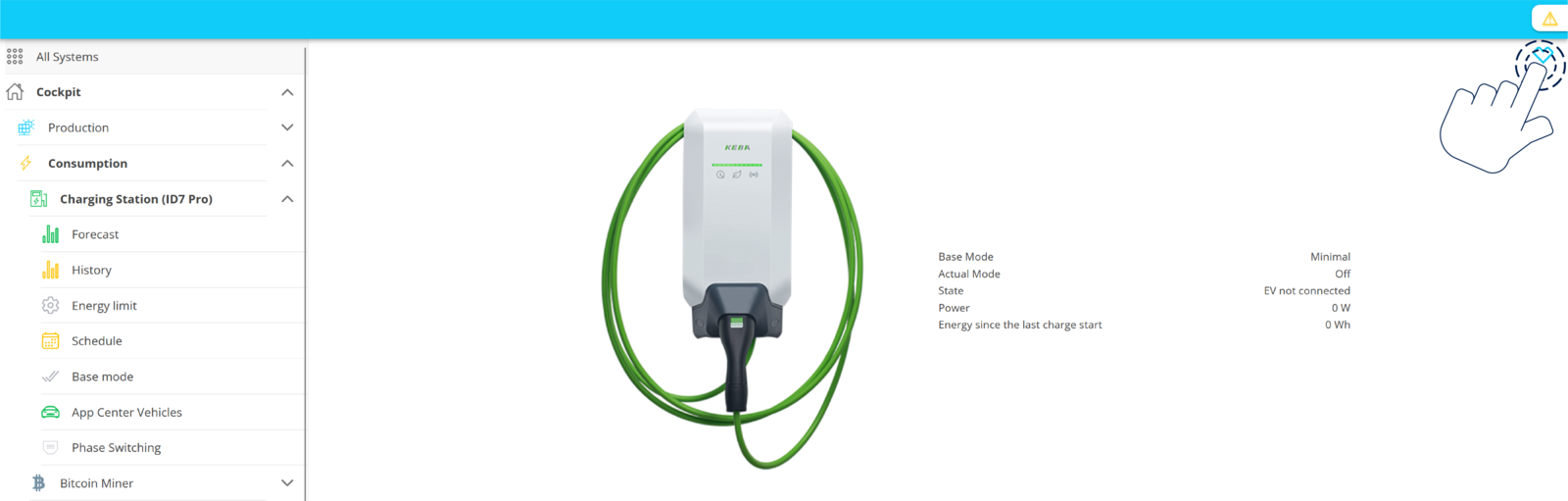
Navigate to the desired page in the FENECON app. In this example, go to a KEBA wallbox, which can be found under the main menu item Consumption.
-
Activate the heart icon to add the page to Favorites:
-
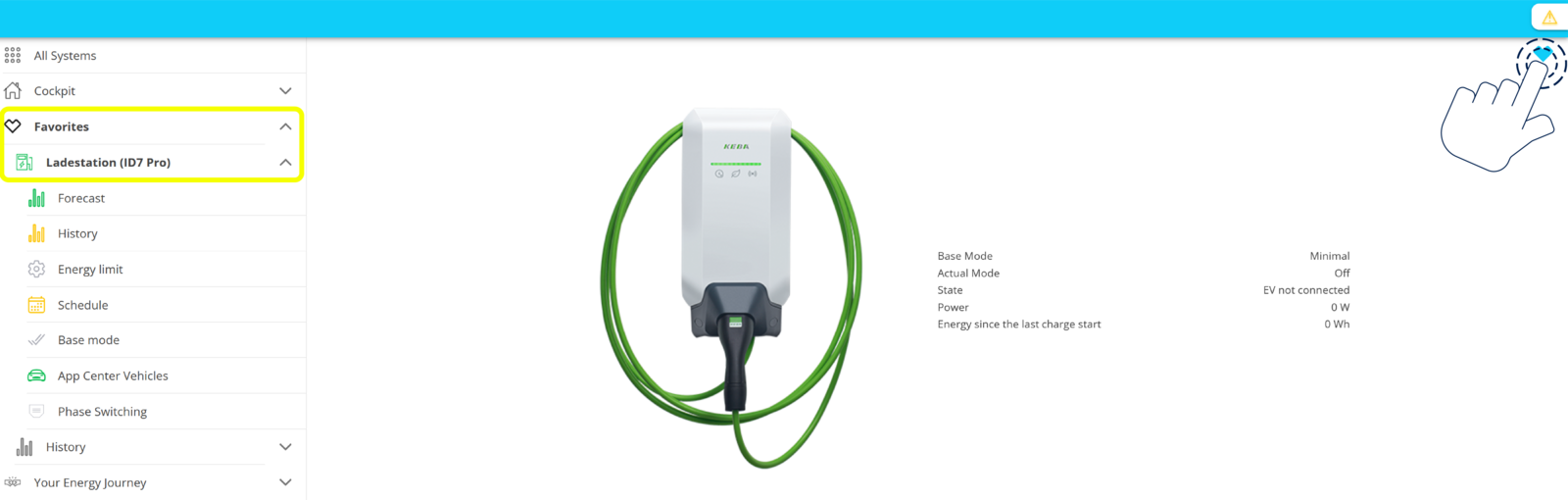
The page now appears in the navigation bar under Favorites.
-
To remove the page from your favorites, activate the heart icon again. The page will then no longer appear in the navigation bar under Favorites.
System status
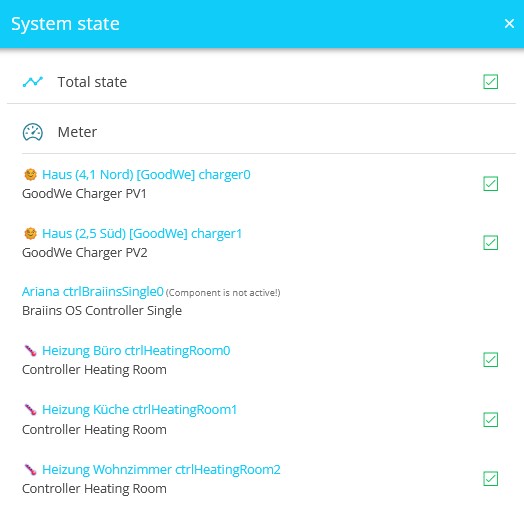
The system status display is located in the upper-right corner of the cockpit. Clicking the takes you to an overview of all system components and their statuses: |

|
Continue your Energy Journey and expand your system—e. g. with additional storage capacity, heating elements, heat pumps, wall boxes, and the corresponding FEMS Apps. You’ll get an overview of your Energy Journey so far, and you’ll also see the next steps for expanding your system in a meaningful way.
History of Your Energy Journey
The History submenu item displays graphical data for your system regarding:
⬤ Production, ⬤ Charging, ⬤ Discharging, ⬤ Grid feed-in, ⬤ Purchased from grid, ⬤ Consumption, ⬤ State of Charge (SoC, dashed line)
You can choose between the time periods Day, Week, Month, Year, and Total Period. You can also display a custom (different) time period. The values are displayed in kWh.
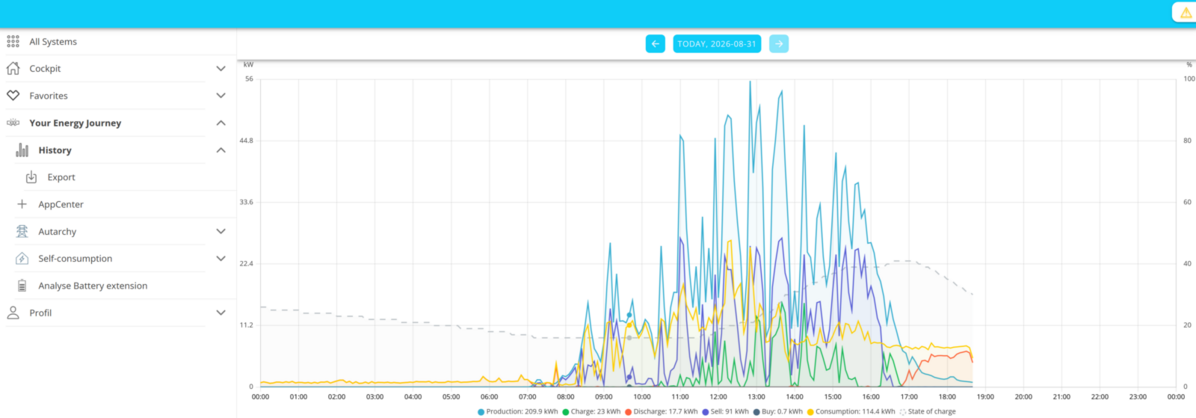
Clicking or tapping on the respective value in the legend hides or shows the corresponding graph.
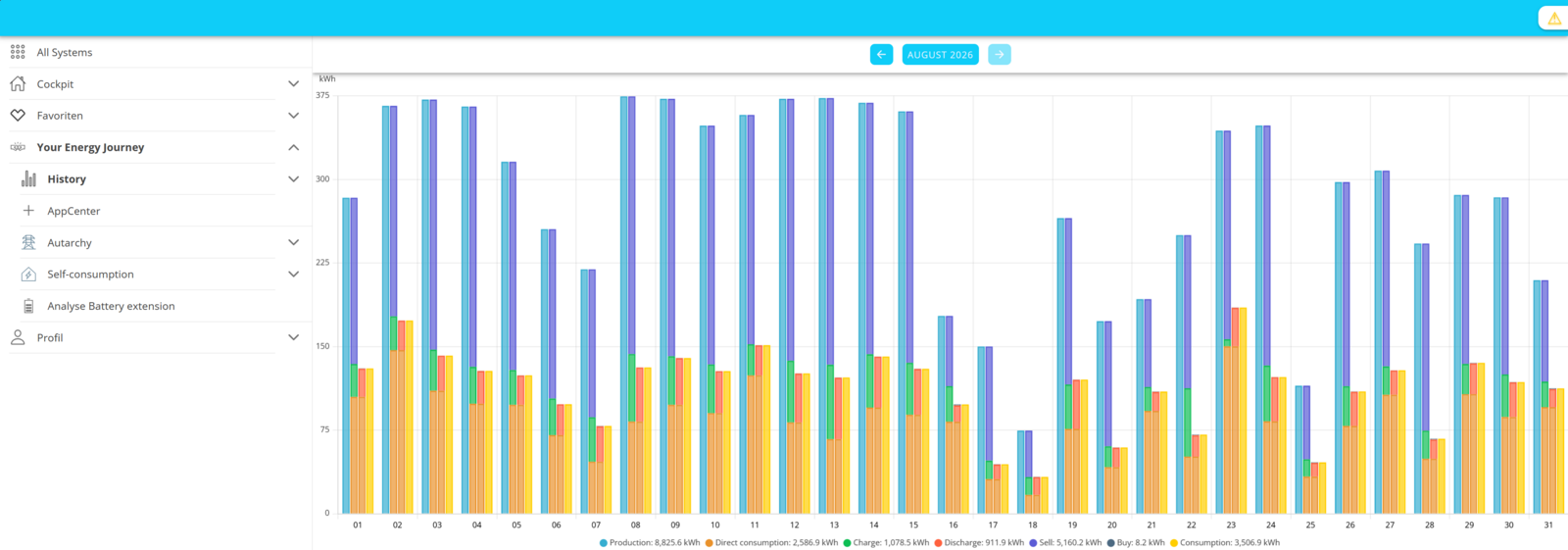
In the monthly and annual views, the State of Charge (SoC) of ⬤ is replaced by Direct Consumption ⬤ .
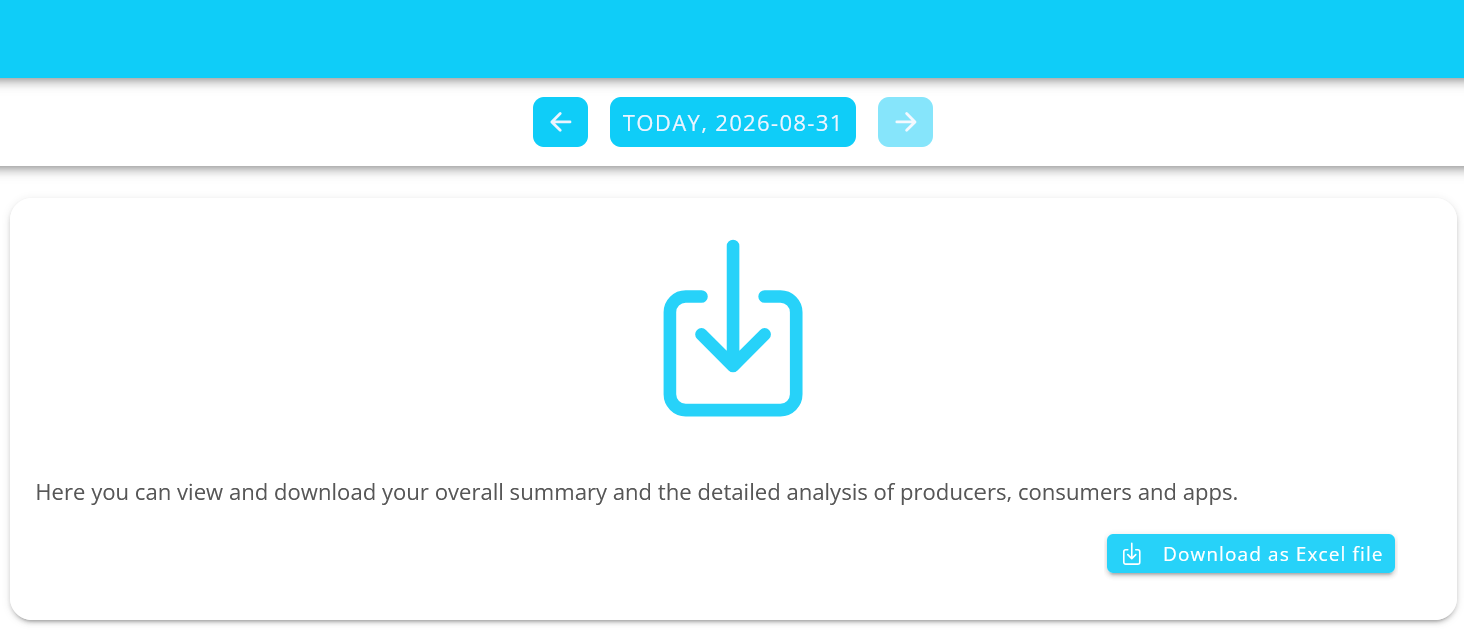
Select Export under the History menu item to export the values for the selected time period as an Excel file (.xlsx). By default, the file is located in your device’s Downloads folder. The file name includes the FEMS number and the time period for which the values were exported.
FEMS AppCenter
The AppCenter for registering, redeeming, and managing license keys can be found in the main menu under Your Energy Journey:
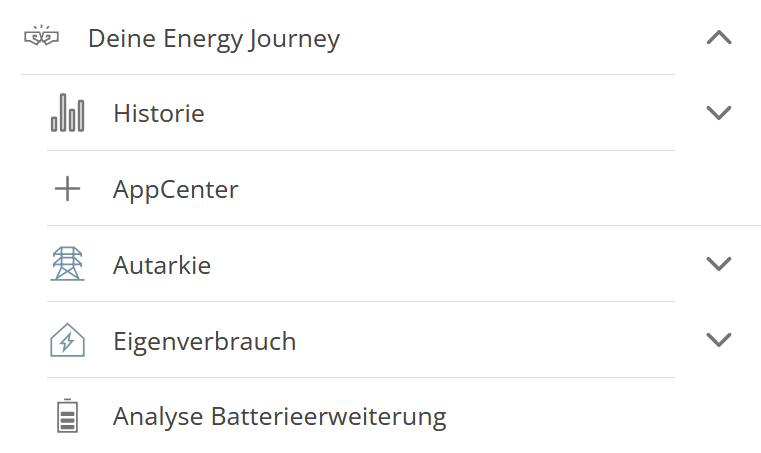
You will then see the AppCenter in the main window:
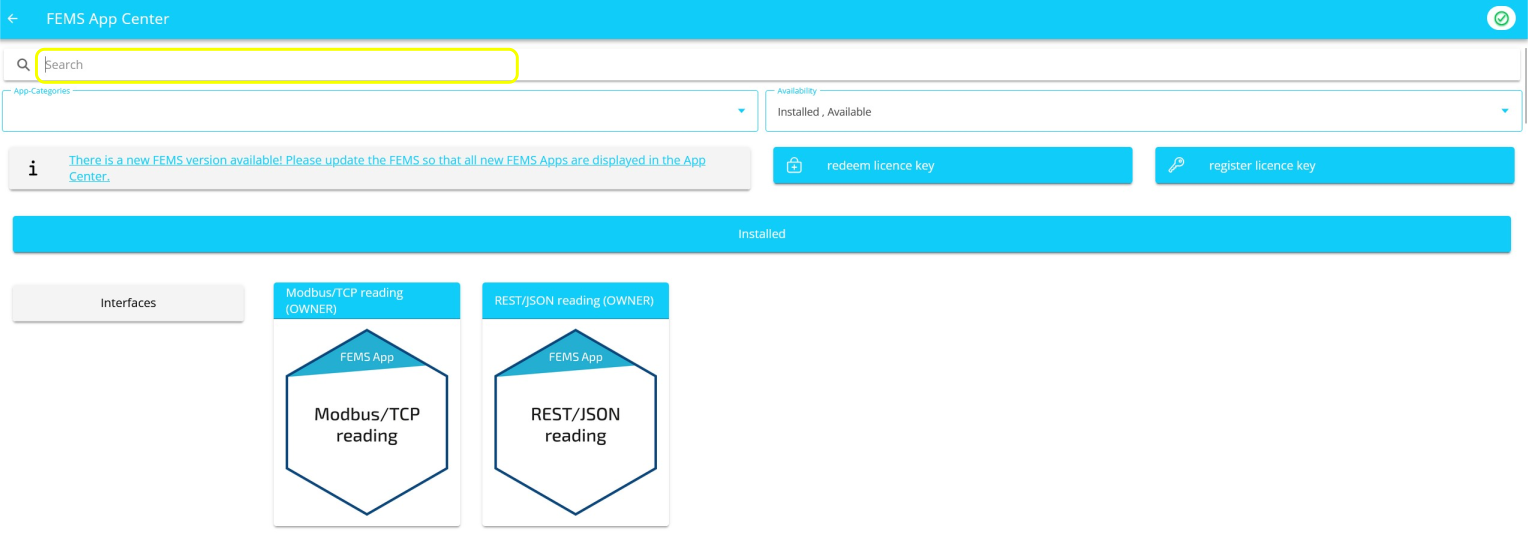
From there, you can continue with the AppCenter features.
Autarky
This main menu item is part of the Energy Journey and displays your self-sufficiency rate as a percentage. The autarky rate describes the proportion of your total energy consumption that is met by your own self-consumption. The higher the autarky rate, the less dependent you are on external energy sources.

You can also view an Autarky history. Here, you can choose between Day, Week, Month, Year, and the Total Period. You can also view a custom (different) time period.
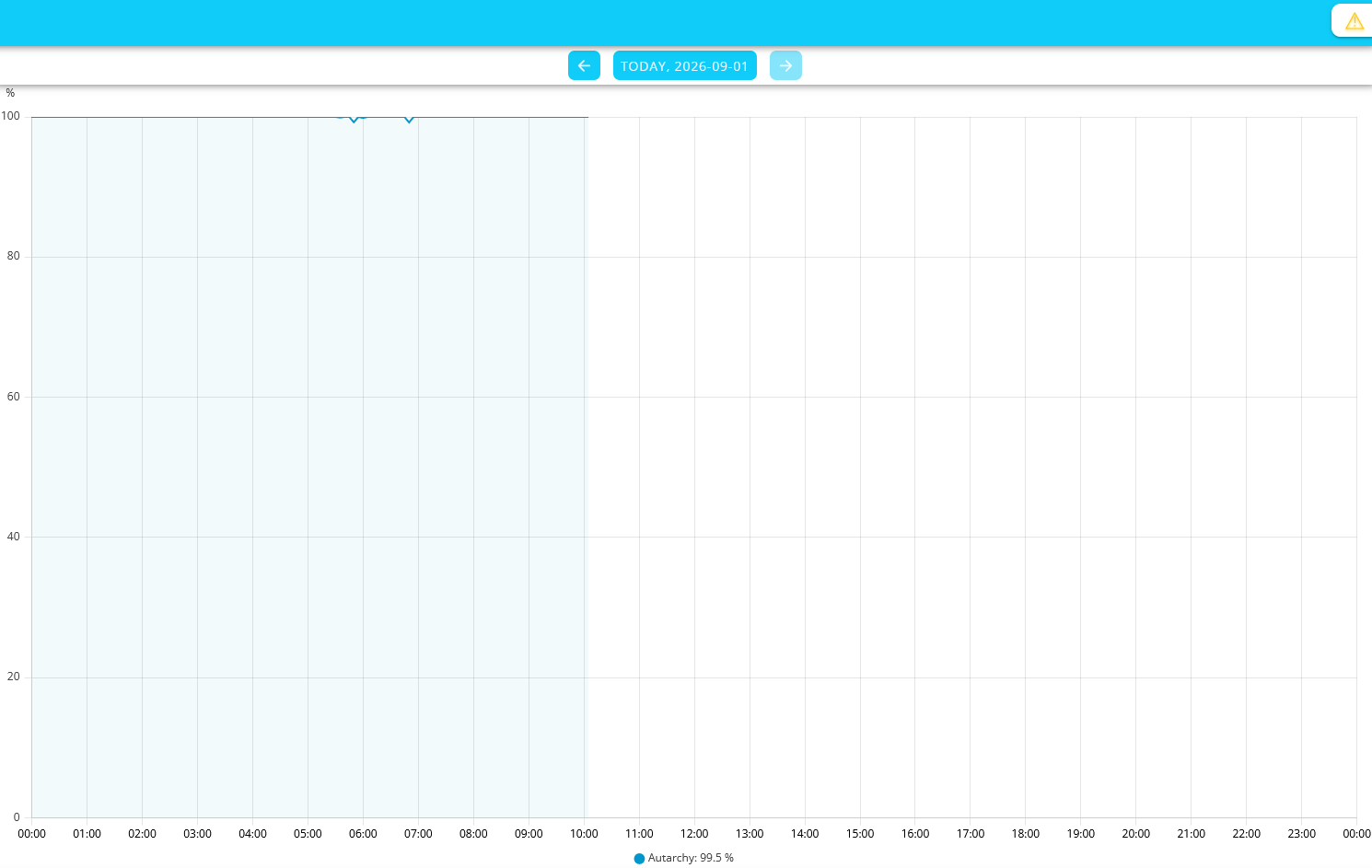
Self-consumption
Self-consumption indicates the percentage of the power currently being produced that is consumed for direct consumption and for battery charging.

Self-consumption also has a historical view:
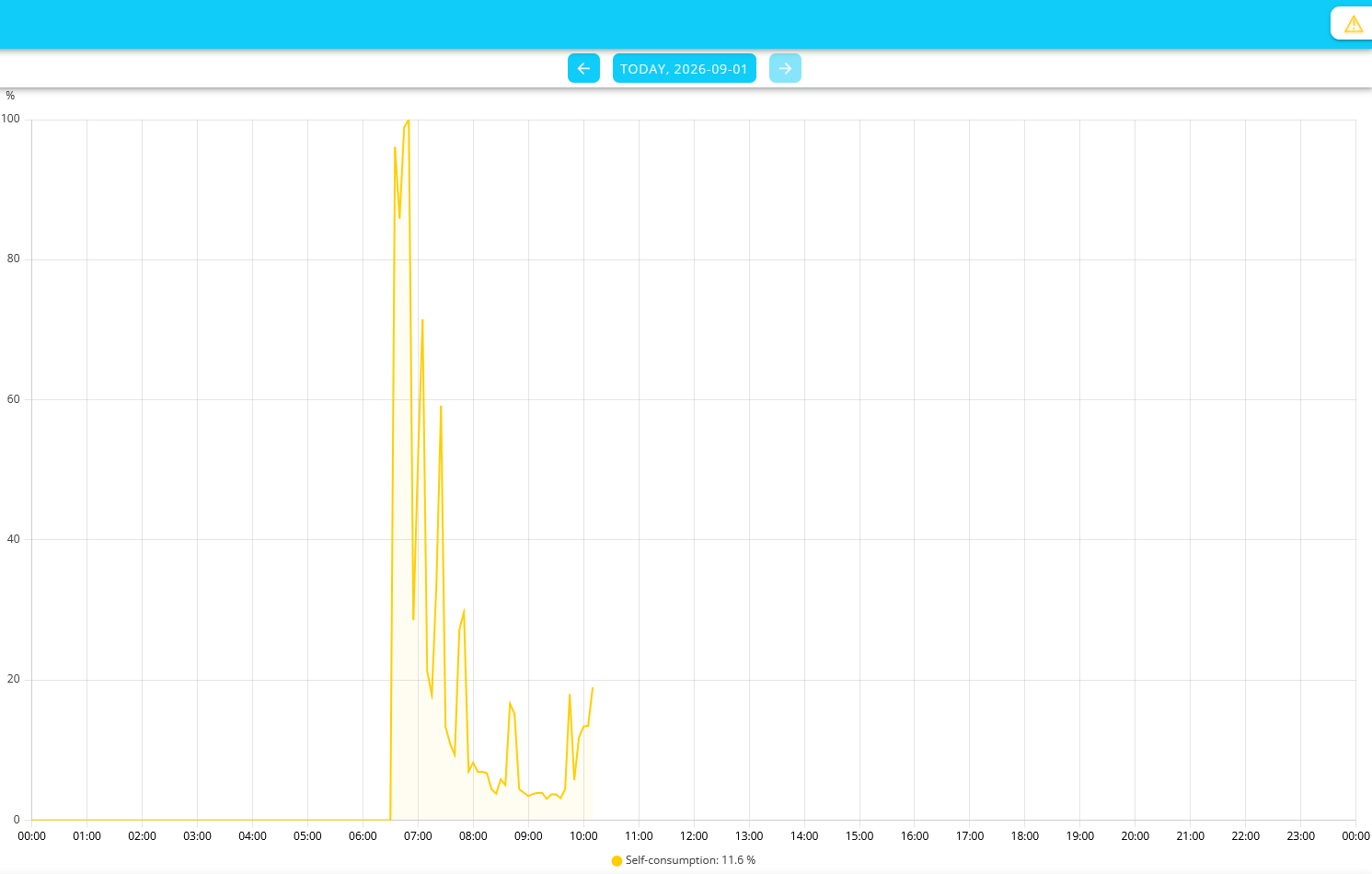
| If there was no production, there can be no self-consumption! Therefore, self-consumption is only shown in the chart if there was also production at that time. |
Analysis of Battery Expansion
The battery expansion analysis shows you how expanding your battery system would affect your energy self-sufficiency. You’ll receive step-by-step instructions and visualizations to help you find the optimal system configuration for your needs.
-
Start the analysis by clicking VIEW ANALYSIS.
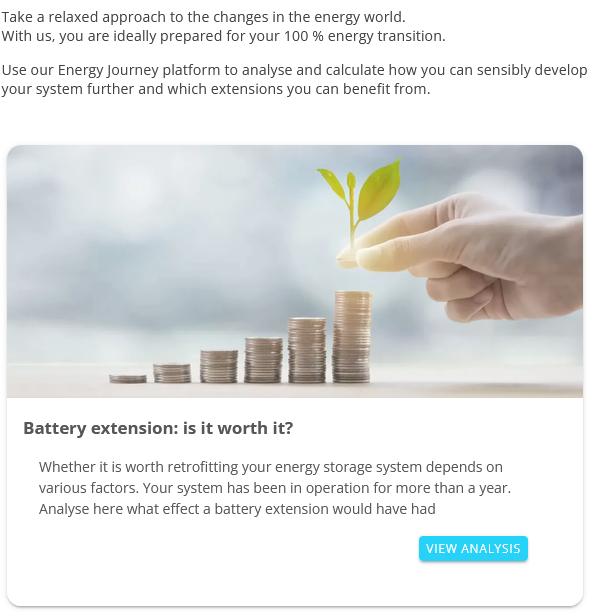
-
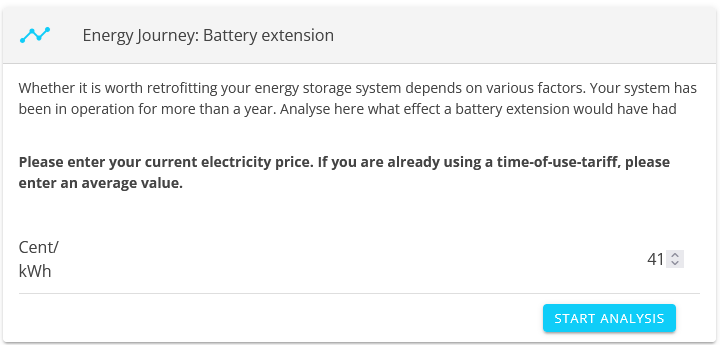
Enter your current electricity price in cents per kWh. If you have a time-of-use tariff, enter the average rate. Click the START ANALYSIS.
-
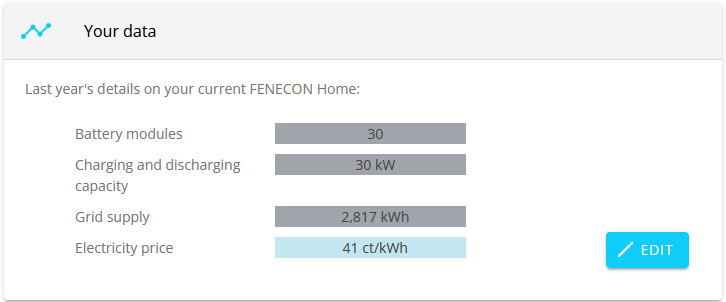
You will first receive information for the past year.
-
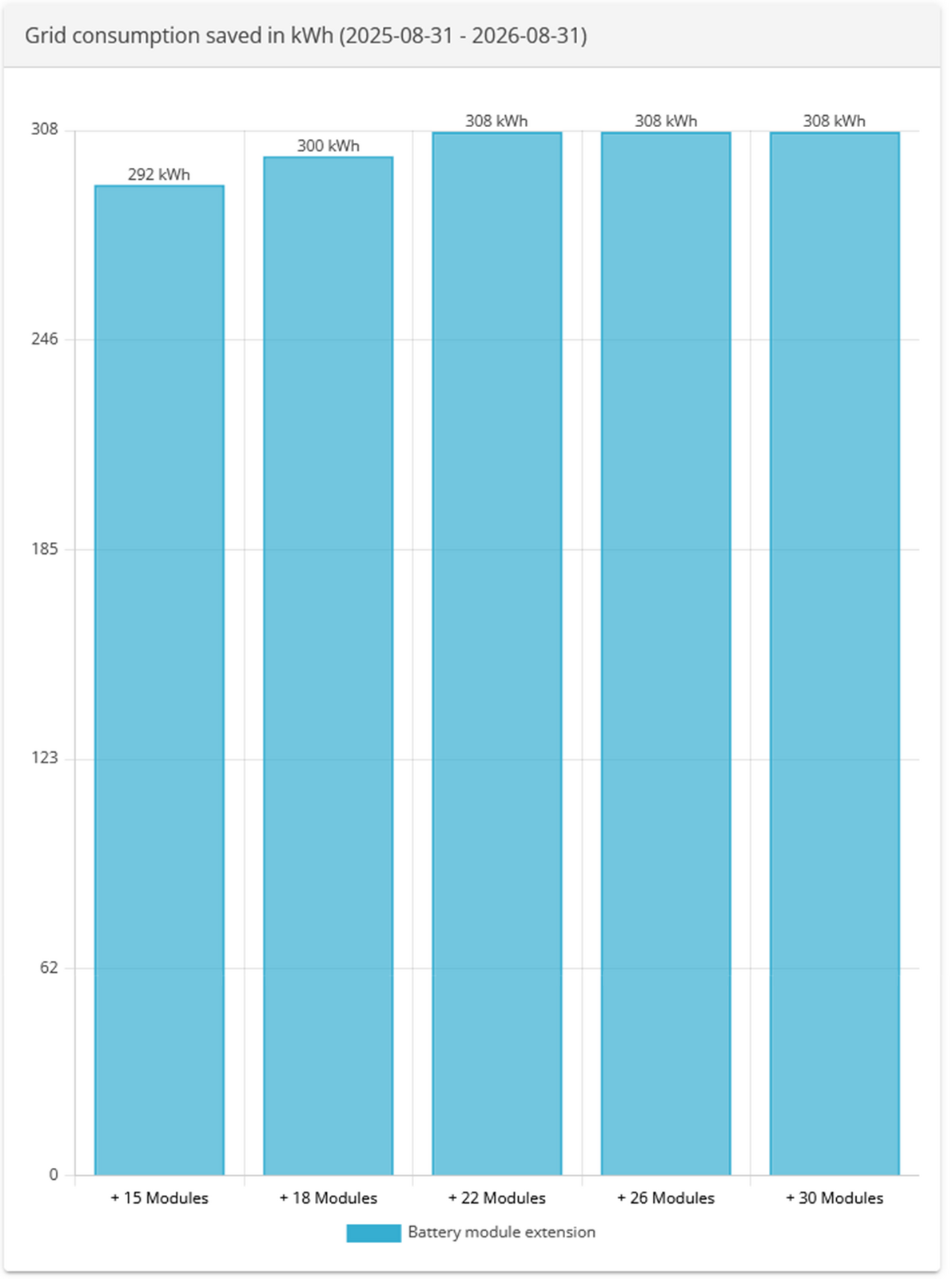
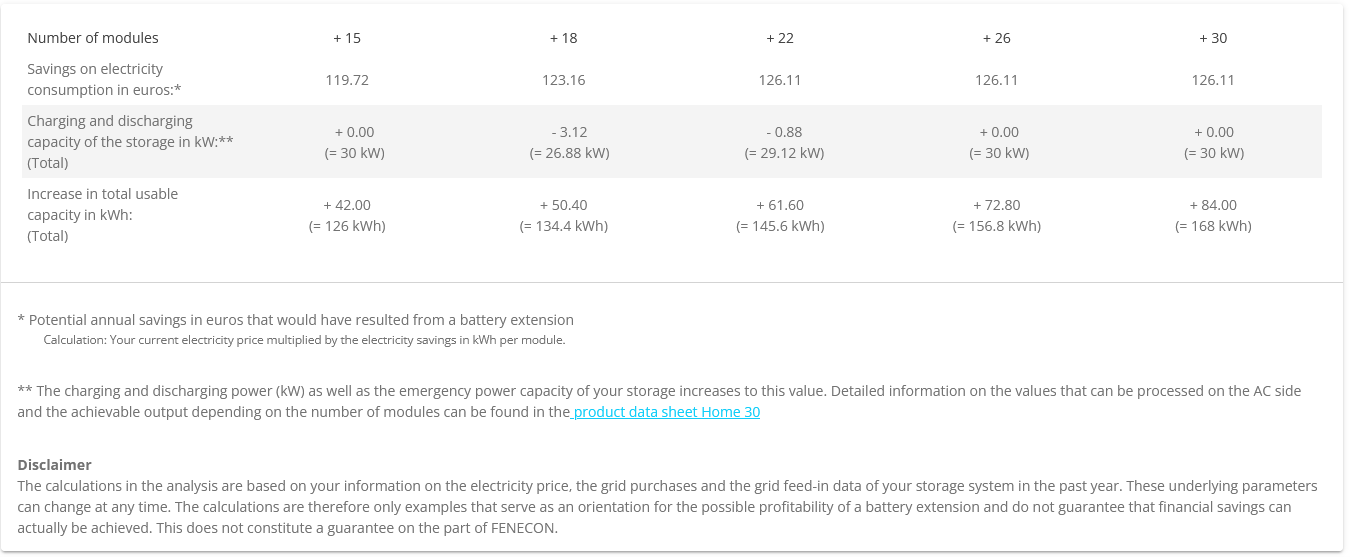
The bar chart below shows how many kWh you could have saved during this period with the corresponding battery upgrade.
03.09.2026 — Automatic Phase Switching
In addition to manual phase switching (1- or 3-phase), BETA participants now have the option of automatic phase switching:
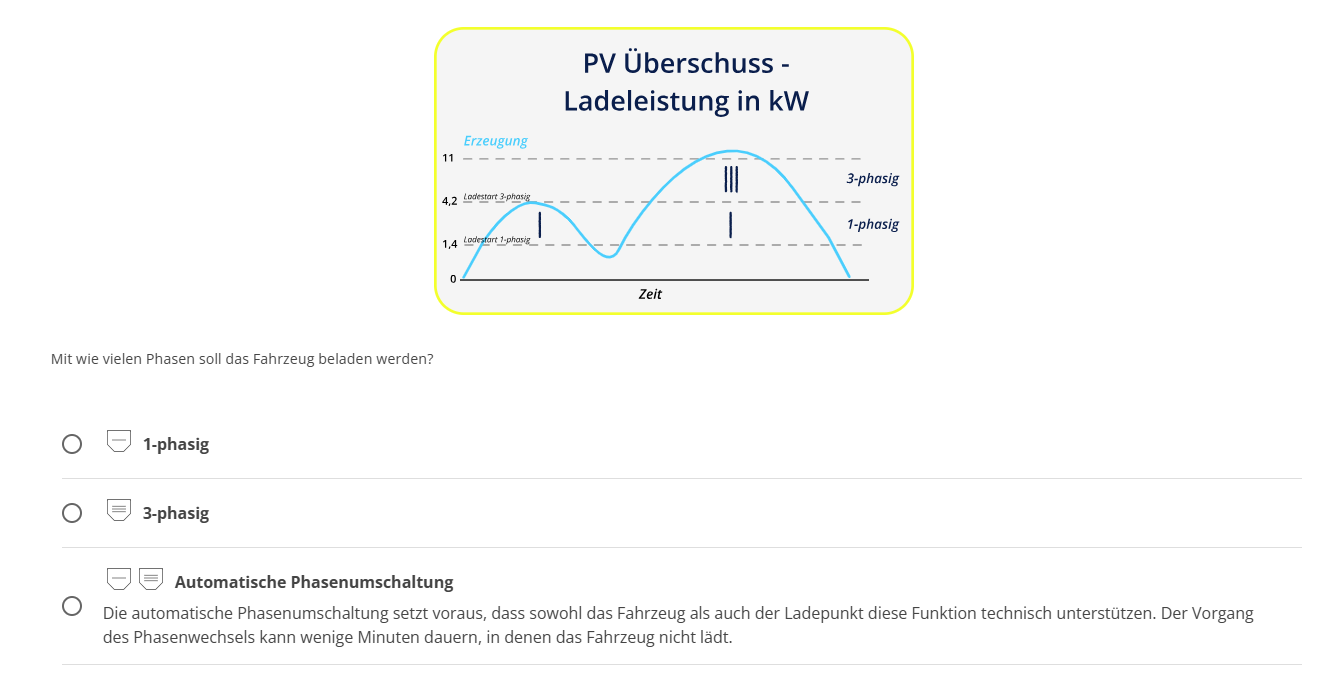
The phases are automatically switched based on the charging power. This allows even a small amount of excess PV power to be utilized.
|
|
21.07.2026 — ASKOMA & my-PV — New Timetable Visualization
The heating element integrations for ASKOMA and my-PV now feature new visualizations in the schedule, as shown here using ASKOMA as an example:
You can access the visualization via the ASKOMA chip in the side menu of Online Monitoring: |
|
The ASKOMA main window then displays the status, the current heating output, and the current mode (e. g. PV surplus):
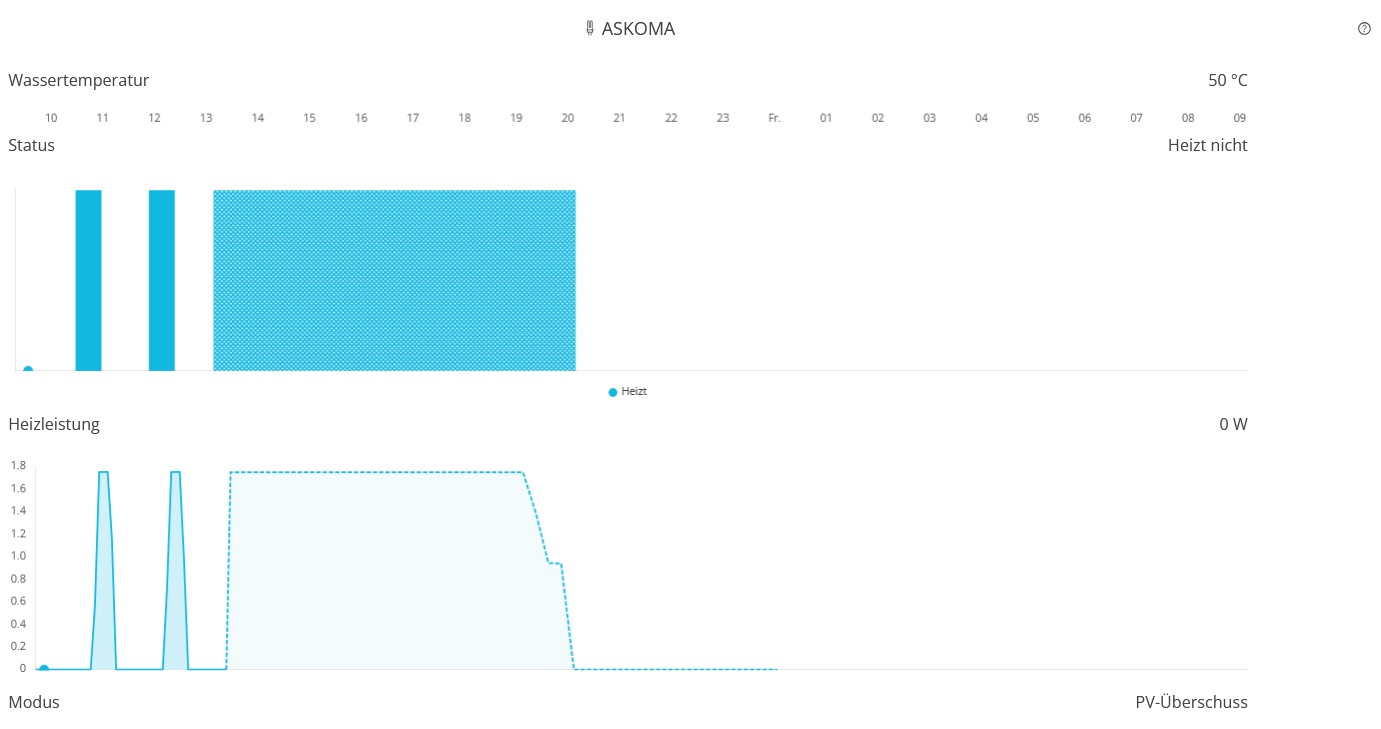
Forecast
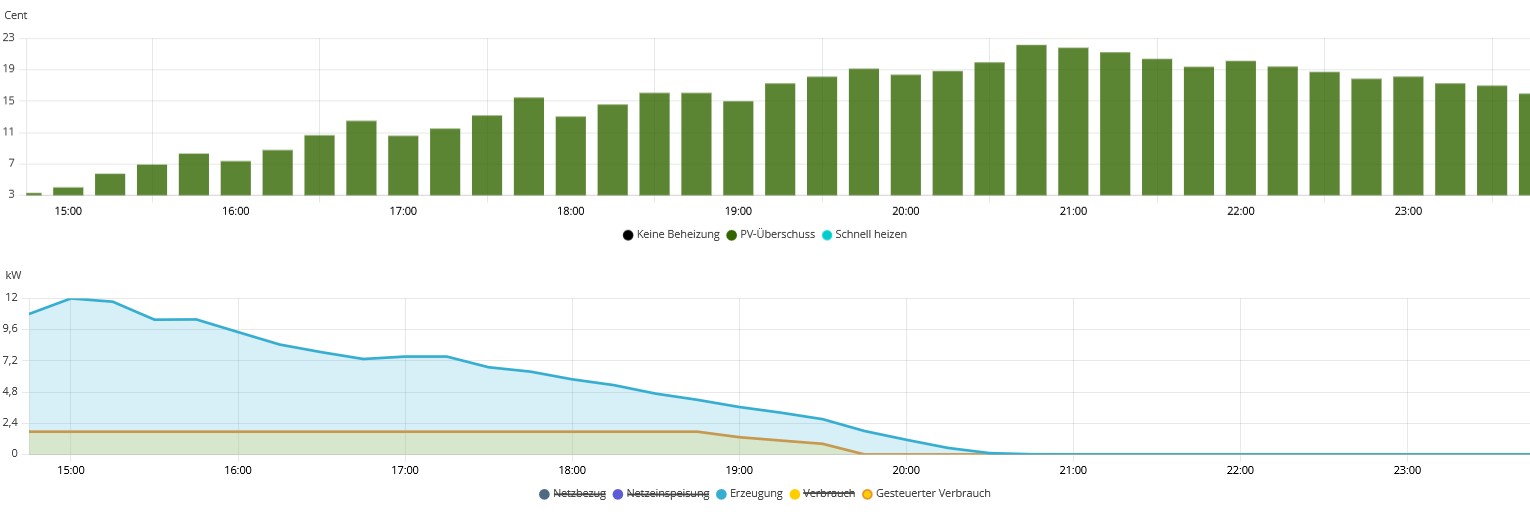
History
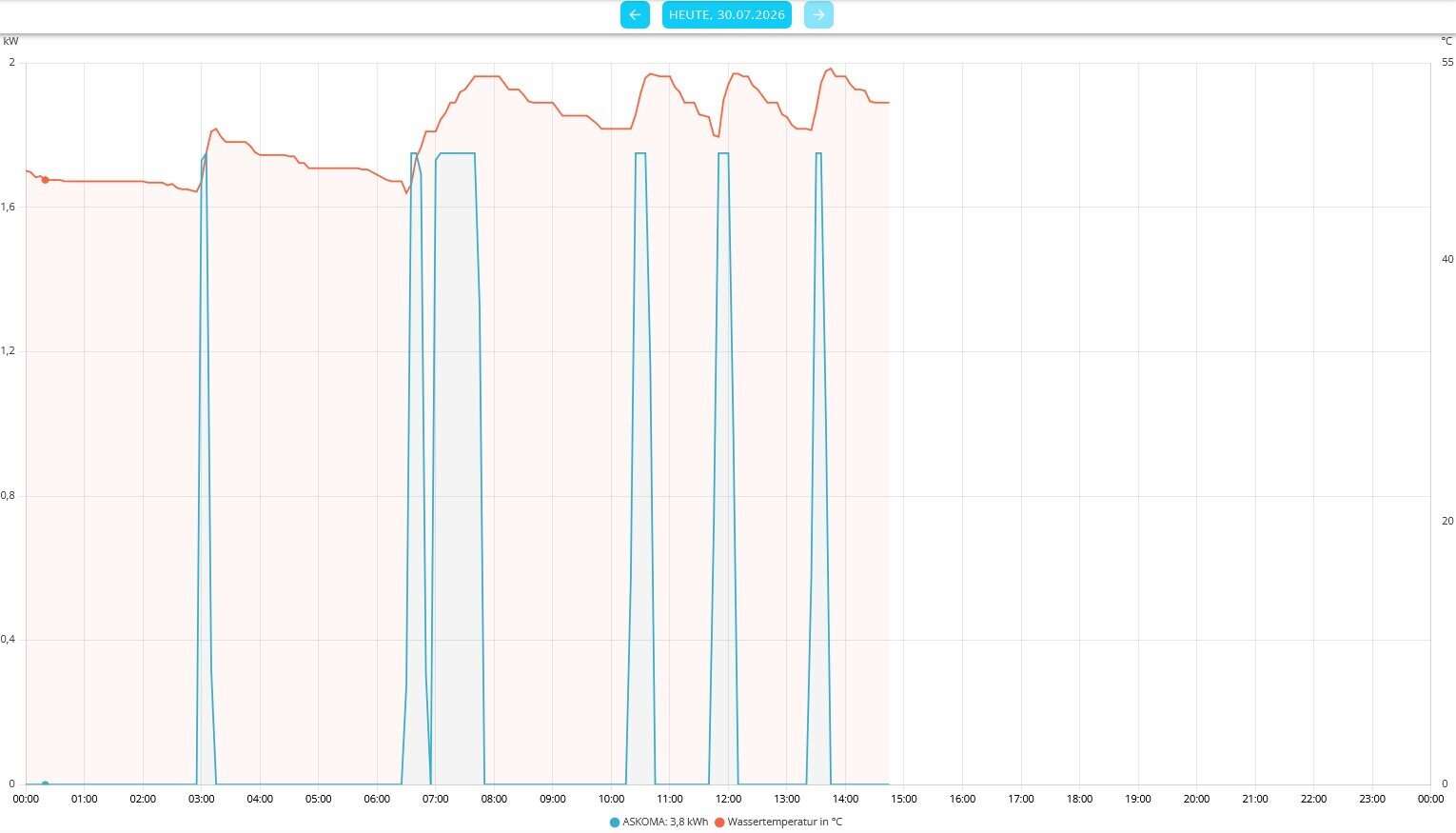
Schedule
In the main window of the Schedule Chip, you can set the Active Mode of the heating element, which differs from the base mode:

-
First, select the desired temporary heating mode, e. g. Quick Heat.
-
Then select the recurrence, e. g. Daily.
-
Finally, set the Start and End times using the selection dials:
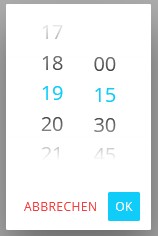
| You can scroll through the hours and minutes on the computer using the mouse wheel. |
-
+ APPLY the settings.
The heating element settings have also been given a new visual design:
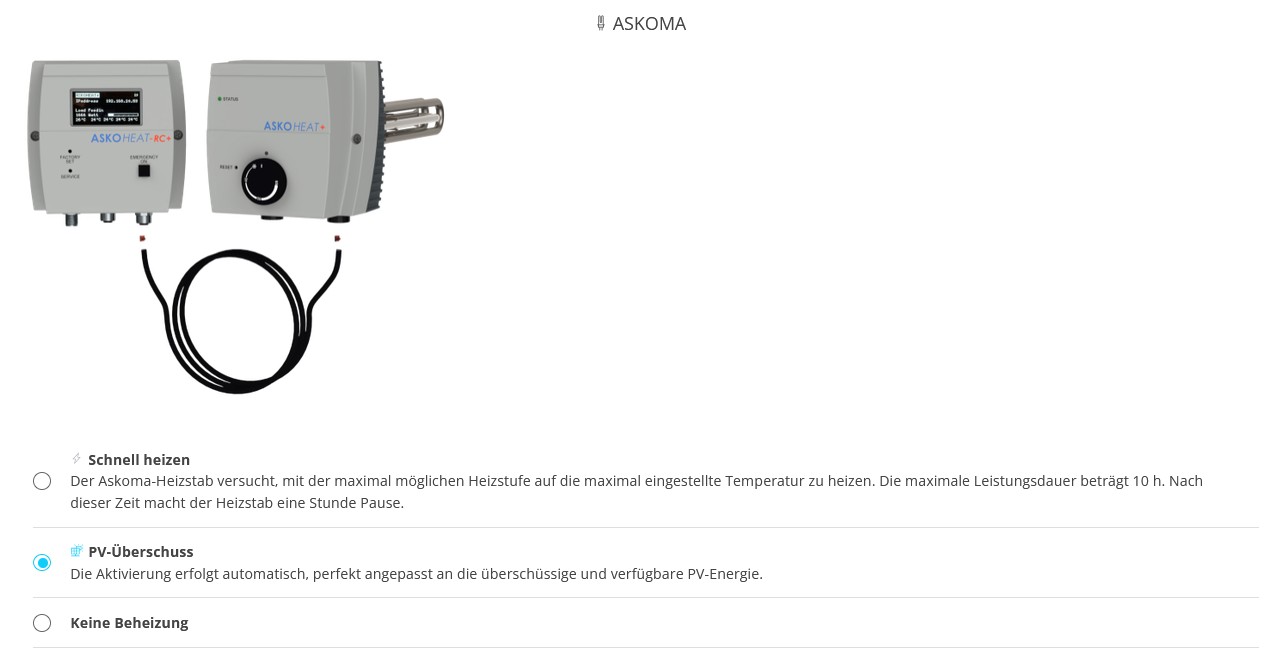
Here, you can set the Base mode for your heating element.
13.07.2026 — Negative electricity market prices with FEMS App Grid-Optimized Charging — EEG 2025
-
The app is available for download in Germany.
-
The app can be found in the new "Feed-in tariffs" category in the App Center.
-
The download is free.
| Energy Scheduler V2 must be running for the installation. |
| The "EEG 2025" app is available for installation by owners who are already participating in the BETA test. Currently, this requires an existing installation of the FEMS App Time-of-Use Tariff app. |
After installing the "EEG 2025" app, the zero remuneration for negative electricity prices on the exchange is taken into account in the energy schedule for Grid-Optimized Charging.
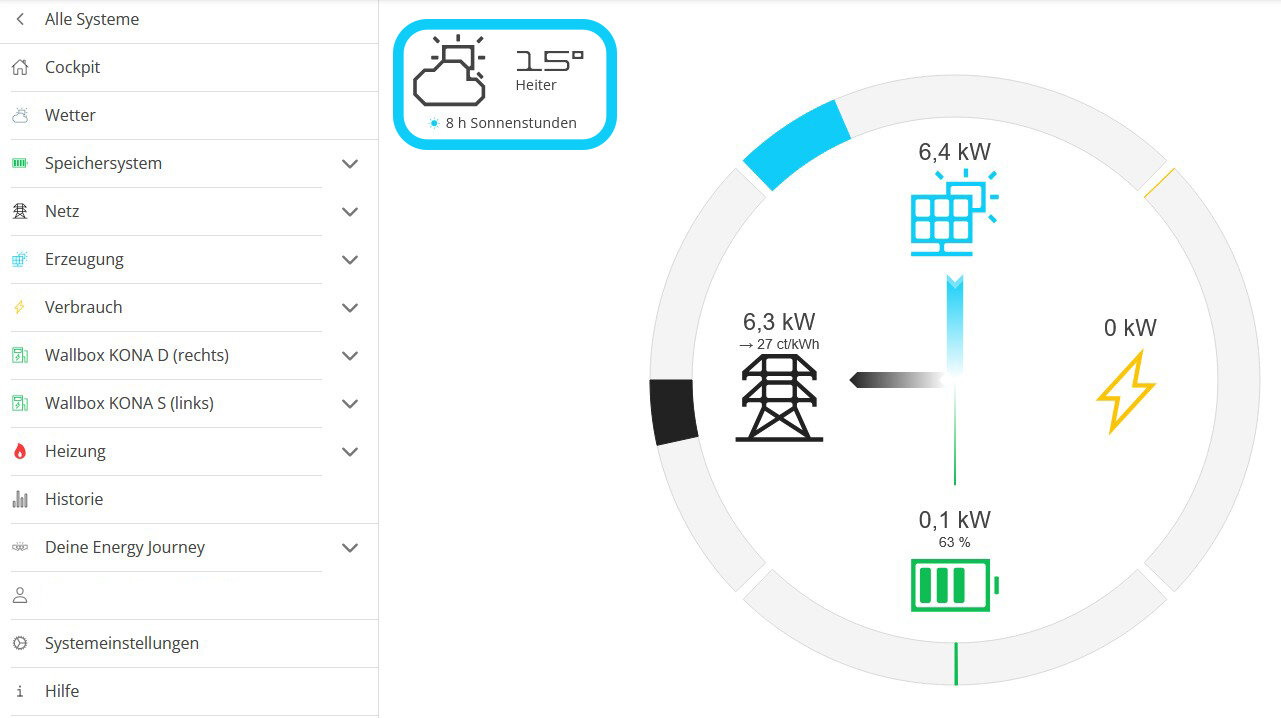
16.06.2026 — Optimization of FEMS App Grid-Optimized Charging
The FEMS App Grid-Optimized Charging has been optimized for negative electricity market prices (EEG 2025).
The "EEG 2025" App was developed for this purpose.
The app will be available for free at a later date.
12.05.2026 — Migration: System-on-a-Chip
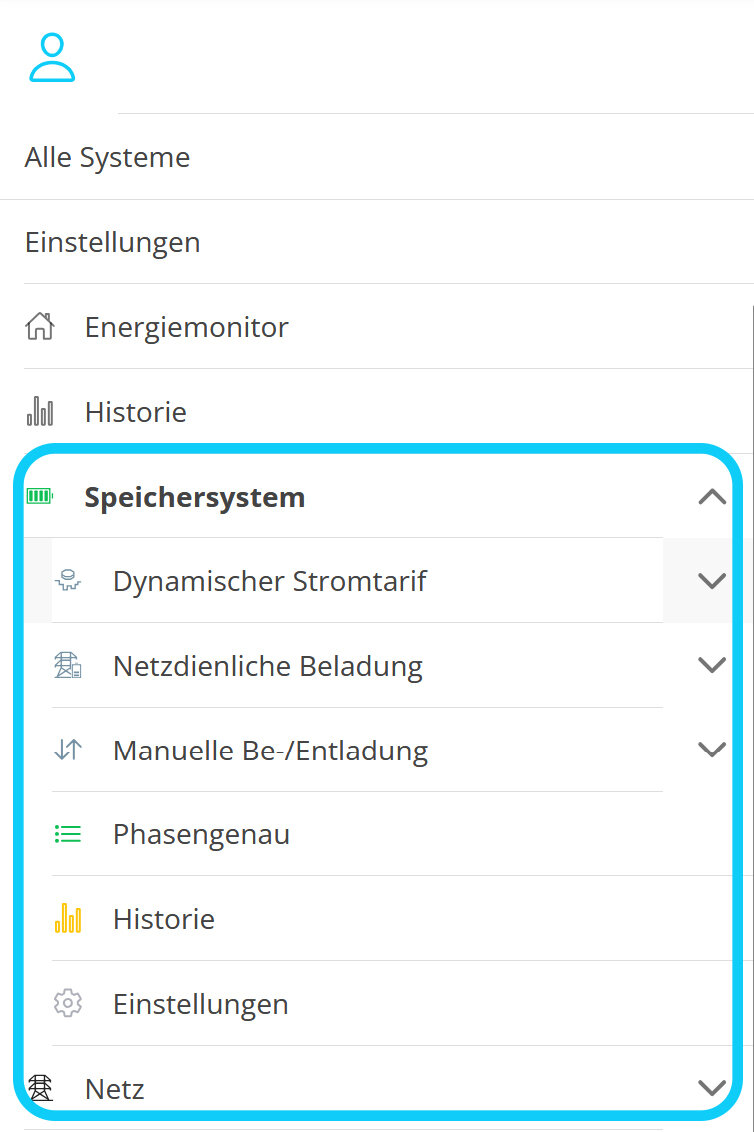
The following widgets, which were previously moved to the tree navigation in the side menu, are now listed under Storage System:
|
|
The following chips have been newly added:
-
Autarky
-
Self-consumption
-
Weather Forecast (if installed)
-
Heating element
-
Askoma Heating Element
-
Threshold Control
| With a few exceptions, all widgets have been moved to the tree navigation as chips. |
28.04.2026 — Migration: New Tabs in the Tree Navigation
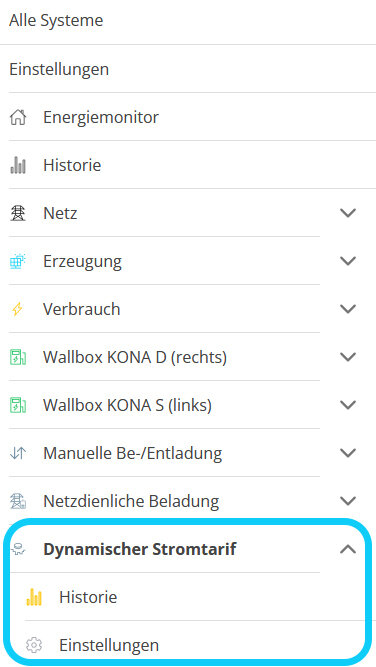
The Time-of-Use Tariff, Grid-Optimized Charging, and Manual Charging/Discharging chips have been integrated into the tree navigation. The main window of each chip allows you to control the respective functions and, if available, view the history.
Time-of-Use Tariff
The Time-of-Use Tariff widget as a chip in the tree navigation: |
|
||
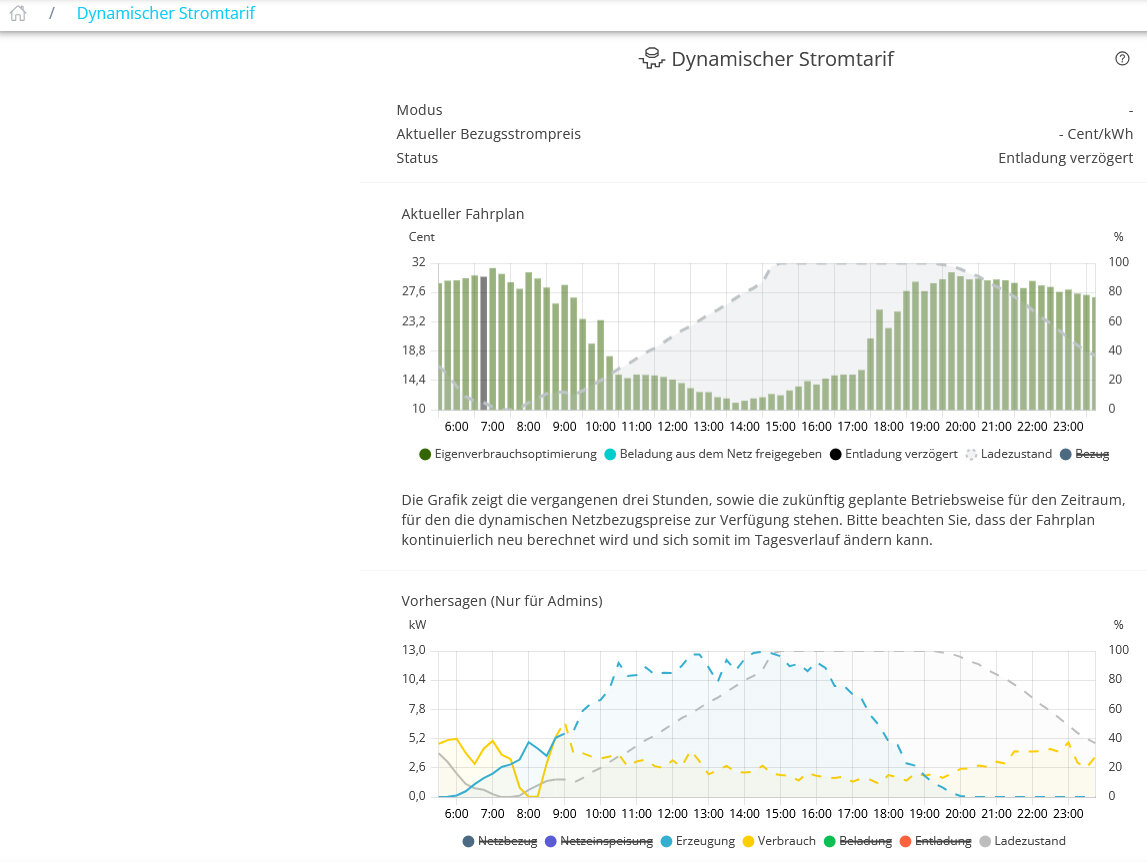
A simple click or tap on the chip opens its main window, which displays, among other things, the current purchase price and information about your current schedule.
|
|
||
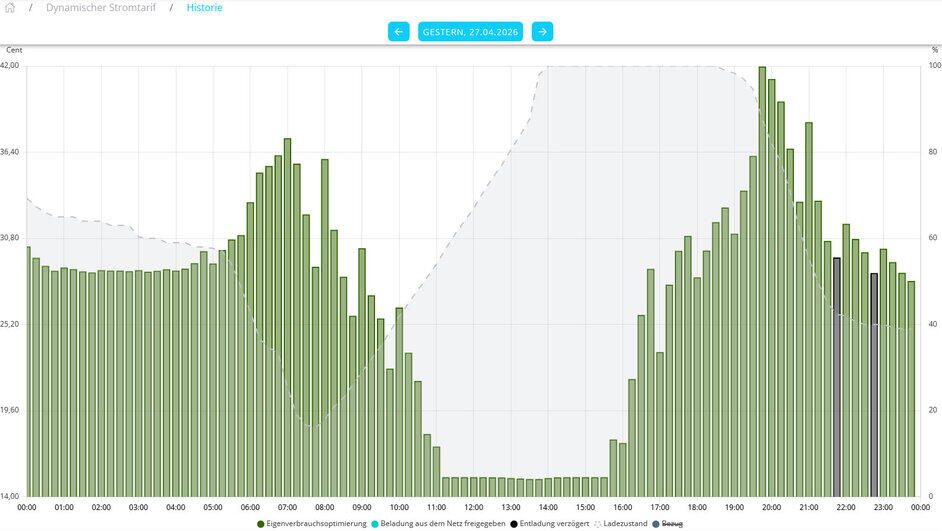
Click or tap History to view the history of the time-of-use tariff in the main window. As usual, you can use the blue buttons above the graph to select the desired date or time period. |
|
||
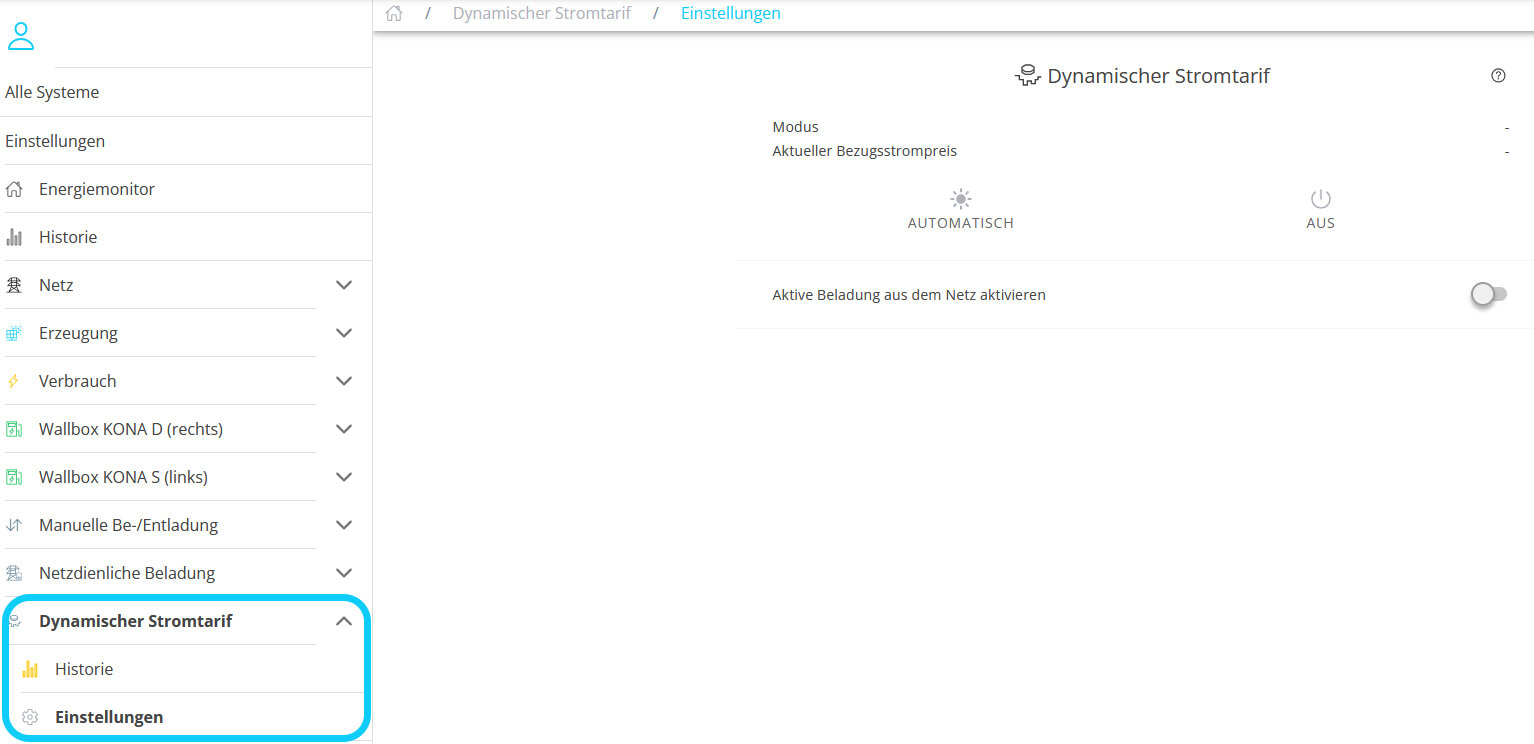
Under Settings, you can set the option to OFF to disable optimization based on a time-of-use tariff. Your system will then operate in Self-Consumption Optimization mode; prices will continue to be recorded. Select AUTOMATIC to enable automatic optimization. If desired, the Active Charging from the Grid function can be enabled via a toggle switch. |
|
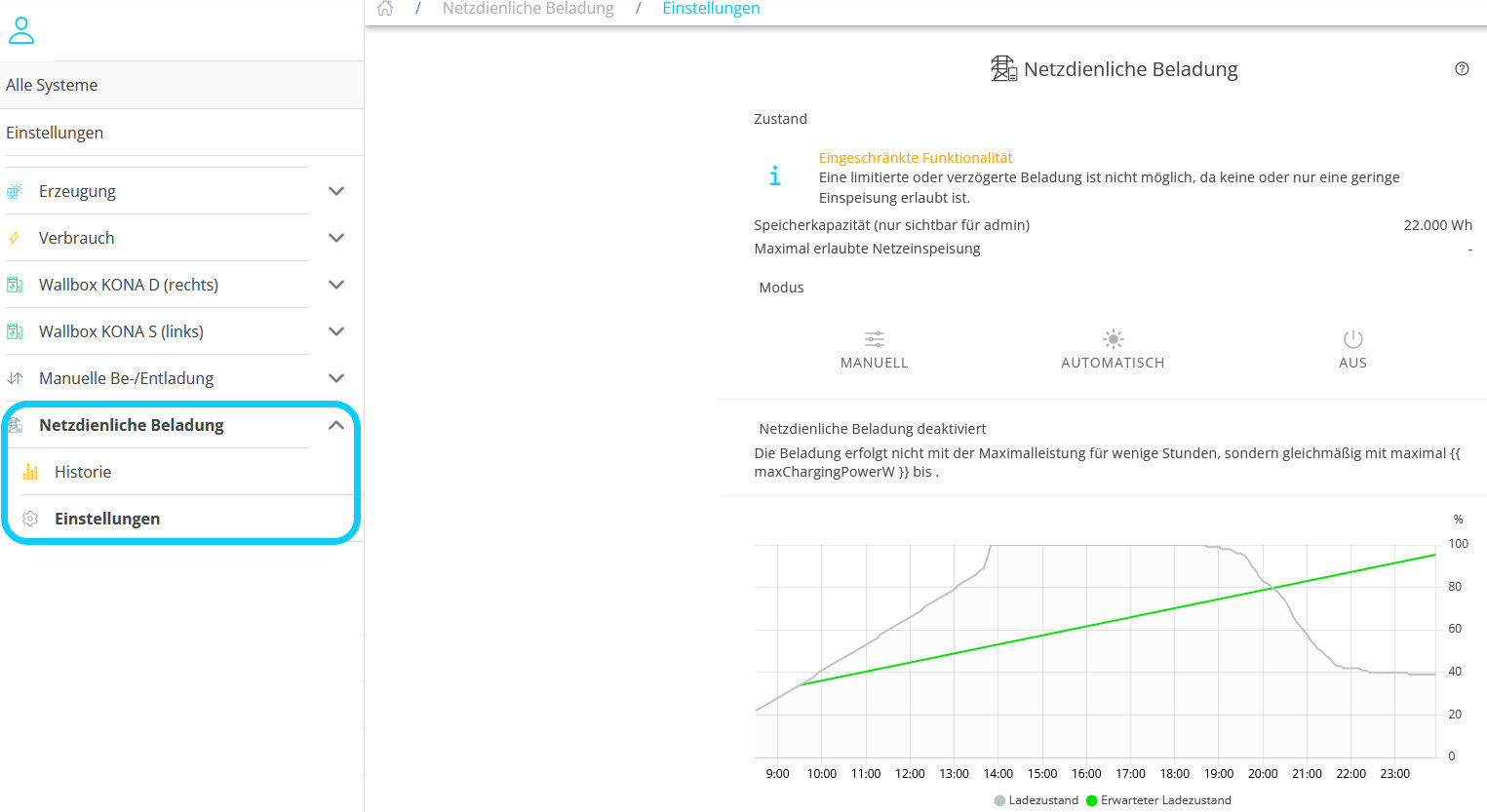
Grid-Optimized Charging
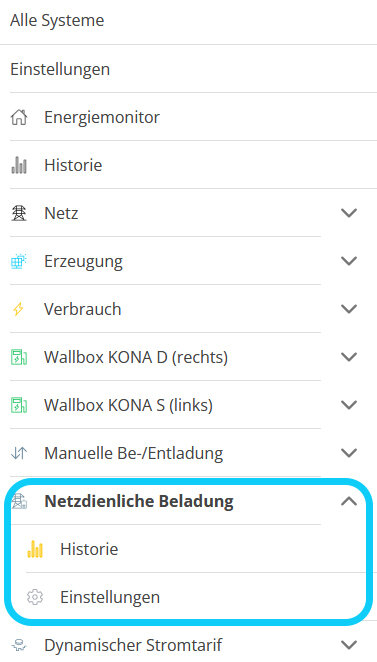
The Grid-Optimized Charging widget as a chip in the tree navigation: |
|
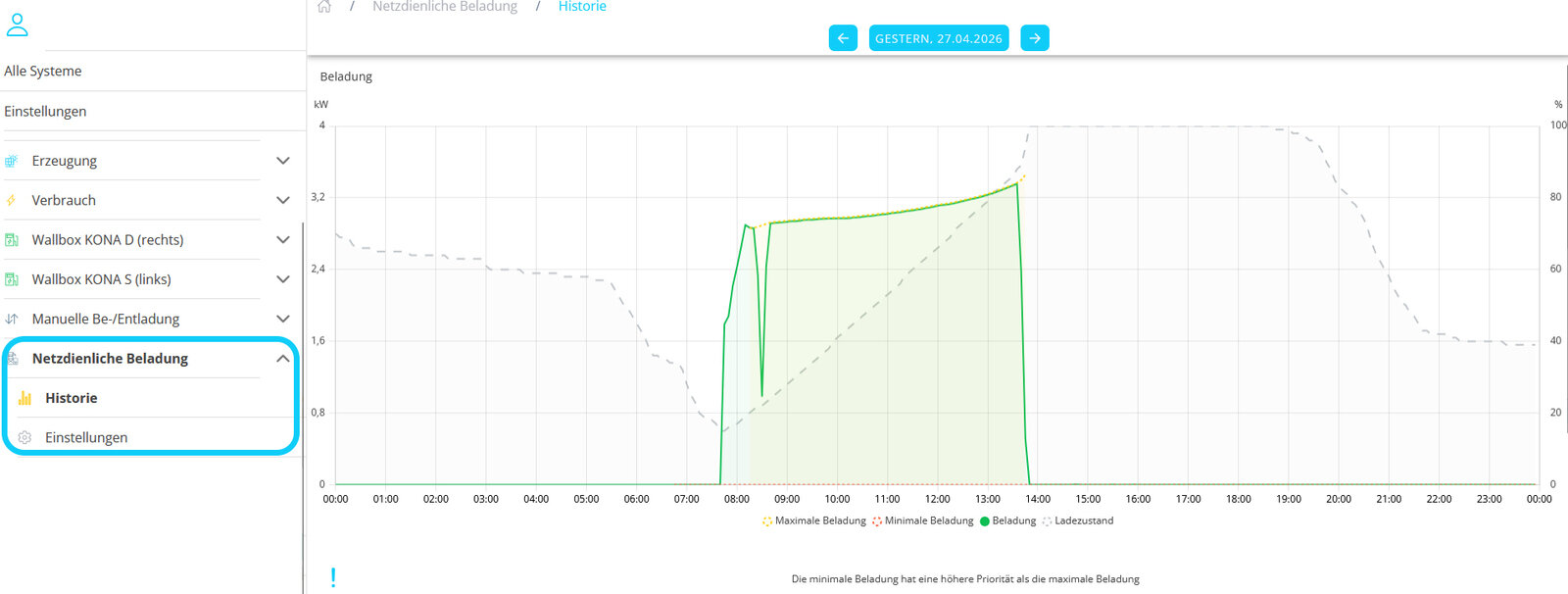
Click or tap History to view the charging history in the main window: |
|
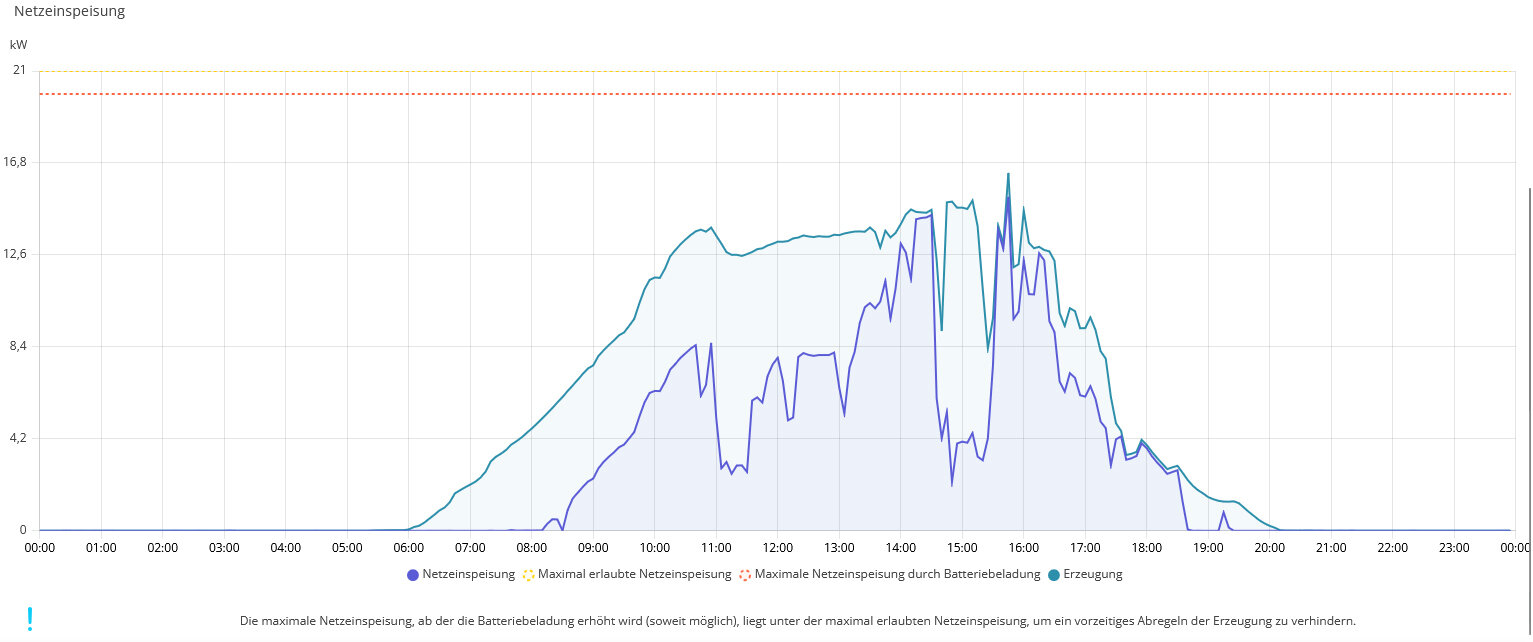
Scroll or swipe down to view the grid-friendly charging history: |
|
Via Settings, you can enable or disable Manual Charging & Discharging and set the power level: |
|
Manual Charging & Discharging
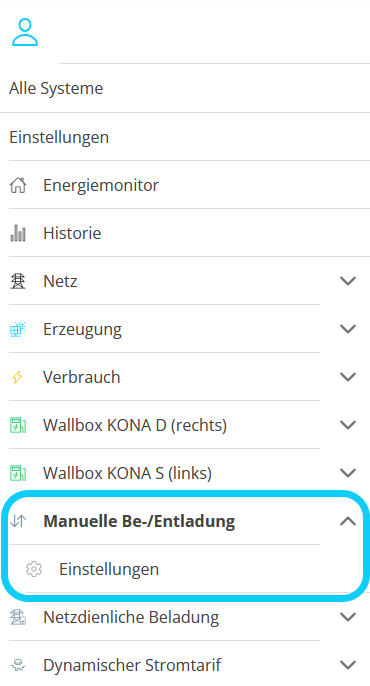
The Manual Charging/Discharging widget as a chip in the tree navigation:
|
|
||
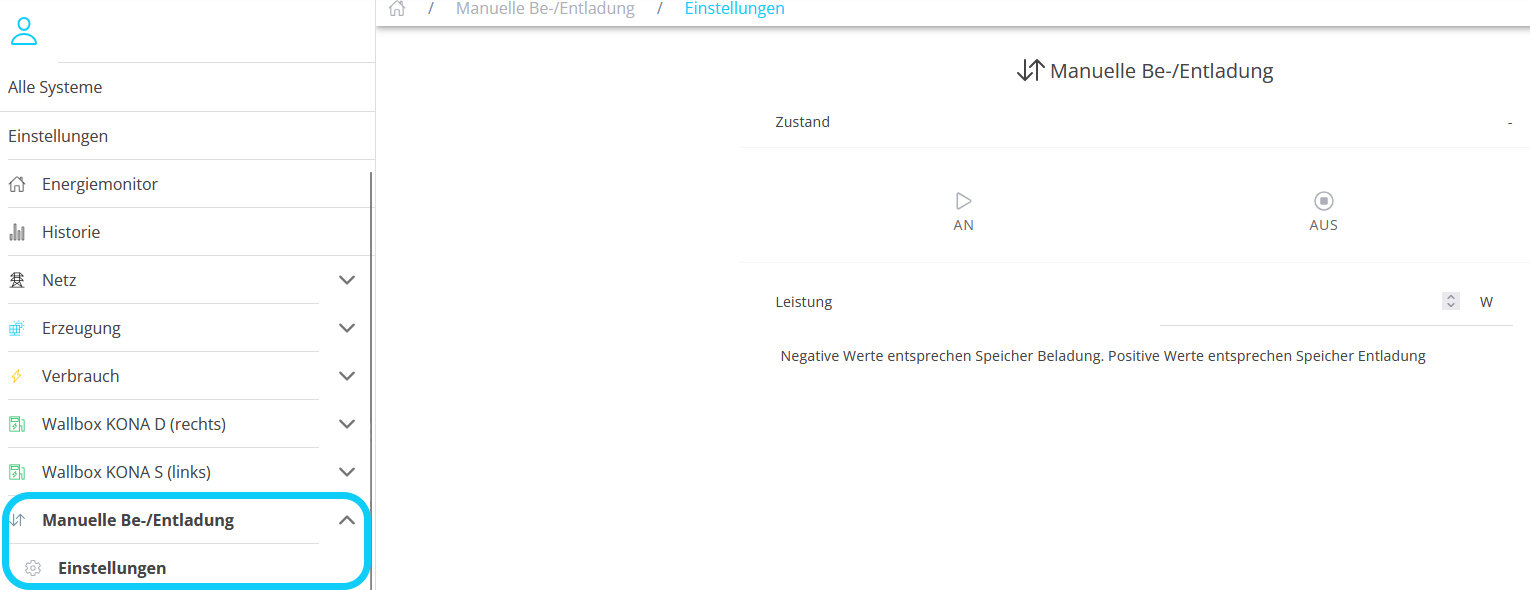
In Settings, you can enable or disable Manual Charging & Discharging and set the power level: |
|
31.03.2026 — Implementation: MENNEKES Charging Station
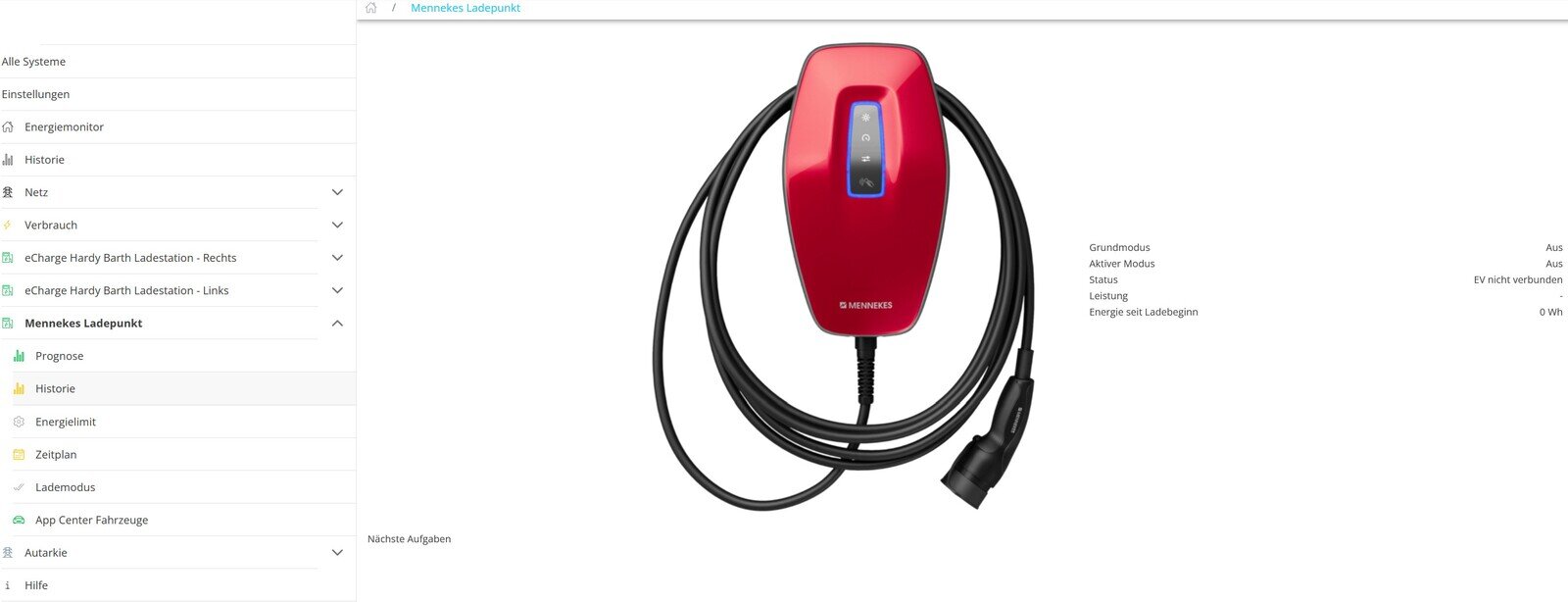
For participants in the BETA field test, the Mennekes Charging Station tile has been available in the side menu of the tree navigation since the FEMS version 2026.3.3, released on 31.03.2026:
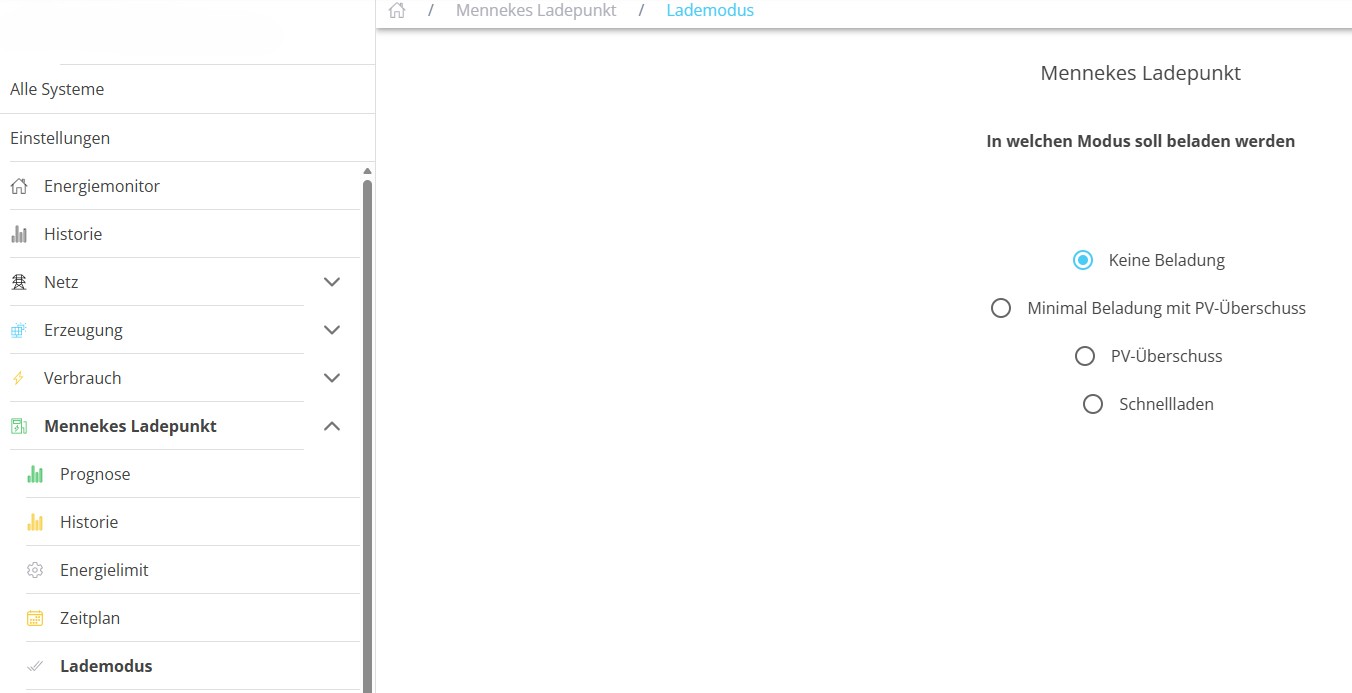
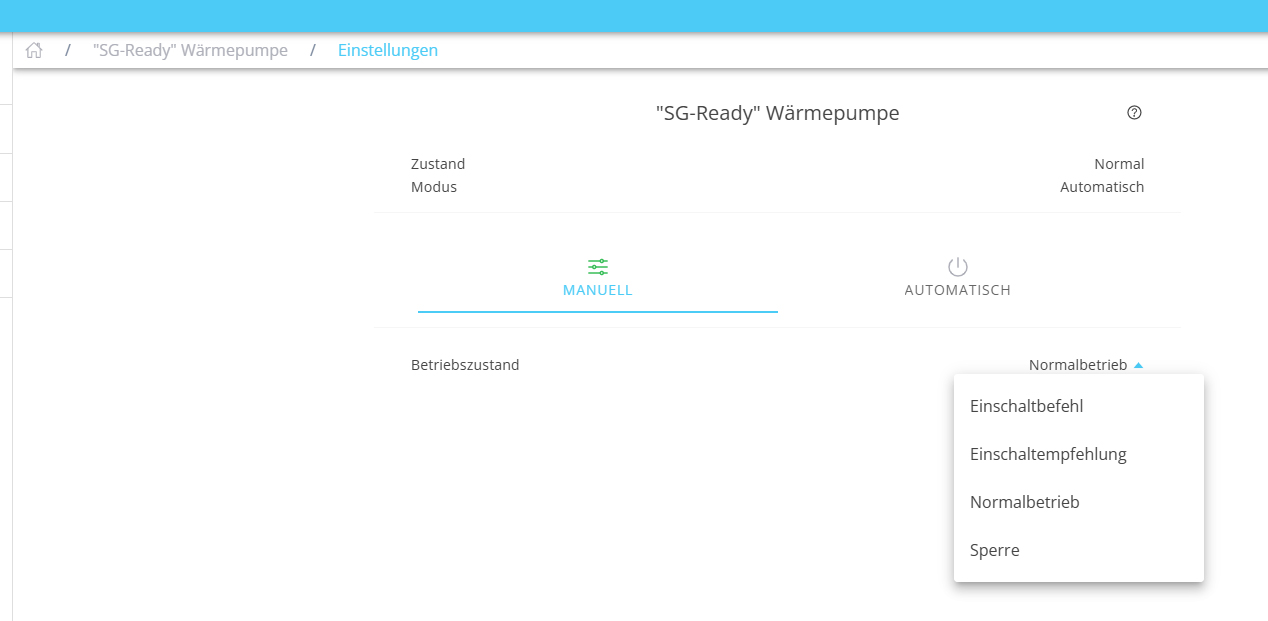
You can also select the charging mode for the MENNEKES Charging Station:

24.03.2026 — Chip: Production
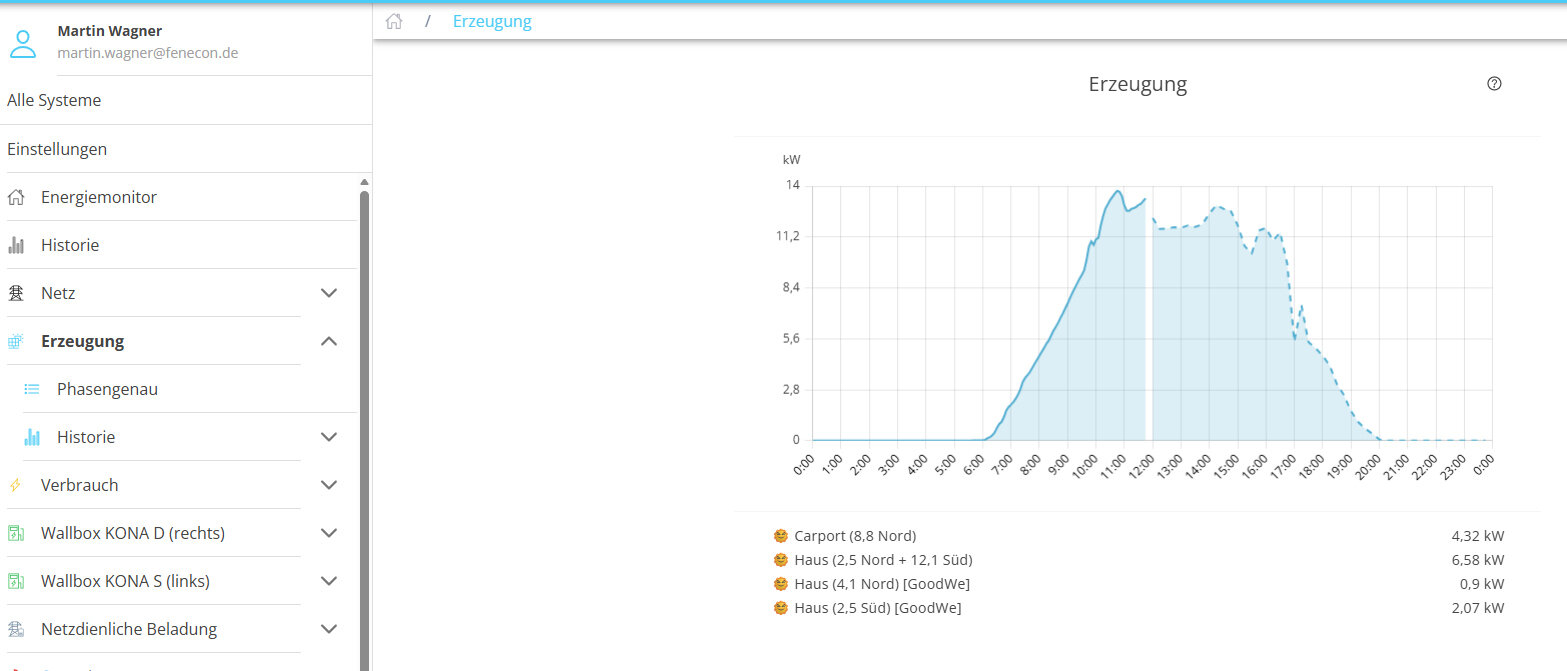
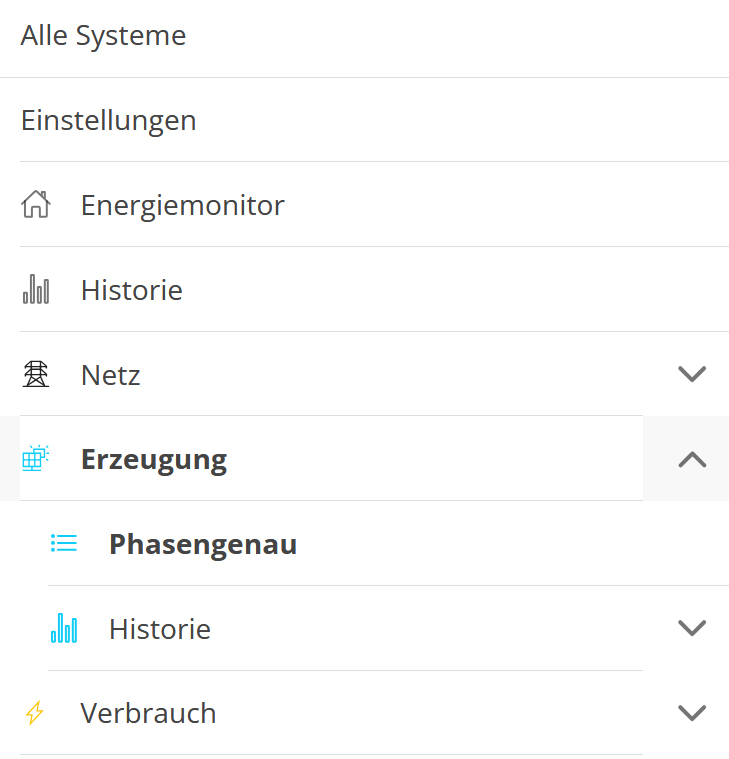
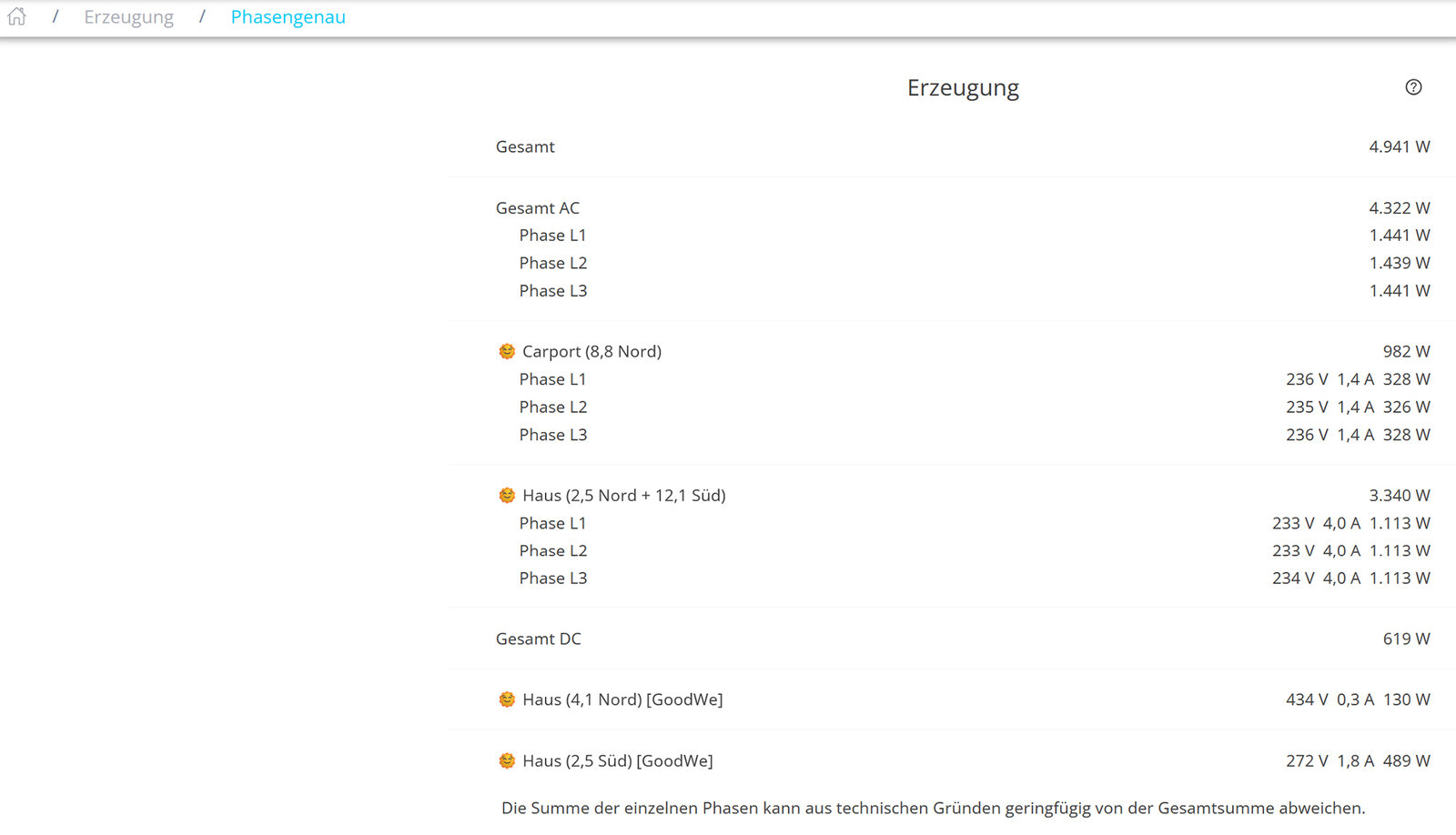
The Production widget can now be found as a chip in the side menu within the tree navigation: |
|
When you activate the chip, the following main window will appear:
23.03.2026 — Schedule Improvements
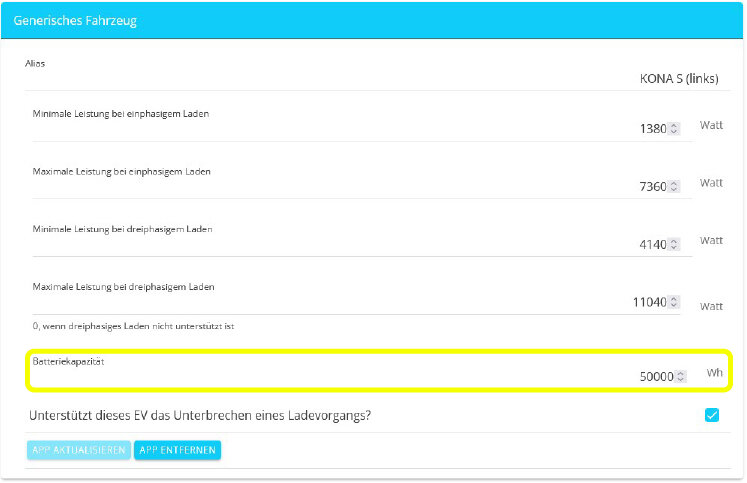
In the Vehicle App Center, you can now specify the battery capacity under "Generic Vehicle." This helps improve the Schedule:
03.03.2026 — Desktop: Chips as a menu tree
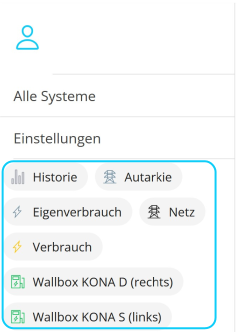
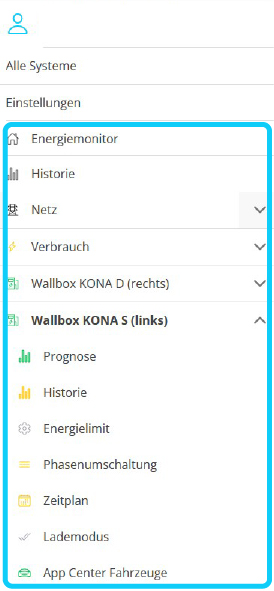
In the desktop version, widgets and chips are now displayed in the side menu as part of a tree-style navigation:
Previous layout |
New layout |
|---|---|
|
|
→ The layout of the mobile version remains unchanged.
→ You can now access other main views via the side menu without using the breadcrumbs.
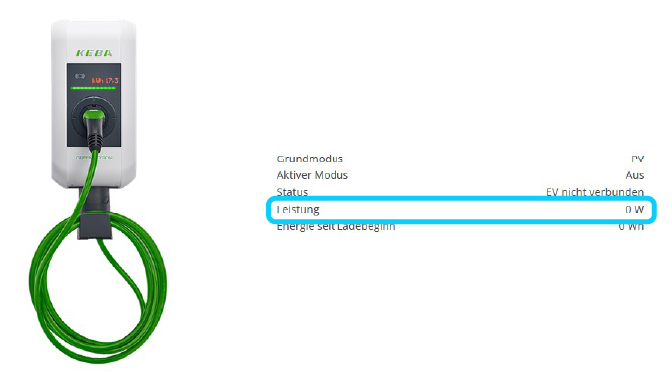
24.02.2026 — Bug fixes
-
Troubleshooting Phase Detection.
-
General Troubleshooting for Switching to the BETA app
-
Bug fix After uninstalling the wallbox, the installation key remains associated with FEMS.
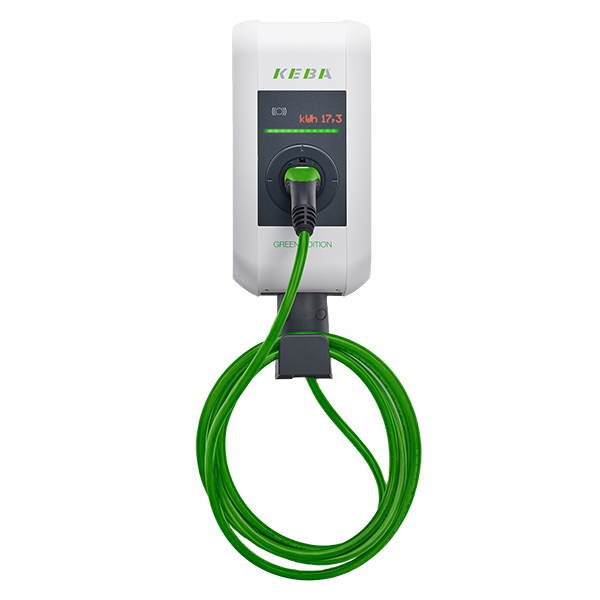
17.02.2026 — KEBA P30 Implementation
Owners of a KEBA P30 charging station can now participate in the beta test and use the new features of the FEMS App beta. |
|
In addition, improvements were made to Switching from the regular app to the beta app and back.
03.02.2026 — App Center Vehicles — Generic Vehicle
Generic Vehicle is automatically installed when you switch to the BETA app.
"Generic Vehicle" means:
-
the primary vehicle that is charged by default at this charging station.
-
It is recommended that you specify the correct model name of the vehicle.
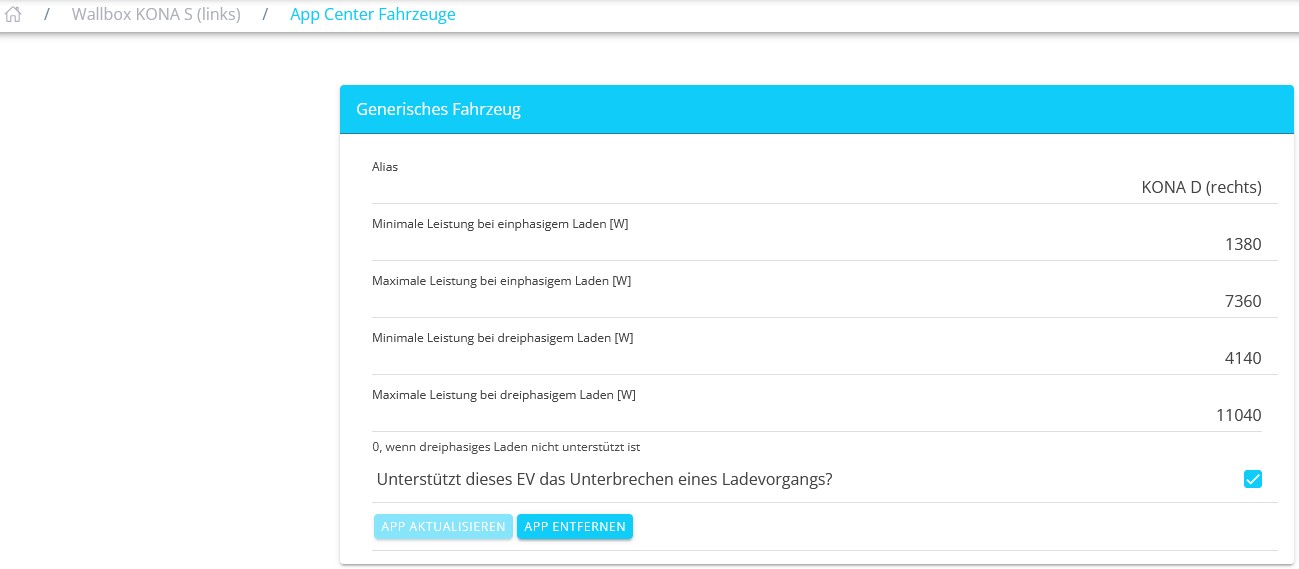
The following settings are available for the connected, Generic Vehicle:
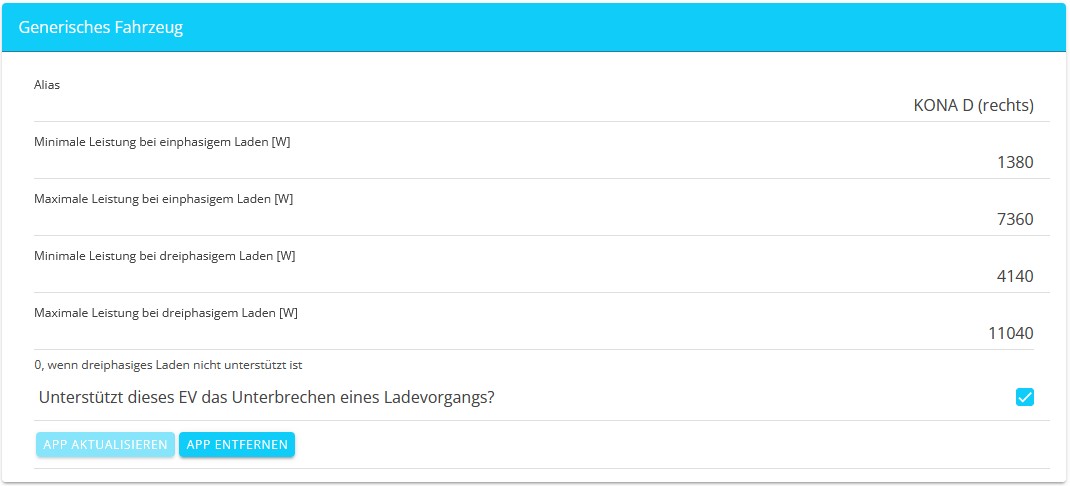
After you have made the desired settings, save them by clicking the [UPDATE APP] button.
27.01.2026 — Implementation of Hardy Barth’s cPμ2 Charging Station
Owners of a Hardy Barth cPμ2 charging station can now participate in the BETA test and use the new features of the FEMS App BETA.
After following the instructions at Switching in the FEMS App configuration, the corresponding chips will be available in your side menu: |
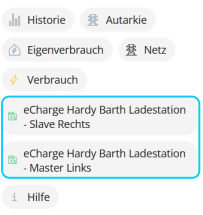
|
When you activate the chip, the following main window will appear:
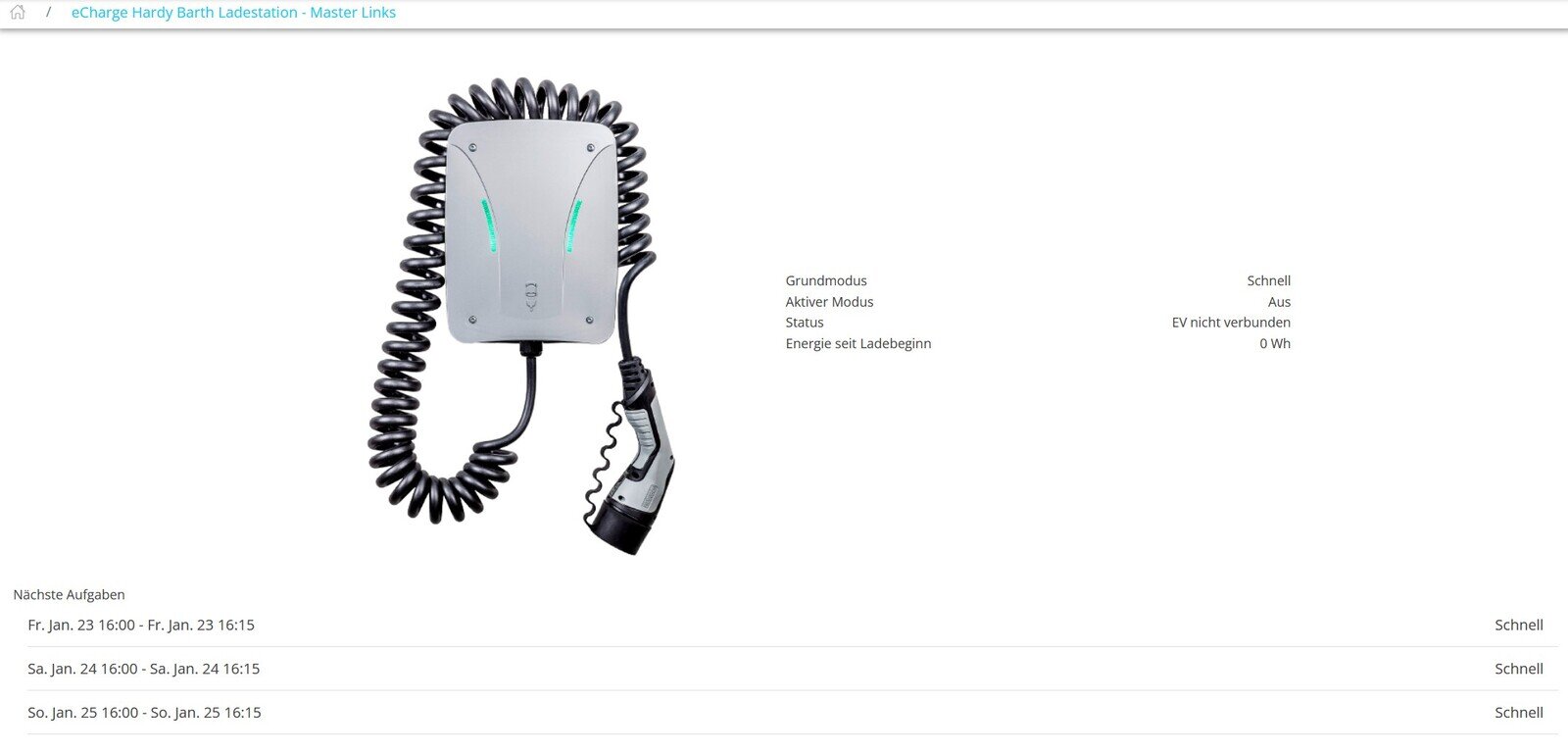
| Currently, the Hardy Barth cPμ2 charging station all features offers the same functions as the KEBA P40 wallbox, with the exception of phase switching. |
New Chip: Help
Right from the start, the new Help chip is now available in the FENECON Online Monitoring’s side menu: |
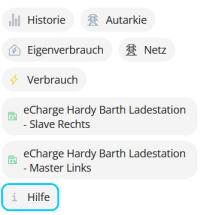
|
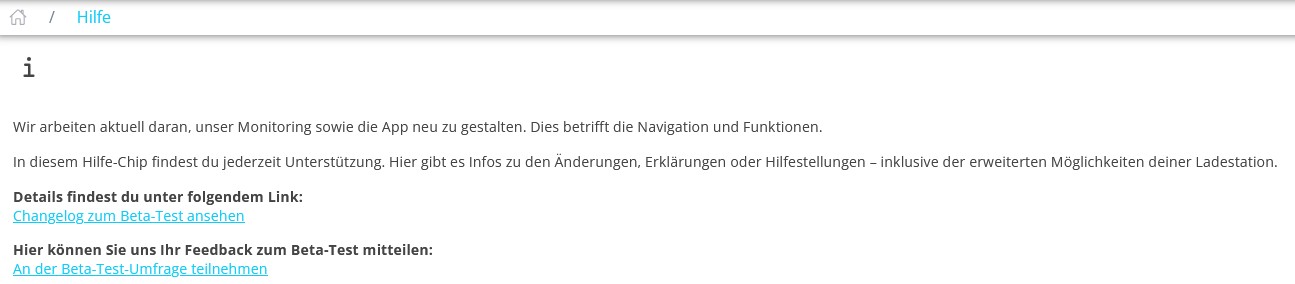
When you activate the chip, the following main window will appear:

The link leads to this documentation.
16.12.2025 — Switching FEMS App AC Charging Station to BETA
Here’s how to switch to the FEMS App BETA:
-
Start in the FEMS App Center.
-
Navigate to your FEMS App installation: e. g. KEBA KeContact P40 or eCharge Hardy Barth Charging Station.
-
Click on the honeycomb icon and then on EDIT APP.
-
You will now see the following window:
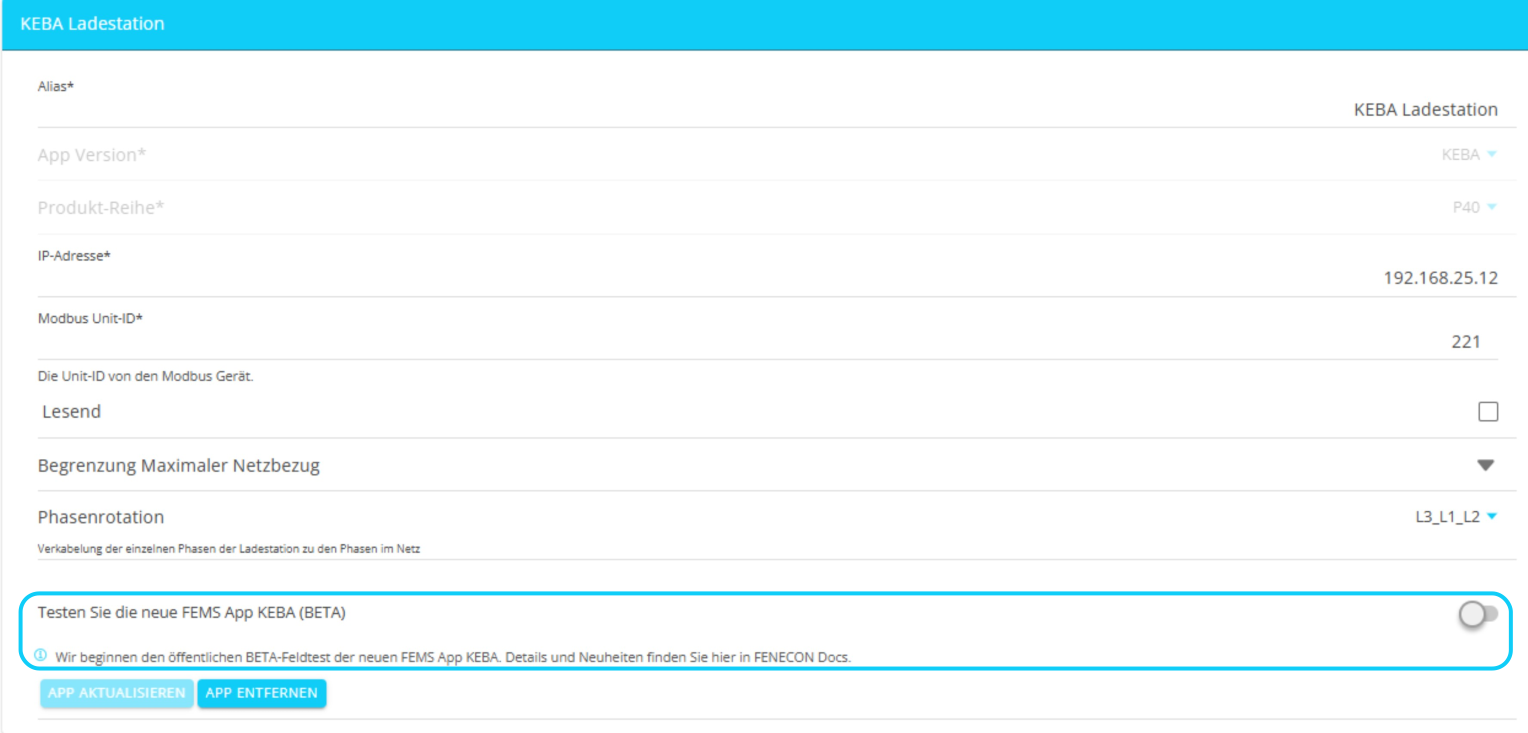
-
Slide the slider to participate in the BETA test.
| To shift back, follow the same procedure. |
New Chips: Schedule and Charging Mode
-
Two new chips are available for controlling the wallbox: Schedule and Charging Mode.
-
The wallbox’s main window has been redesigned to display these new settings.
-
---
New Charging Mode: Minimum Charging with Surplus PV Power
-
The Minimum Charging with PV Surplus mode guarantees a minimum level of charging for the vehicle. If there is sufficient PV surplus, it is used. If there is no PV surplus, the vehicle is charged using grid withdrawal up to the minimum charging power.
01.12.2025 — Phase Switching
If the "PV" mode is selected on your charging station, you can manually switch from 1-phase to 3-phase charging using the Phase Switching chip: |
|
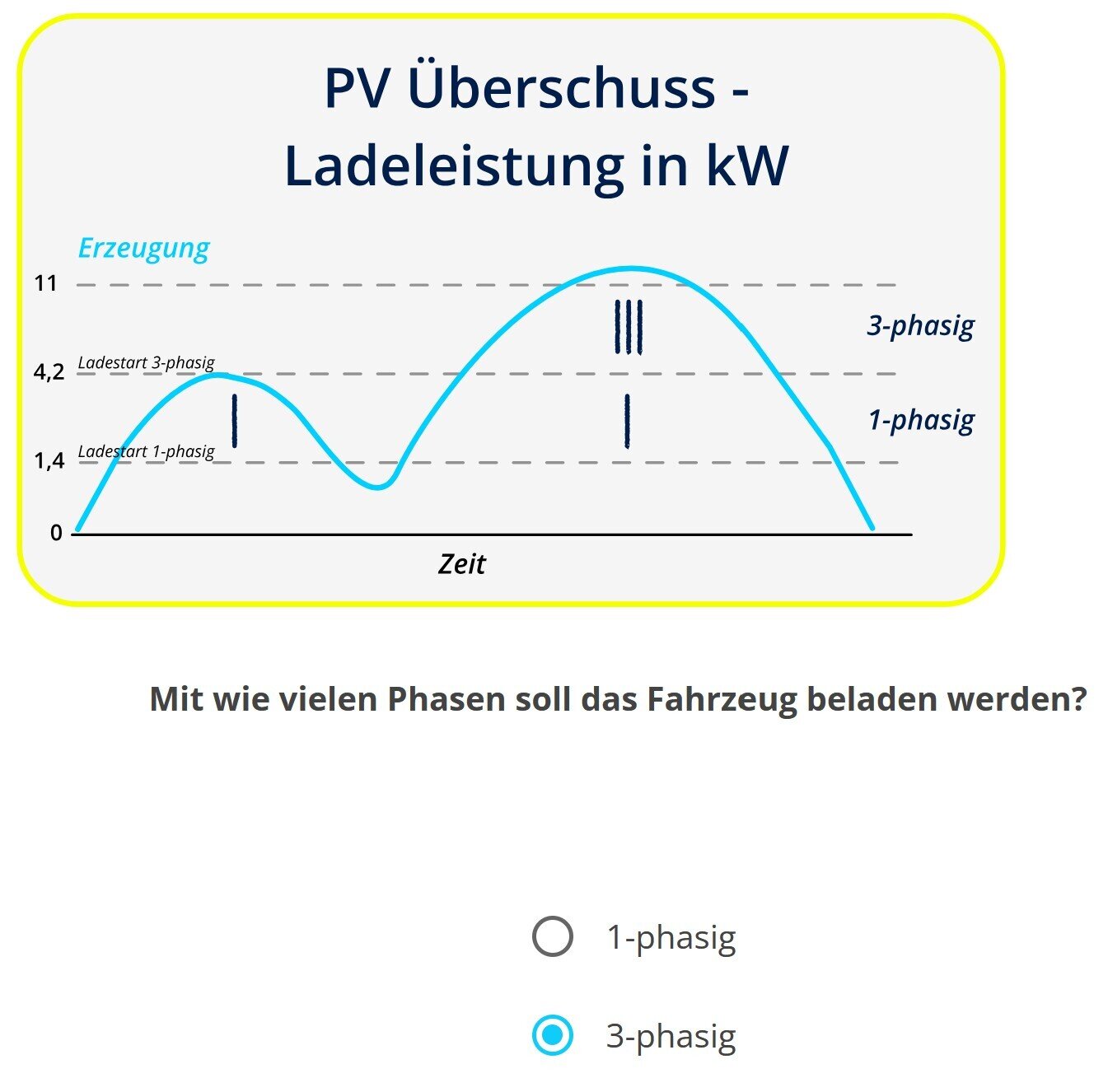
Tap or click the chip to access the following main view: |
|
One scenario would be to use the limited PV production to charge the vehicle anyway by manually switching to single-phase charging.
|
Switching during charging:
|
|