Alfen Charging Station
1. Introduction
2026.10.1
In this guide, you’ll learn how to configure the Alfen-Ladestation for the FEMS and integrate it into the FEMS. Please read the guide carefully to get the most out of the app’s features.
The license key you purchased, AC Charging Station, can be redeemed for one of the supported charging stations.
Click here to learn how to register and redeem a newly purchased license key. You will also find general instructions on how to install an FEMS App.
|
If another supported charging station is currently installed, the license key can be transferred to the new charging station by uninstalling the previous app. This activates the license key, which can then be used to integrate a new charging station into FEMS. |
2. Installation
2.2. Hardware
For hardware installation, please refer to official Alfen Knowledge Base .
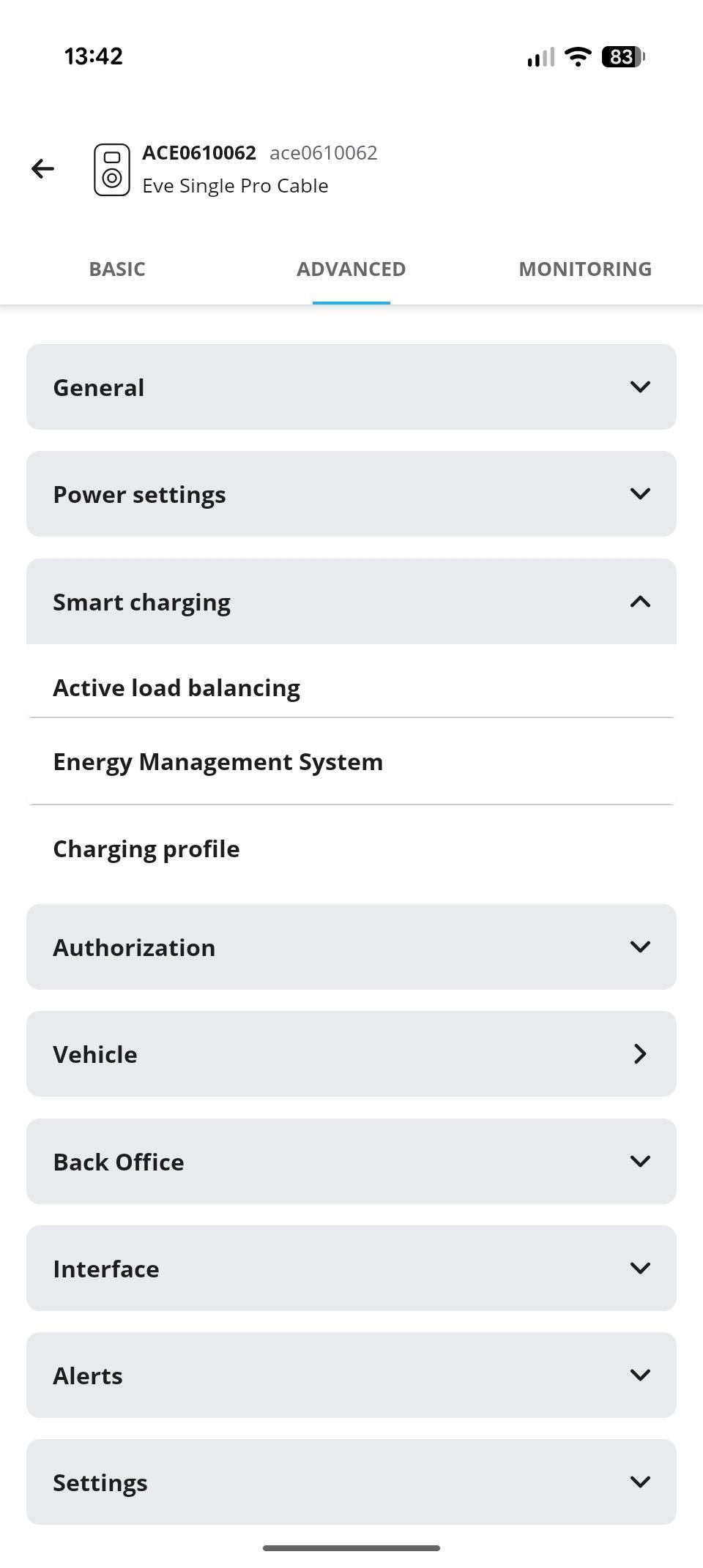
2.3. Settings via the Alfen Web Interface
|
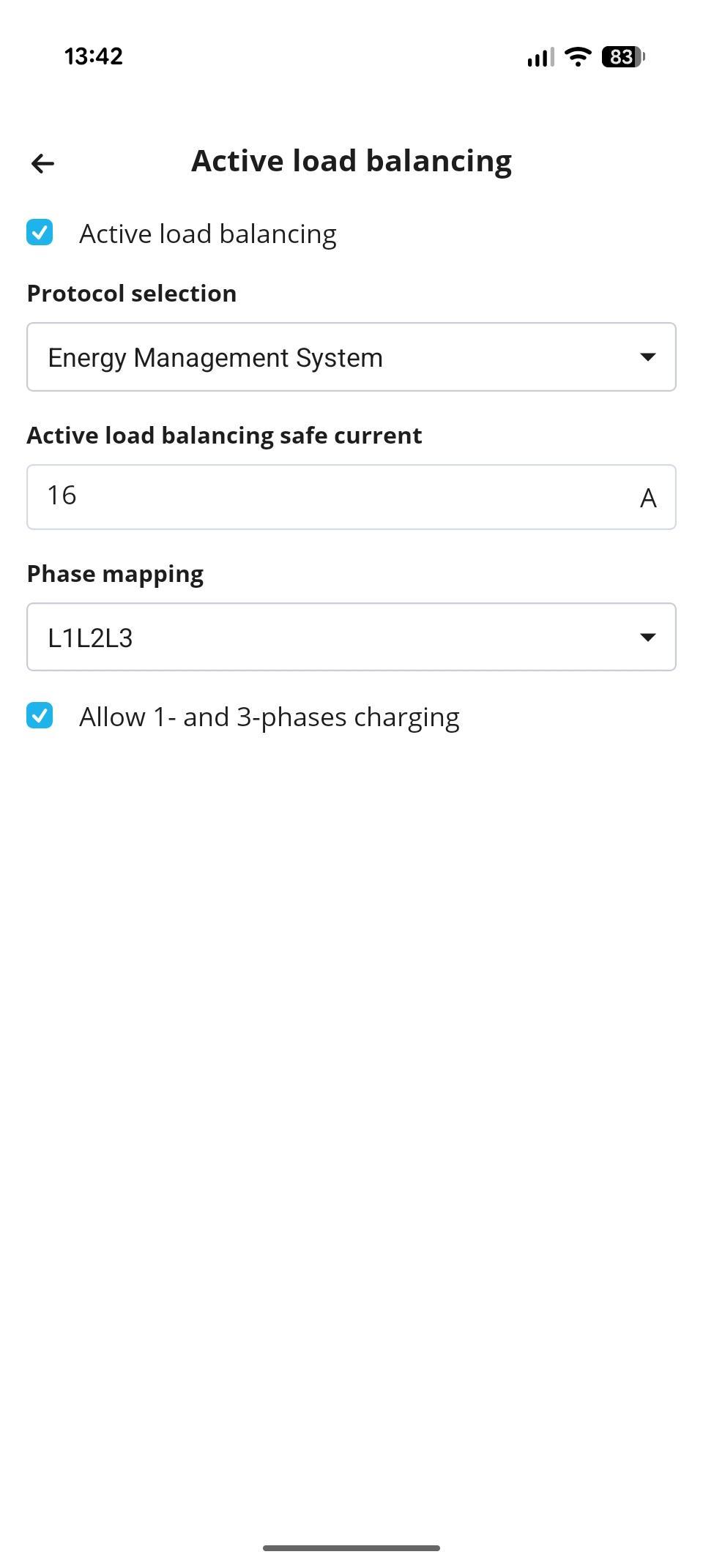
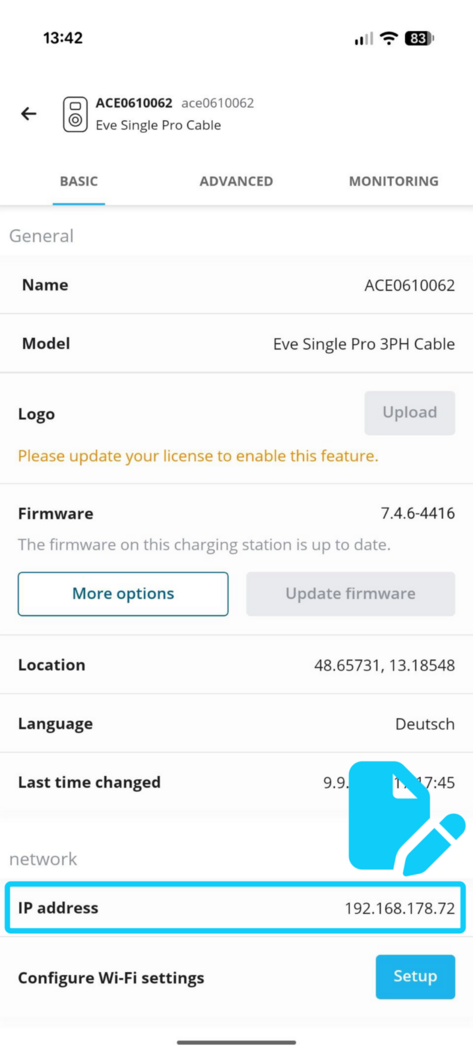
| The settings for the Alfen charging station are demonstrated using the MyEve app as an example. You can also use the Alfen ACE Service Installer. |
|
|
|
|
|
|
The configuration of the Alfen charging station is now complete. Next, integrate it into FEMS.
2.4. Integrating the charging station into FEMS
Once you have configured the settings for the charging station, you can integrate the charging station into FEMS.
-
From the FEMS main menu, open the AppCenter via Energy Journey.
-
Depending on the version of FEMS, the AppCenter can also be accessed via Settings.
-
-
Prepare the FEMS App installation by following these instructions: General Installation Manual for FEMS Apps.
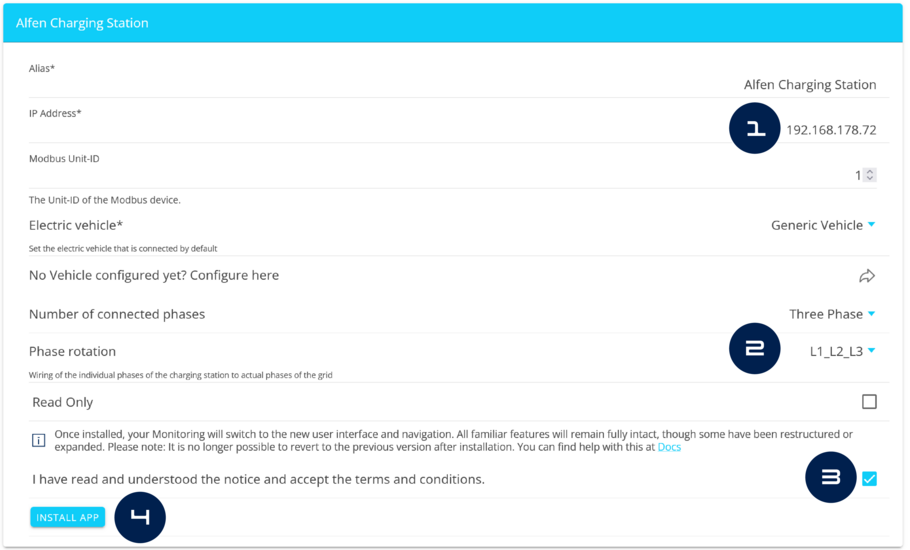
This brings up the following screen:
-
Some of the input fields are pre-filled.
-
The alias is the name under which the charging station appears in FEMS. You can choose any name you like, but it should be meaningful.
-
Required fields are marked with an *.
-
Check the IP address. Does it match the IP address indicated in the charging station web interface? Edit the IP if necessary.
-
Otherwise, the default values can be retained (e. g., port, Modbus unit ID).
-
-
Select the phase rotation. This setting must match the phase rotation of the charging station.
-
The phase connection L1_L2_L3 is selected as standard.
-
-
Please double-check your entries and make sure they are correct. Otherwise, the app will not function properly. Accept the app’s Terms of Use at .
-
After you have configured the settings in FEMS, complete the installation by clicking INSTALL APP.
The charging station is now integrated into FEMS and can be controlled via the app.
In the AppCenter, at EDIT APP, you can adjust the app’s configuration retroactively.
|
If you haven’t yet switched to the new design of the FENECON app, it will become active when you install the FEMS App Alfen Charging Station. This will update the FEMS user interface to the new design, which significantly improves the app’s usability, especially on mobile devices. For more information about the new design, see the documentation on the new design. INFO: It is not possible to revert to the old design. If you use the app to navigate to multiple charging stations, they will also be automatically updated to the new design. |
3. How to Use Alfen Charging Station
3.1. Charging stating main window
A charging station is displayed in FEMS at Consumption.
Click or tap in the menu to open the main window for your charging station. This window displays various pieces of information, e. g. the current charging mode, charging power, etc.
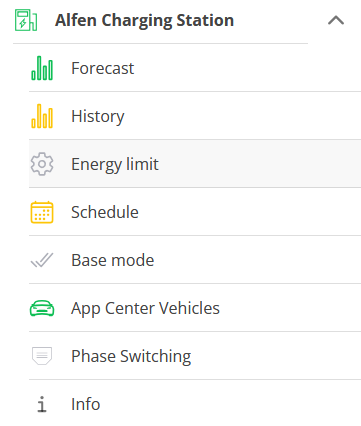
Depending on the submenu item selected, the main window displays different information and settings:
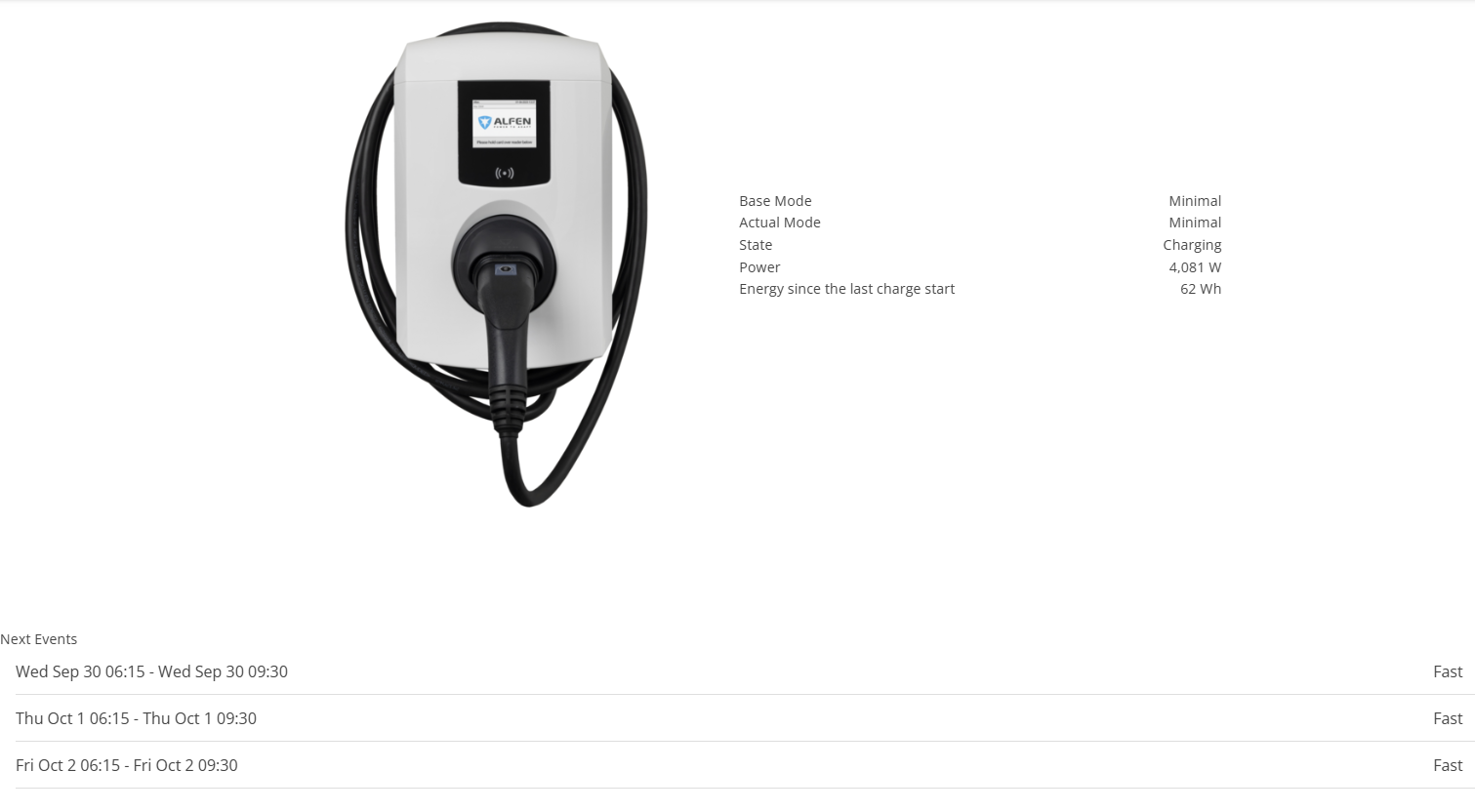
The highlighted area below displays custom tasks (schedule).
In addition, the modes currently active — Base Mode and Active Mode — are displayed to the right of the charging station.
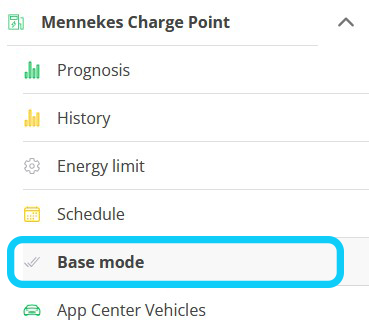
|
The Base Mode can be set via the submenu item Grundmodus. |
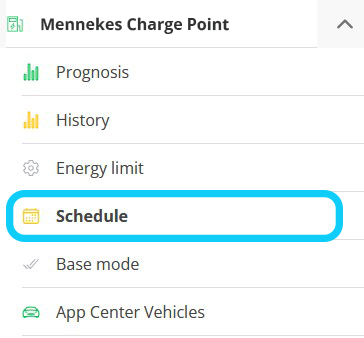
|
Active Mode can be set via the submenu item Zeitplan. |
3.2. Forecast
|
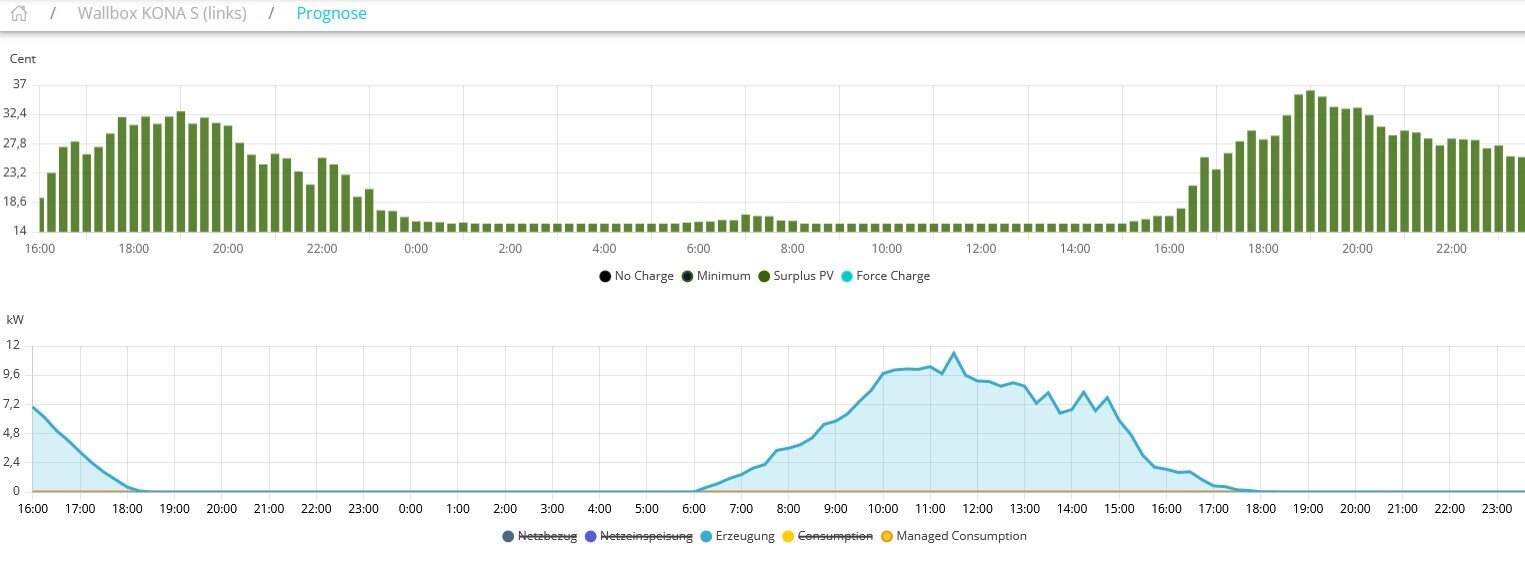
The main window for this menu item displays the forecast for your wallbox: |
|
|
3.3. History
|
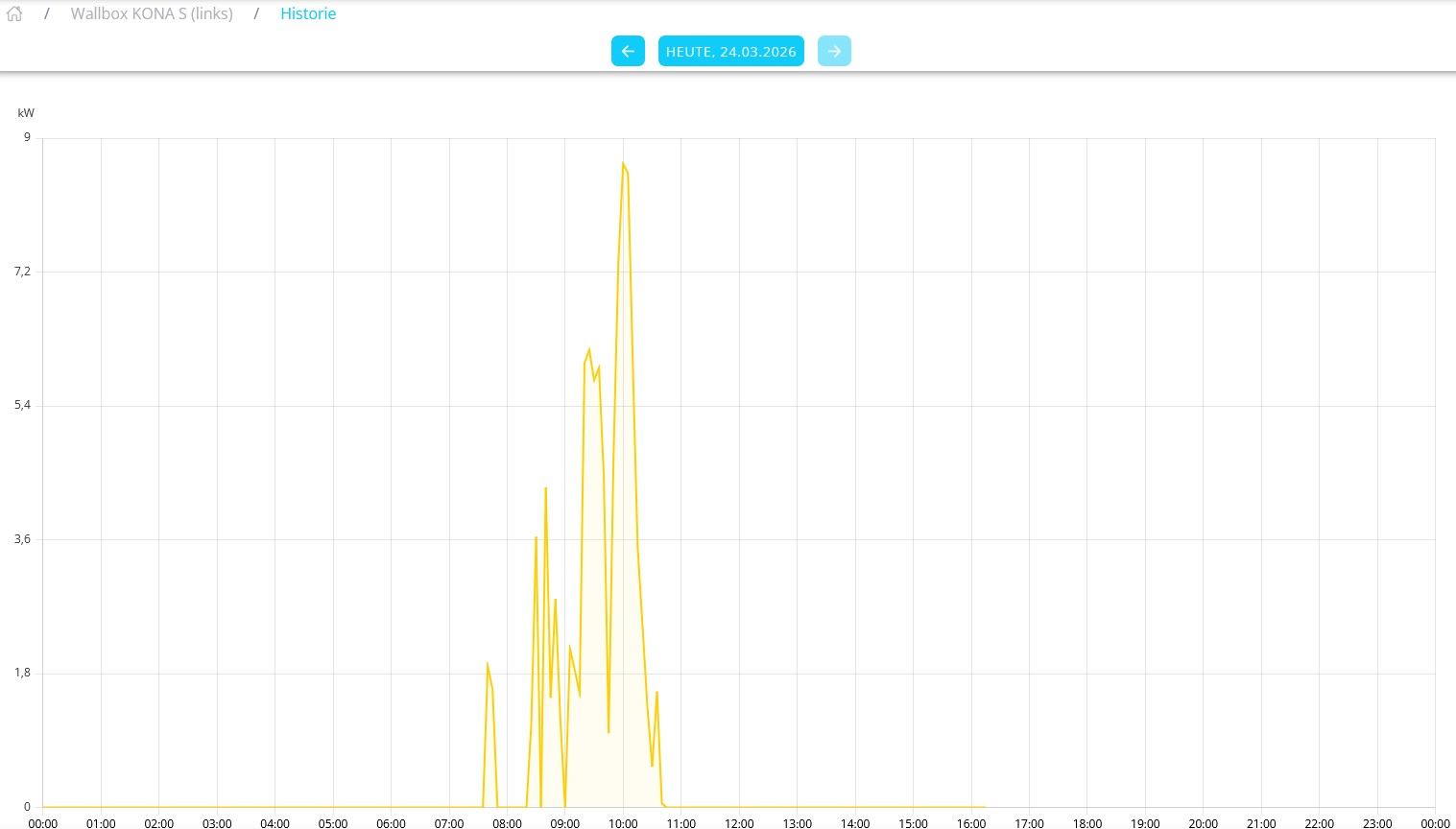
The main window for this menu item displays the history for your wallbox: |
|
|
3.4. Energy limit
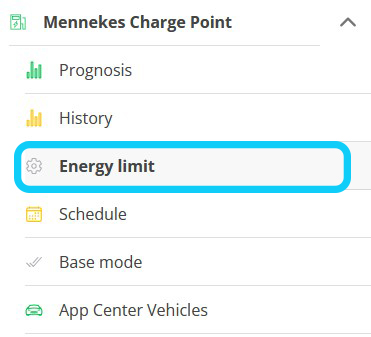
|
Use this menu item to set an energy limit for charging your vehicle. |

|
There is a slider for this in the corresponding main window.
etc. |
Confirm the setting using the in the lower-right corner of the main window. |
3.5. Schedule (Active Mode)
Klicken oder tippen Sie auf die Menüoption Zeitplan, um einen Aktiven Modus einzustellen.
Dieser Modus überschreibt den Grundmodus der Ladestation mit benutzerdefinierten Aufgaben.
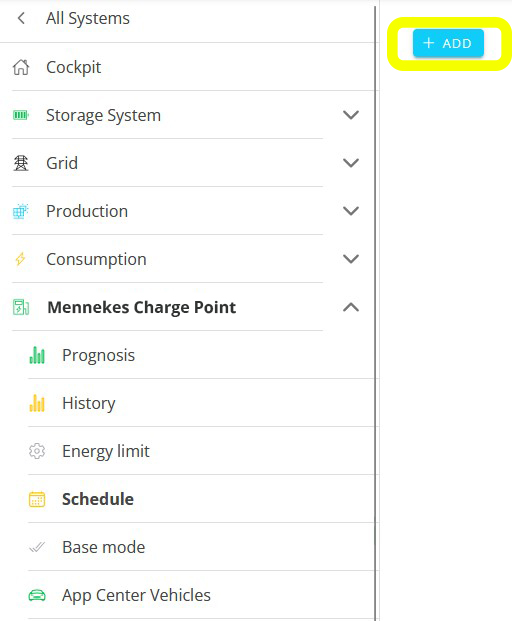
|
In the main window, click or tap + ADD to create a new task. |
Now you can configure settings for your task:

Charging Mode
Select the desired charging mode for the task. The following options are available:
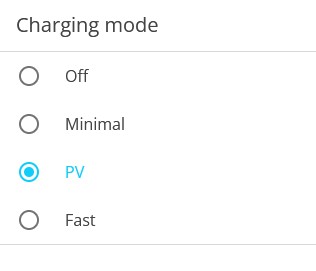
- No charging
-
Completely disables the charging station.
- Excess solar power with guaranteed charging
-
The PV Surplus with Guaranteed Charging mode guarantees a minimum charging status for the vehicle. If there is sufficient PV surplus, it is used. If there is no PV surplus, the vehicle is charged using grid withdrawal up to the minimum charging power.
- Excess solar power
-
In PV Surplus mode, EV charging is dynamically adjusted to the excess electrical energy.
- Fast charging
-
In Fast Charging mode, the vehicle charges as quickly as possible.
Wiederholung und Start-/Endzeiten
Stellen Sie dann den Wiederholungsintervall ein und definieren Sie eine Start- und Endzeit für die Aufgabe.
Using + ACCEPT saves the task and displays it in the overview of your charging station in the main window. |
Edit Task
This main window displays your custom tasks (schedule).
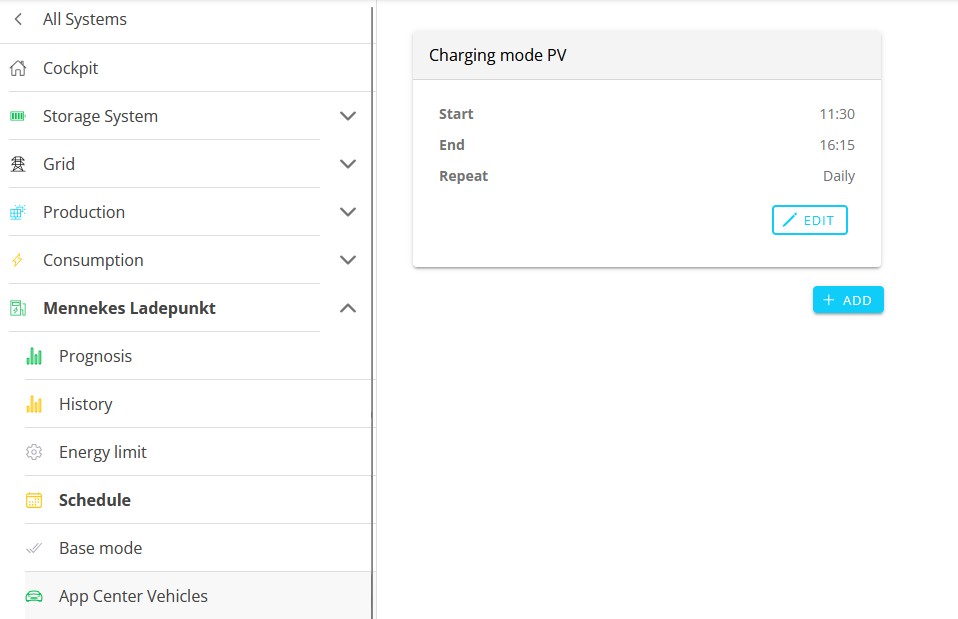
If you already have a task in the list, you can EDIT it to, e. g. adjust the time period or the charging mode during that time period.

Use ACCEPT to save your changes to the task. |
|
Click/tap DELETE to delete the task. |
3.6. Base mode
Click or tap the Base Mode menu item to open the following main window:
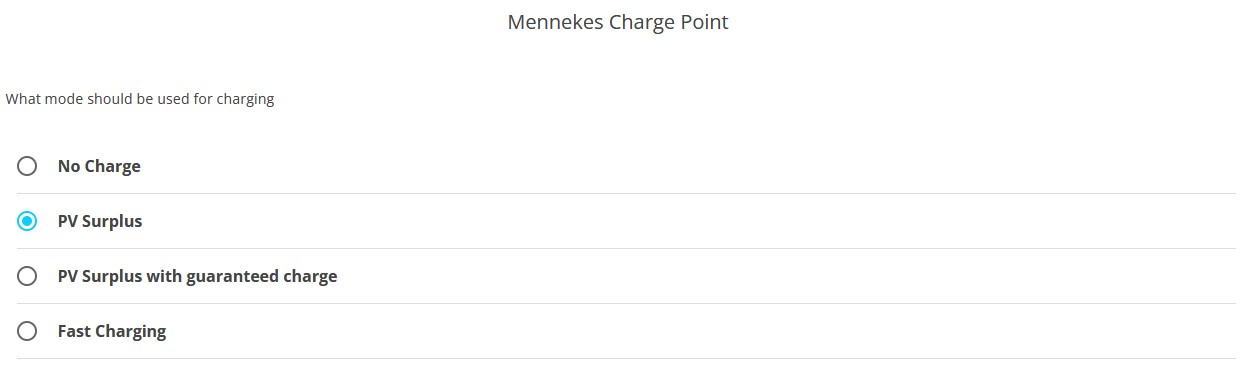
- No charging
-
Completely disables the charging station.
- Excess solar power
-
In PV Surplus mode, EV charging is dynamically adjusted to the excess electrical energy.
- Excess solar power with guaranteed charging
-
The PV Surplus with Guaranteed Charging mode guarantees a minimum charging status for the vehicle. If there is sufficient PV surplus, it is used. If there is no PV surplus, the vehicle is charged using grid withdrawal up to the minimum charging power.
- Fast charging
-
In Fast Charging mode, the vehicle charges as quickly as possible.
Confirm the setting using the in the lower-right corner of the main window. |
3.7. App Center Vehicles
|
Use this menu item to configure vehicle-specific settings. The main window displays the settings for the Generic Vehicle app. The Generic Vehicle app is automatically installed when you install FEMS App Alfen Charging Station. |
Generic Vehicle means:
-
The primary vehicle that is charged at this charging station by default.
-
We recommend that you provide the correct model name of the vehicle.
-
You can also define more than one vehicle.
The following settings are available for the connected Generic Vehicle:
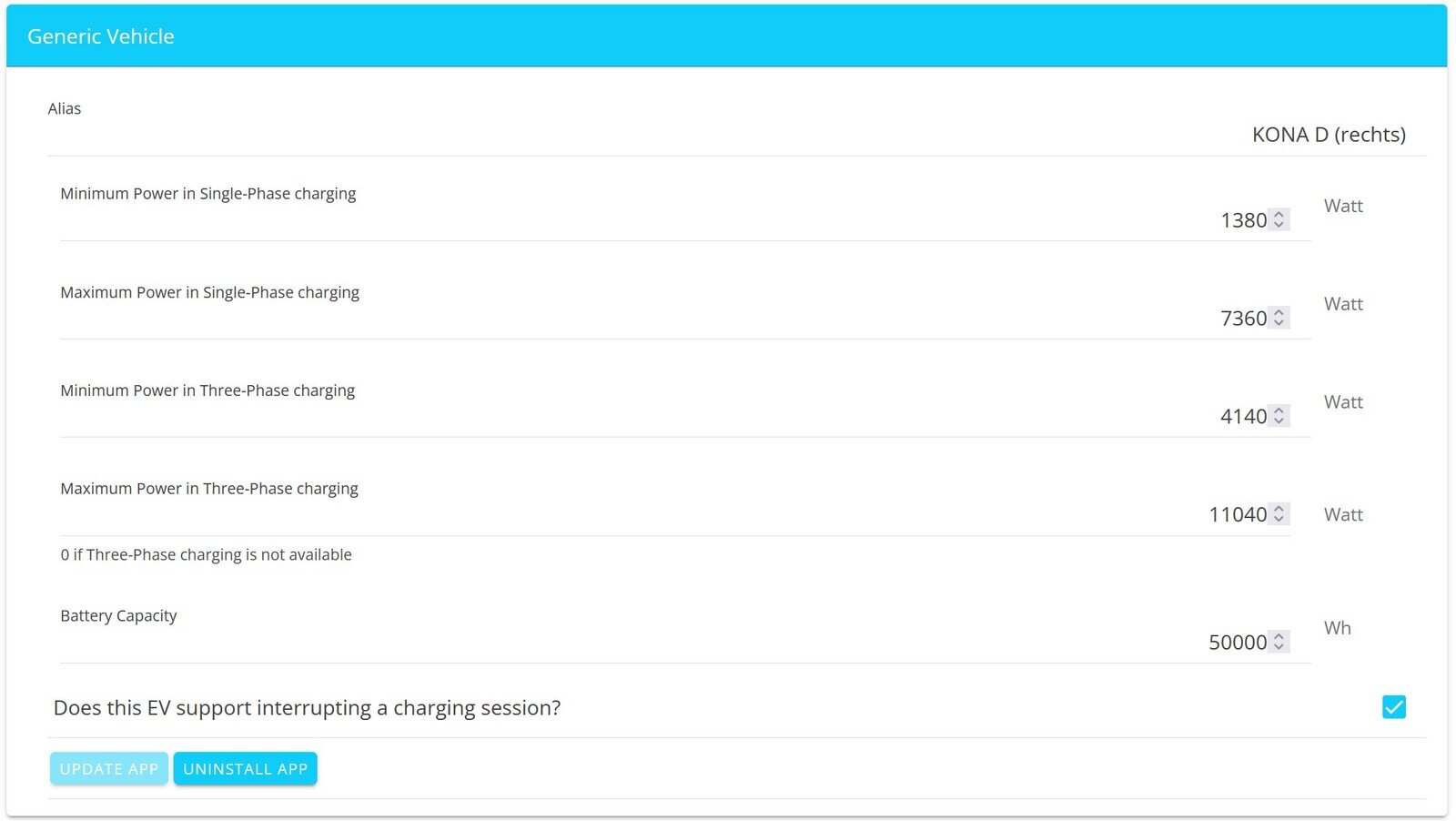
Once you have made the desired changes, save them by clicking UPDATE APP.
| These settings provide FEMS with more precise vehicle data, making the charging forecast for your vehicle more accurate. You can also enter your vehicle’s model name here so that it appears in the app. |
3.8. Phase Switching
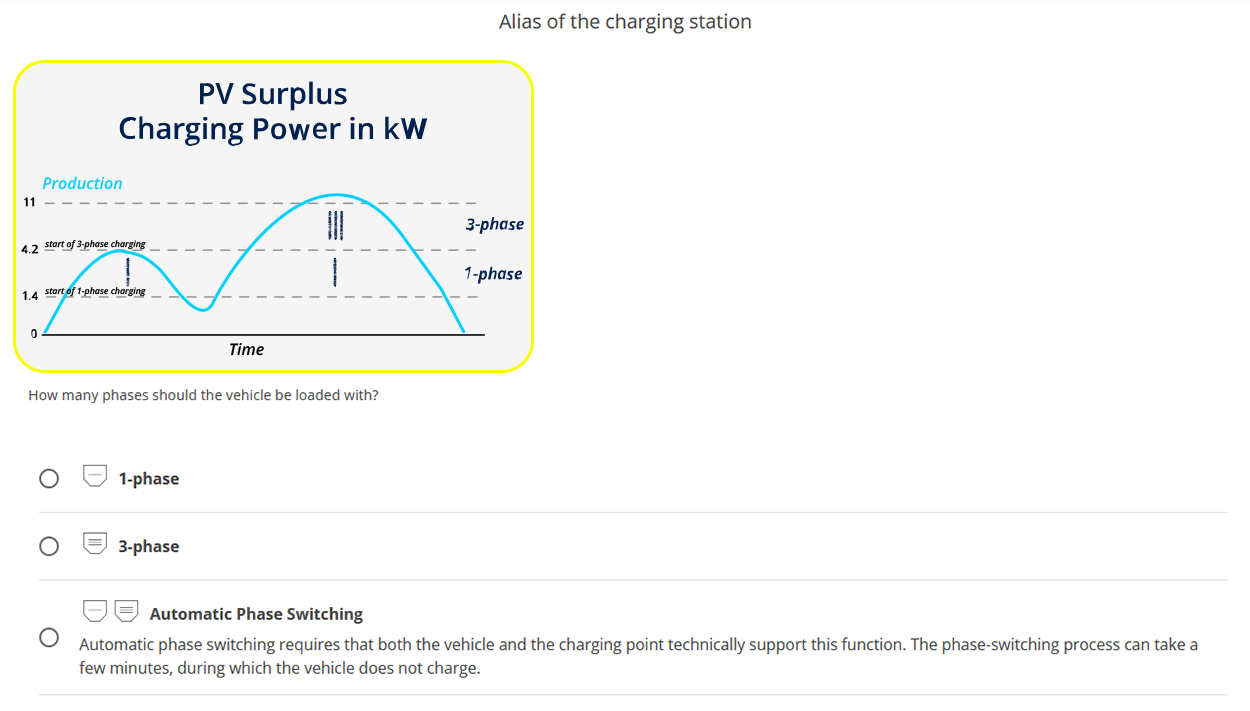
If a PV charging mode (PV Surplus or PV Surplus with guaranteed charging) is selected for your charging station, you can manually switch from 1-phase to 3-phase charging in the submenu using the Phase Switching option: |
|
Tap or click the submenu item to access the following main screen. The following options are available here:
|
|
3.8.1. Manual Phase Switching
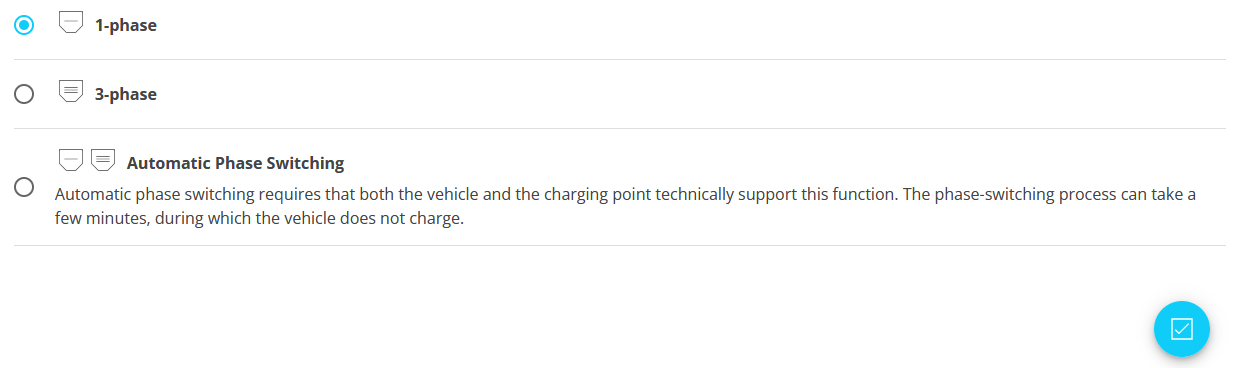
One scenario would be to use the limited PV production to charge the vehicle anyway by manually switching to single-phase charging.
|
Switching During Charging:
|
|
3.8.2. Automatic Phase Switching
In addition to the Manual Phase Switching (1- or 3-phase), there is the option of Automatic Phase Switching:
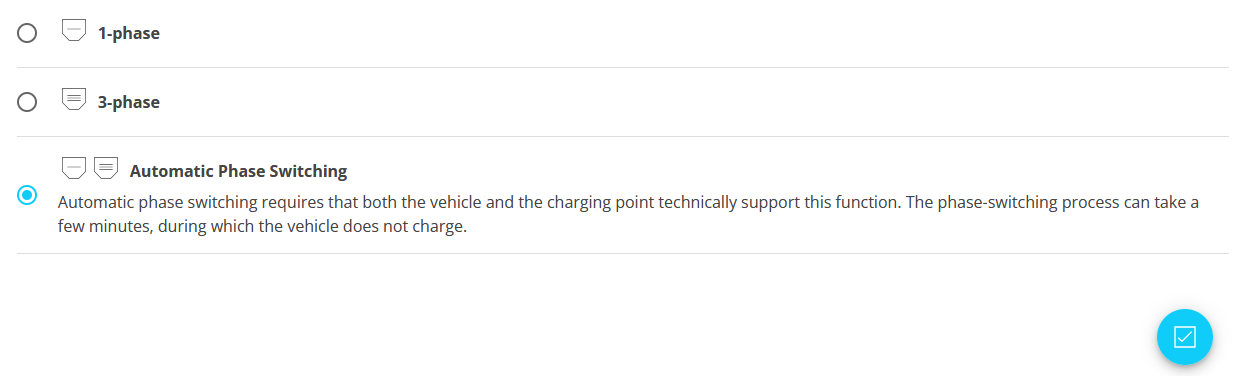
The phases are automatically switched based on the charging power. This allows even a small amount of excess PV power to be utilized.
|
|